Sales Settings
Add Lead & Duplication
Overview
This settings page controls how leads are created and how the system handles duplicate entries.
Add Lead Settings
| Setting | Description |
|---|---|
| Show (select) in country code menu | When ON, a blank "select" option appears in the country code dropdown. |
| Unable to Copy Lead Number | When ON, users cannot copy the lead's mobile number from the CRM. |
| Generate Fake Email on Lead Creation | When ON, the system auto-generates an email if none is provided. |
| Fake Email Domain Name | The domain used for fake emails (e.g., godzilla.com). Helps distinguish real emails from generated ones. |
| Request Tags | Define tags with colors applied to leads. Example: VIP in red #ff0000, Urgent in dark red #b00404. Click + Add New Tag to add more. |

Duplication Settings
Listed in order as they appear in the system:
| Setting | Description |
|---|---|
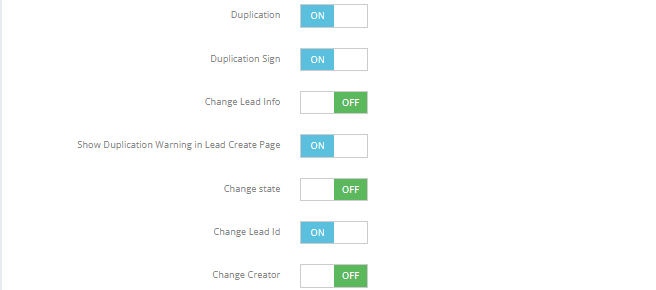
| Duplication | When ON, duplicate leads go to the Duplicated Leads screen instead of being added again. |
| Duplication Sign | Adds a visual badge on lead records flagged as duplicates. |
| Change Lead Info | When ON, the existing lead's info is updated automatically with the new duplicate's data. |
| Show Duplication Warning on Lead Creation Page | Displays "Number is Duplicated!!" when a duplicate mobile number is typed during manual lead creation.
|
| Change State | When ON, the existing lead's state is updated if the duplicate carries a different state. |
| Change Lead ID | When ON, the Lead ID is updated if the duplicate has a different one. |
| Change Creator | When ON, the creator field is updated if the duplicate comes from a different source. |

Other Settings on This Page
| Setting | Description |
|---|---|
| Send view unit email via agent's email | Emails about unit views are sent from the agent's email address. |
| Leads History Sorting (Descending) | Lead history is shown newest first. |
State Action
Overview
This page controls how lead states behave — what fields are required, when check-ins are needed, and how state changes work.
Settings Reference
| Setting | Description |
|---|---|
| Done Deal State | Defines which states are considered eligible to mark a lead as Done Deal. |
| Done Deal Line Mandatory to Reservation Phase | When ON, a lead must be in Done Deal state before it can move to reservation. |
| Keep Reassigned Leads in the Same State | When ON, reassigned leads stay in their current state. When OFF, they go back to Fresh Leads. |
| States That Don't Require Time and Date in Next Action | For these states, the salesman can log a next action without setting a date/time. |
| States Require Check-in | A check-in must be logged when the lead is in one of these states. |
| States That Require Contact Tool Field | The contact method field (call, WhatsApp, etc.) is mandatory in these states. |
| States That Require Reply Option Field | A reply option must be selected in these states. |
| States That Require Segment Field | The segment field is mandatory in these states. |
| States That Require Age Field | The age field is mandatory in these states. |
| States That Require Purpose Field | The purpose field is mandatory in these states. |
| States That Require Gender Field | The gender field is mandatory in these states. |
| Select State Require Feedback | Feedback is mandatory when moving a lead to these states. |
| Set Next Date Limitation | Configures date constraints for next actions in selected states. |
| Show Reply Options in Next Action | When ON, reply options appear in the next action form for selected states. |
| States for Setup Meetings Location and Contact Guests | These states allow setting a meeting location and adding guest contacts. |
| Set No-Action State Visible | When ON, the "No-Action" state becomes visible to users. |
| Require Check-in Before State Move | When ON, a check-in must be completed before changing a lead's state. |
| Show Lead Info in Call Center Export | When ON, lead details are included in call center export files. |
| Lead Sorting Method | Sets the default sorting order for leads across tabs. |


Notifications
Overview
This page controls when and how the system sends email and in-app notifications related to leads.
Notification Settings
| Setting | Description |
|---|---|
| Send Email on Lead Creation | Sends an email automatically whenever a new lead is created. |
| Notify Time Before (in hours) | Sets how many hours in advance a reminder notification is sent before a scheduled action. |
Delay Notifications
Delay notifications alert managers when a lead has gone too long without action.
⚠️ How Delay and Withdraw work together: The delay timer starts first — once a lead becomes delayed (no action taken within the configured hours), the system begins sending delay notifications. After that, the Withdraw timer kicks in and the lead gets pulled from the salesman and moved to Lead Stock. In other words, delay notifications are the warning, and withdraw is the consequence. Make sure the delay hours are set to less than the withdraw hours in Withdraw Settings so the salesman gets notified before the lead is taken away.

| Setting | Description |
|---|---|
| Delays (Notification Triggers) | Select which lead states trigger a delay notification. |
| Delays (Email Notifications) | Select which states trigger a delay email notification. |
| Within (hours) | How long a lead can be inactive before the first notification is sent. Default: 1 hour. |
| Notification to Managers After (hours) | How long before the manager is also notified. Default: 2 hours. |
💡 Delay notifications repeat every 30 minutes. If set to 2 hours, the system sends 4 notifications total before stopping.
Sales Assignment Email Notifications
| Trigger | Who Gets Notified |
|---|---|
| New lead assigned | Salesman + their manager |
| Assigned salesman completes an action | Manager only |
| Another user takes action on the lead | Salesman + their manager |
Rotation
Overview
The Rotation feature automates how leads are distributed across the sales team. Instead of manually assigning each lead, the system can rotate leads evenly or based on conditions.

Rotation Options
| Option | Description |
|---|---|
| Rotation All Users | Rotates leads among all active salesmen. |
| Rotation Management | Rotates leads to specific users only (selected manually). To configure which users are included, go to Setup → Rotation Management. |
| Rotation 24 Hours | Runs the rotation continuously, 24/7, including outside working hours. |
Lead Rotation Types
| Type | Description |
|---|---|
| Rotate Unassigned Leads | Automatically assigns leads that have no salesman assigned. |
| Rotate Withdrawn Leads | Reassigns leads that were withdrawn back into the sales pipeline. |
| Rotate New Leads | Distributes newly created leads evenly among the team. |
Rotation Conditions
You can add custom conditions to control how leads are rotated:
| Condition | Description |
|---|---|
| Type | The category or type of lead to rotate. |
| Item Value | The specific value to match. |
| Salesman | Which salesman receives these leads. |
| Role | Rotate based on user role. |
| Quota | How many leads each salesman receives per rotation cycle. |
| Interval | Time interval between each rotation assignment. |
Working Days
Configure which days of the week rotation is active to match your team's schedule.
Key Things to Know
- Rotation runs automatically based on the rules you configure — no manual action needed.
- Leads go to the salesman's Fresh Leads tab after rotation.
- Use Rotation Management if you want to control exactly who receives which leads.
Withdraw
Overview
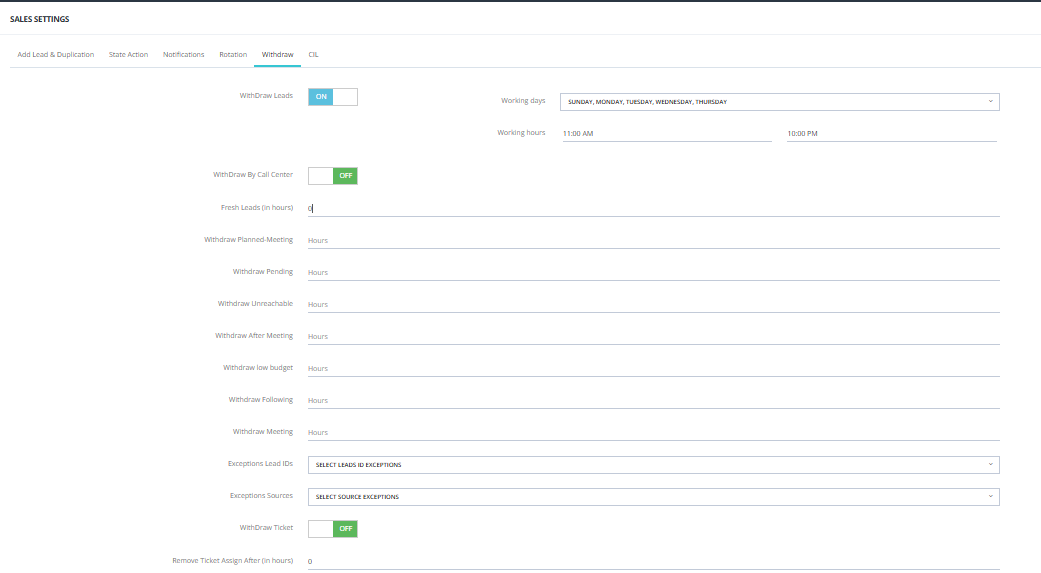
The Withdraw settings control when leads are automatically taken back from a salesman due to inactivity. Withdrawn leads move to Lead Stock and can be reassigned.
Main Switch
| Setting | Description |
|---|---|
| Withdraw Leads | Master ON/OFF switch for the entire withdraw feature. |
| Working Days | Which days of the week the withdraw rules apply (e.g., Sunday–Thursday). |
| Working Hours | The time window during which withdraw rules are active (e.g., 11:00 AM – 10:00 PM). |
Withdraw Settings
| Setting | Description |
|---|---|
| Withdraw by Call Center | When ON, allows the call center team to manually withdraw leads from salesmen. |
| Fresh Leads (in hours) | How long a lead can sit in Fresh Leads without action before being withdrawn. |
Withdraw by State
Set specific withdrawal timeframes per lead state. Leave blank to disable withdrawal for that state.
💡 Only states that have a Next Action Date set will appear here. States without a next action date will not show up in this section.
💡 Only states that have a Next Action Date set will appear here. States without a next action date will not show up in this list.
| State | Setting |
|---|---|
| Planned Meeting | Hours of inactivity before withdrawal. |
| Pending | Hours of inactivity before withdrawal. |
| Unreachable | Hours of inactivity before withdrawal. |
| After Meeting | Hours of inactivity before withdrawal. |
| Low Budget | Hours of inactivity before withdrawal. |
| Following | Hours of inactivity before withdrawal. |
| Meeting | Hours of inactivity before withdrawal. |
Exceptions
| Setting | Description |
|---|---|
| Exceptions Lead IDs | Leads with these Lead IDs will not be withdrawn, even if inactive. |
| Exceptions Sources | Leads from these sources will not be withdrawn automatically. |
Ticket-Related Withdraw
| Setting | Description |
|---|---|
| Withdraw Ticket | When ON, leads associated with a support ticket can be withdrawn. |
| Remove Ticket Assignment After (hours) | How long before the ticket assignment is removed automatically. |
How Withdraw Works with Delay Notifications
The system follows this sequence:
- Lead becomes inactive (no action taken).
- Delay notifications start firing — alerting the salesman and manager (configured in Notifications Settings).
- Once the withdraw timer expires, the lead is automatically withdrawn and moved to Lead Stock.
💡 Set your delay hours to be less than your withdraw hours so the salesman gets a warning before the lead is taken away.
Key Things to Know
- Withdrawn leads move to Lead Stock — they are not deleted.
- From Lead Stock, they can be reassigned manually or via Rotation.
- Withdraw rules only apply during the configured working days and hours.
- Use Exceptions to protect important lead sources or campaigns from being auto-withdrawn.
CIL
Overview
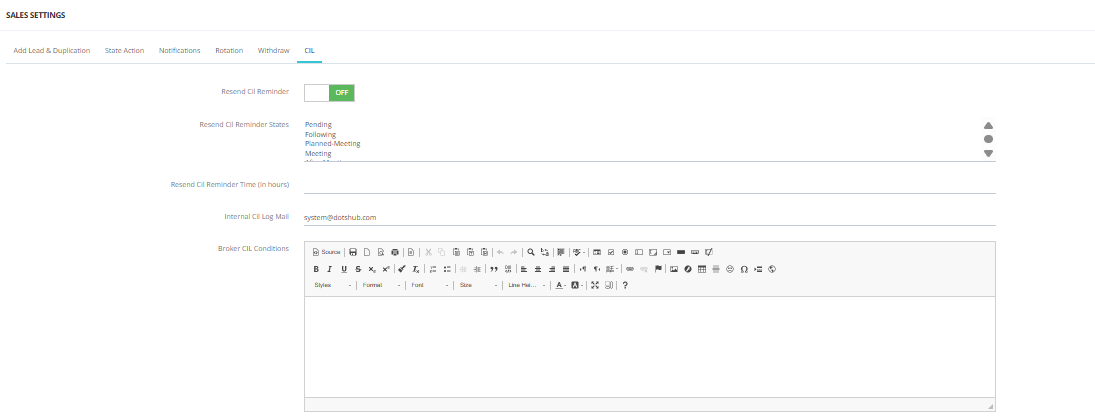
CIL (Client Information Letter) settings control how and when CIL reminders are sent to clients and brokers.
CIL Settings
| Setting | Description |
|---|---|
| Resend CIL Reminder | When ON, the system automatically resends CIL reminders. |
| Resend CIL Reminder States | Select which lead states trigger a CIL reminder resend. |
| Resend CIL Reminder Time (in hours) | How many hours after the original CIL before the reminder is resent. |
| Internal CIL Log Mail | Sends an internal email log when a CIL is issued. |
| Broker CIL Conditions | Defines the conditions under which a CIL is sent to brokers. |