Leads Stock
Overview
Lead Stock contains leads that have been withdrawn from a salesman — either manually, automatically, or because they were unassigned. Think of it as a holding area for leads waiting to be redistributed.

How Leads End Up in Lead Stock
A lead moves to Lead Stock when:
- It is manually withdrawn from a salesman by a manager.
- It is automatically withdrawn based on time rules configured in Sales Settings → Withdraw.
- It is unassigned from a salesman without being reassigned to someone else.
What You See in the Lead Stock List
| Column | Description |
|---|---|
| Name | Full name of the lead |
| Mobile | Contact number |
| Created By | Who originally created the lead |
| Lead ID | Marketing campaign ID |
| Creation Date | When the lead was first created |
| Latest Sales Agent | The last salesman this lead was assigned to |
| Last State | The state the lead was in before being withdrawn |
| Un-Assignment Date | When the lead was withdrawn |
| Un-Assigned By | Whether withdrawal was Manual or Automated |
| Assign To | Button to reassign the lead |
| History | Button to view the full interaction history of this lead |
Lead Stock vs Leads Returned
There are two views within Lead Stock:
- Leads Stock — standard withdrawn/unassigned leads.
- Leads Returned — leads that were specifically withdrawn and are awaiting review. These show additional details including who the lead was withdrawn from and the last action taken. You can Assign them or Ignore them.
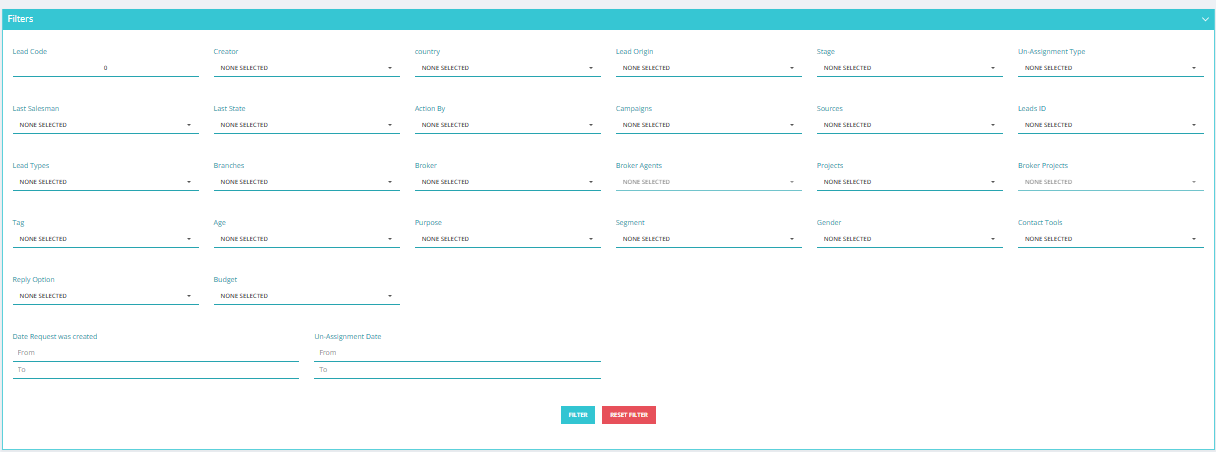
Available Filter Options
| Filter | Description |
|---|---|
| Lead Code | A unique identifier for each lead, used for quick reference. |
| Creator | The user who originally created the lead. |
| Country | Filters leads based on phone number country code. |
| Lead Origin | Where the lead came from (e.g., Add New, Upload, Facebook). |
| Stage | Filters leads by their current reservation/sales stage. |
| Un-Assignment Type | Filters by how the lead was unassigned (manual or automated). |
| Last Salesman | The last salesman this lead was assigned to before withdrawal. |
| Last State | The state the lead was in before being withdrawn. |
| Action By | Filters by the user who last took action on the lead. |
| Campaigns | Filters leads linked to specific marketing campaigns. |
| Sources | Filters by lead source (e.g., WhatsApp, Facebook). |
| Leads ID | Filters based on specific marketing info / Lead ID. |
| Lead Types | Filters by lead type (e.g., Lead, Broker Lead, Broker Request, CIL). |
| Branches | Filters leads associated with specific company branches. |
| Broker | Filters leads linked to specific brokers. |
| Broker Agents | Filters by agents working under a broker. |
| Projects | Filters leads associated with specific projects. |
| Broker Projects | Filters leads linked to broker-specific projects. |
| Tag | Filters by tags or labels applied to the lead. |
| Age | Filters by age or age group, if collected. |
| Purpose | Filters by the lead's stated purpose. |
| Segment | Filters by market segment or demographic group. |
| Gender | Filters by gender, if collected. |
| Contact Tools | Filters by contact method used (e.g., phone, email, WhatsApp). |
| Reply Option | Filters by the lead's preferred reply method. |
| Budget | Filters by the lead's budget range. |
| Date Request was created | Filter by the date the lead was originally created (From / To). |
| Un-Assignment Date | Filter by the date the lead was withdrawn (From / To). |
Available Actions
- Assignment — reassign a lead to a salesman.
- Export — download the list.
- Merge — merge duplicate leads.
- Sorting Method — sort by different criteria.
- History — view full lead history before reassigning.
Key Things to Know
- Lead Stock is different from New Leads — these leads have already been in the system and were previously assigned.
- Always check the Last State and History before reassigning to understand why the lead was withdrawn.
- You can automate redistribution using Rotation Settings (see Sales Settings → Rotation).