Client
Overview
The Clients module allows users to view, manage, and update client information. Each client is displayed as a card with their key details. The total number of clients is shown at the top of the page.

Client Information
Each client profile includes:
- Client ID — A unique ID assigned to each client.
- Name (Arabic & English)
- Mobile — Contact number.
- Email — Email address.
- Broker / Broker Agent — If the client was referred by a broker or agent.
- Sales Team — The salespeople responsible for this client.
- Notes — Any notes recorded about the client.
- Files & Private Files — Documents related to the client.
Available Actions
- Search Clients — Find a client by name or other details.
- Export Clients — Export the client list in CSV or Excel format.
- Reset & Send New Credentials — Reset a client's login credentials and send the updated info to their email.
- Edit Client — Modify the client's details.
- Delete Client — Remove the client from the system.
When to Create a Client Profile
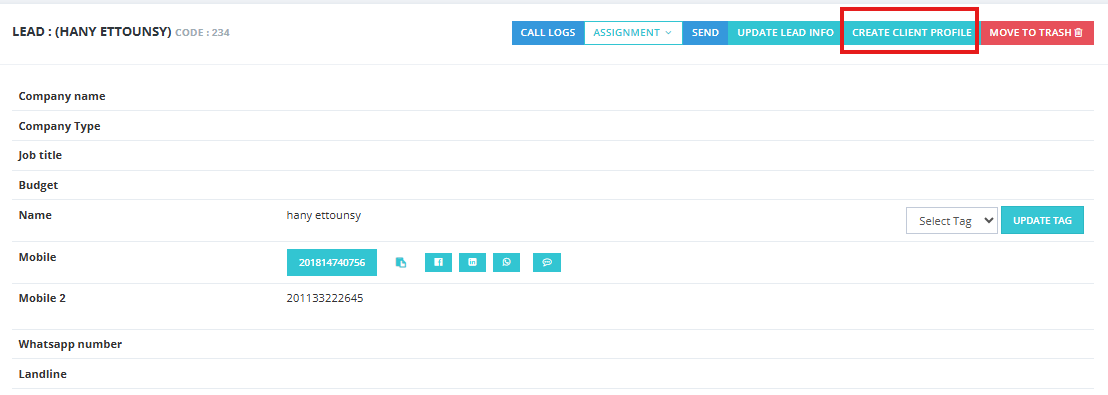
A client profile is created when a lead reaches the Done Deal state and is converted into a client.
How to Create the Profile
- Go to the Leads tab.
- Open the lead that is in Done Deal status.
- Click Convert to Client.
- Fill in the additional required fields for the client profile.
- Click Save — the lead is converted into a client profile and added to the Clients module with all related information.

Adding Custom Fields to the Client Form
You can add custom fields to the Convert to Client screen to capture additional information specific to your business.
Steps to Add Custom Fields
- Go to Setup → Fields Setup.
- Click Add New.
- Configure the field:
- Client Form — Set to True to make this field appear on the Convert to Client form.
- Field Name — Enter a name (e.g., Passport Number, Customer Preferences).
- Data Type — Select the appropriate type (text, number, date, etc.).
- Set as Unique — Enable to prevent duplicate entries for that value (e.g., National ID, Passport Number).
- Save — the field will now appear on the client form for all new conversions.