Payments
Overview
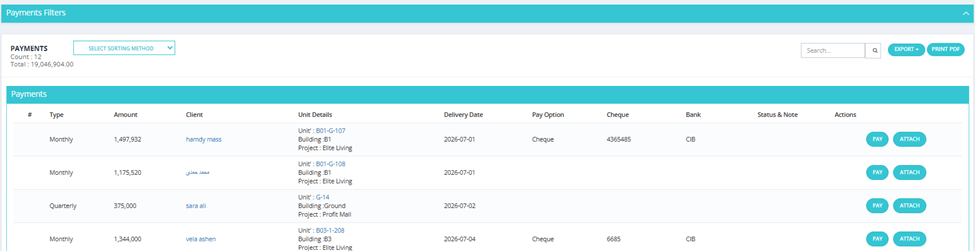
The Payments tab shows all installments that are due to be collected across all units in all projects. This is the main daily working screen for the finance team.
What You See
| Column | Description |
|---|---|
| # | Installment number. |
| Type | Payment type (e.g., Down Payment, Quarterly, Monthly, Reservation Fees, Maintenance). |
| Amount | Installment amount. |
| Client | Client name — clickable to open their profile. |
| Unit Details | Unit code, Building, Project. |
| Delivery Date | Due date for this installment. |
| Pay Option | Payment method used (e.g., Cheque, Cash, Transfer). |
| Cheque | Cheque number if applicable. |
| Bank | Bank name if applicable. |
| Status & Note | Current status of the payment and any notes. |
| Actions | PAY or ATTACH buttons. |
💡 Payments highlighted in red/pink are delayed — their due date has passed.
Filters
| Filter | Description |
|---|---|
| Date | Filter by payment due date (From / To). |
| Project | Filter by project. |
| Client | Filter by client name. |
| Paying Option | Filter by payment method (Cheque, Cash, Transfer, etc.). |
| Payment Type | Filter by installment type. |
| Payment State | Filter by payment state (Late Payment Status values from Finance Settings). |
| Payment Status | Filter by status. |
How to Collect a Payment (PAY)
- Find the installment in the Payments tab.
- Click PAY.
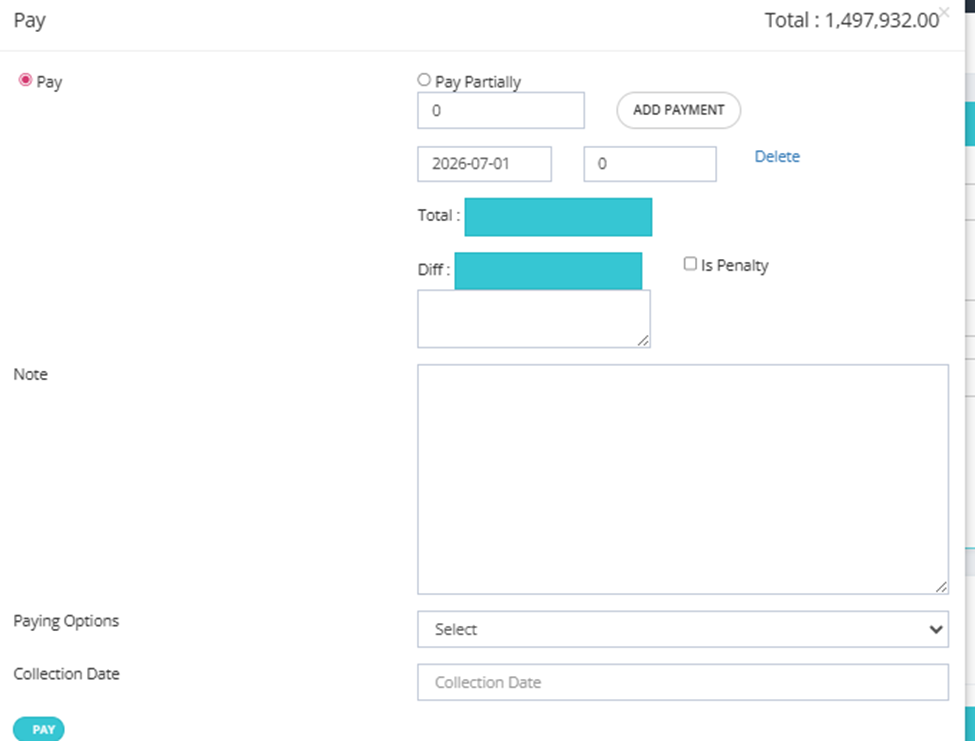
- The pay screen shows:
| Field | Description |
|---|---|
| Pay | Full payment option (selected by default). |
| Pay Partially | Enable to collect a partial amount. Enter the amount in the field next to Pay Partially. You can add multiple partial payments using the Add Payment button — each with its own date and amount. Example: split one installment across two payments on different dates. |
| Total | Shows the total being collected. |
| Diff | The difference between the installment amount and what's being collected. |
| Is Penalty | The Diff field shows the difference between the installment amount and what's being collected. If you collected less than the installment amount: leave Is Penalty unchecked → the difference is recorded as a Client Benefit (goes to Client Benefits tab). If you collected more and check Is Penalty → the extra amount is recorded as a Penalty (goes to Penalties tab). |
| Note | Free text note. |
| Paying Options | Select the payment method (Cheque, Cash, Transfer, Deposit, etc.). These options are configured in Finance Settings → Paying Options. |
| Collection Date | The date the payment was actually received. Use this when the physical payment (e.g., cheque) was received on a different date than when it's being entered. Example: client gave you a cheque on Thursday at 6PM but you're logging it on Sunday — set Collection Date to Thursday. |
- Click PAY to confirm.
ATTACH Button
Use ATTACH to upload a document or file related to a specific payment (e.g., cheque scan, transfer receipt).