9. NPV Module
Build and validate custom payment plans with clients in real time — enforcing pre-delivery, down payment, and present value rules before a unit enters the sales pipeline.
NPV Module
Overview
NPV (Net Present Value) is a tool that lets a salesman build and customize a payment plan for a client before reserving a unit. The salesman adjusts the installment schedule with the client in real time — once they agree and save the plan, it flows directly into the Unit Sales Pipeline and is used as the unit's payment plan from the Hold step onwards.
Why NPV Exists
When a client buys a unit, the nominal total of all payments may equal the unit price — but payments that come in late are worth less in today's money. The NPV tool calculates the true present value of a payment plan and enforces company financial rules to ensure every plan is profitable, not just on paper.
💡 Example: A client buys a 1,000,000 EGP unit on a 10-year plan. Total payments = 1,000,000 EGP. But because payments arrive over many years, their actual value today may be only 850,000 EGP — a hidden loss of 150,000 EGP. The NPV tool surfaces this before the plan is approved.
How It Fits into the Sales Flow
Unit View → Open Unit Details → Select Payment Plan → NPV Editor
→ Adjust installments with client → Validate → Save Plan
→ Plan flows into Unit Sales Pipeline (Hold step)
The NPV editor is accessed from inside the Unit Details screen. The salesman works through the payment plan with the client, and only after saving does the unit enter the pipeline.
The 4 Validation Rules
Every plan is automatically checked against 4 rules before it can be saved:
| # | Rule | Requirement |
|---|---|---|
| 1 | Total Check | All payments must add up exactly to the unit price. |
| 2 | Pre-Delivery Check | Payments collected before the delivery date must be at least the configured Delivery Percentage Limit %. |
| 3 | Minimum Down Payment Check | The down payment must be at or above the Minimum Down Payment Percentage % set on the payment plan. |
| 4 | Minimum Installment Check | Each installment must be at or above the configured minimum installment % of the unit price. |
| 5 | XNPV Check | The true present value of all payments must be at or above the unit price minus the maximum allowed discount. |
If a check fails:
- Users without override permission → Plan is rejected and cannot be saved.
- Users with override permission → A warning is shown with the exact loss amount. They can save anyway — but this only overrides the XNPV check. The other 3 checks (Total, Pre-Delivery, Minimum Installment) must still pass regardless.
Module Pages
| Page | Description |
|---|---|
| NPV Configuration | Settings at the project and unit level that control NPV rules. |
| NPV Editor | How to build, edit, and validate a payment plan. |
| NPV Comparison | How the system compares the original vs. edited plan and shows the verdict. |
| Saved NPV Plans | How to view, edit, or delete a saved NPV plan. |
NPV Configuration
Overview
NPV settings are configured at two levels — the Project level (inside Edit Project) and the Unit level (inside each unit's edit screen). Both levels also include settings on each Payment Plan individually. Together they define the financial rules that every NPV payment plan must comply with.
Project-Level Settings (Edit Project)
These settings apply to all units in the project and control the core NPV financial rules.
💡 For the Delivery Percentage Limit % check, the system determines the delivery date as follows: if the unit has its own Unit Delivery Date set, that date is used. If not, the system falls back to the Project Delivery Date. If both are set, the unit-level date takes priority.
| Setting | Description |
|---|---|
| Delivery Percentage Limit % | The minimum percentage of the unit price that must be collected before the delivery date. Example: 50% means at least half the unit price must be paid before delivery. |
| Rate (NPV) % | The annual discount rate used to calculate the present value of future payments (the "r" in the NPV formula). Admin can update this at any time — existing saved plans keep their original rate; only new plans use the updated rate. |
| Max Payment Method Year (NPV) | The maximum number of years a payment plan can span. |
⚠️ Changing the Rate (NPV) % only affects new plans going forward. For existing saved plans: if the unit has already been sold using that plan, the rate change has no effect on it. If the plan was saved but the unit has not yet been sold, it will be affected by the new rate.

Payment Plan Settings (inside each Project Payment Plan)
Each payment plan on the project also has its own setting:
| Setting | Description |
|---|---|
| Minimum Down Payment Percentage % | The minimum down payment percentage required for this specific payment plan. The salesman cannot go below this value when building an NPV plan using this template. |

Unit-Level Settings (Edit Unit)
These settings are specific to each individual unit and further restrict what a salesman can offer on that unit.
| Setting | Description |
|---|---|
| Maximum Discount Limit (NPV) % | The maximum discount allowed on this unit's NPV plan. If the effective discount exceeds this limit, the plan fails the XNPV check. |
| Minimum Installment (NPV) % | The minimum size of any single installment as a percentage of the unit price. No installment can go below this value. |

Payment Plan Settings (inside each Unit Payment Plan)
Each payment plan on the unit also has its own setting:
| Setting | Description |
|---|---|
| Minimum Down Payment Percentage % | The minimum down payment percentage for this specific payment plan on this unit. Overrides the project-level plan setting if set. |
💡 These unit-level limits work alongside the project-level settings — whichever is more restrictive applies.
NPV Editor
Overview
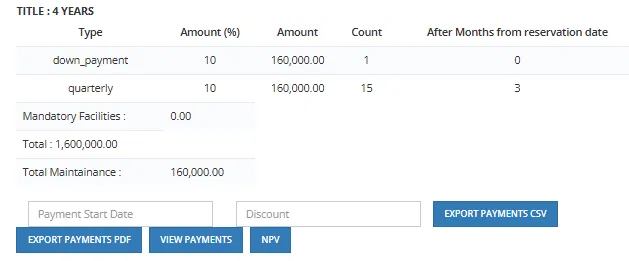
The NPV Editor is where the salesman builds and customizes a payment plan with the client, before the unit enters the Unit Sales Pipeline. It is accessed from inside the Unit Details screen by clicking the NPV button on a payment plan.
Auto-Rebalancing Logic
Whenever an installment amount is changed, the system automatically redistributes the difference across the remaining installments to keep the total equal to the unit price:
- If the edited amount is less than the standard installment — the difference is distributed equally across all other unlocked installments.
- If the edited amount is more than the standard installment — the extra amount is deducted equally from all other unlocked installments.
Any installment that has a radio button selected is locked — it will not be touched by the rebalancing engine regardless of changes made to other installments.
Accessing the NPV Editor
- Go to Units and open the unit the client is interested in.
- In the Unit Details screen, find the payment plan section.
- Select the payment plan template and click NPV.
- The NPV Editor opens.

The Editor Screen
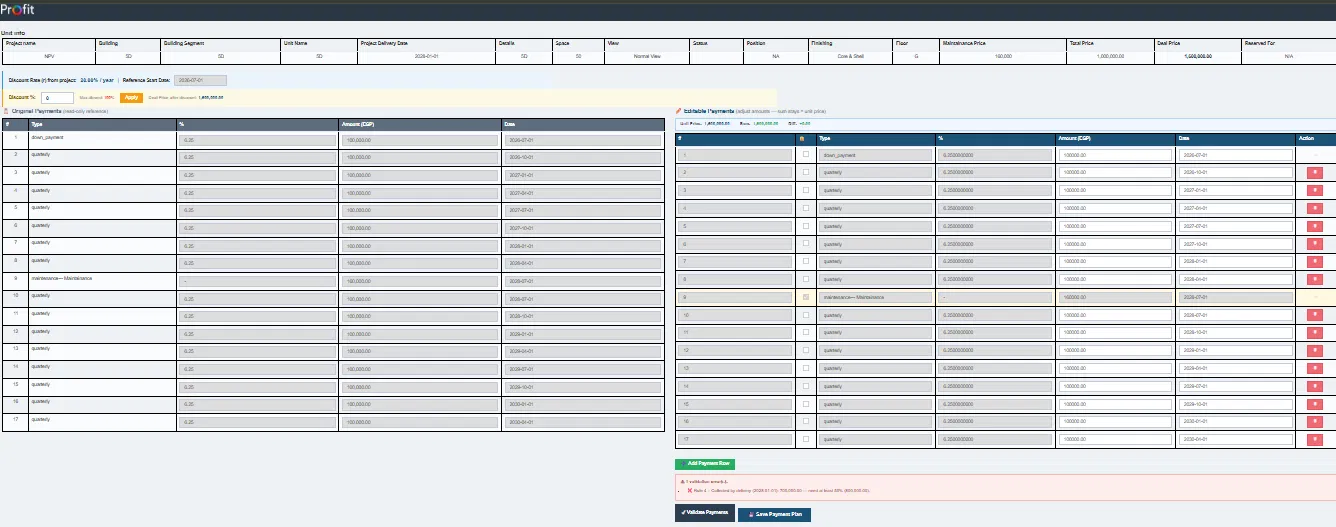
The NPV Editor shows two tables side by side:
| Side | Description |
|---|---|
| Original Payments (left) | The original payment plan template — read-only reference. |
| Editable Payments (right) | The working copy the salesman adjusts with the client. |
Above the editable table:
- Unit Info bar — shows Project, Building, Building Segment, Unit Name, Delivery Date, Space, View, Status, Finishing, Floor, Maintenance Price, Total Price, Deal Price, Reserved For.
- Discount Rate (r) from project — the current NPV rate for this project (shown as % / year).
- Reference Start Date — the starting date for calculating payment timelines. This is set in the Payment Start Date field on the unit details screen before clicking the NPV button.
- Discount % — the salesman can enter a discount percentage here; the system recalculates the Deal Price and shows it below (e.g., "Deal Price after discount: 1,400,000.00").
What the Salesman Can Do
| Action | Notes |
|---|---|
| Change an installment amount | System automatically rebalances remaining payments to keep the total equal to the unit price. |
| Change an installment date | Year and month only — allowed within the configured grace period. |
| Delete an installment | System rebalances remaining payments. |
| Add a custom payment row | Click Add Payment Row — system rebalances. |
| Enter a discount % | Recalculates the Deal Price. |
⚠️ The unit price and delivery date are locked — they cannot be changed from the NPV editor.
Validation Rules
After editing, the salesman clicks Validate Payments. The system runs 5 checks:
| Check | Rule |
|---|---|
| Total Check | Sum of all payments = unit price. The system rebalances automatically if not equal. |
| Pre-Delivery Check | Payments before the delivery date ≥ Delivery Percentage Limit % of the unit price. |
| Minimum Down Payment Check | The down payment must be at or above the Minimum Down Payment Percentage % configured on the payment plan. |
| Minimum Installment Check | Every installment ≥ Minimum Installment (NPV) % of the unit price. |
| XNPV Check | The present value of all payments ≥ unit price × (1 - Maximum Discount Limit %). |
If Validation Fails
| User Permission | Result |
|---|---|
| No override permission | If the plan fails the XNPV check, it is rejected and cannot be saved — a message shows the loss amount in EGP. The salesman must adjust the plan until it passes. |
| Has override permission | A warning is shown with the failure type and exact loss amount. User can click Save Anyway to save the plan. The override only applies to the XNPV check (the plan's present value being below the minimum acceptable worth) — all other validation checks still run normally and cannot be bypassed. |

💡 The loss amount is always shown explicitly so the authorized user understands the full financial impact before deciding to override.
Saving the Plan
Once validation passes (or an authorized user overrides), click Save Payment Plan.
The saved plan flows into the Unit Sales Pipeline — it becomes the payment plan used from the Hold step onwards when the unit is reserved for this client.
NPV Comparison
Overview
The NPV Comparison screen shows a side-by-side comparison of the original payment plan and the edited plan, with a calculated Verdict showing whether the edited plan is financially equivalent, better, or worse than the original.
What You See
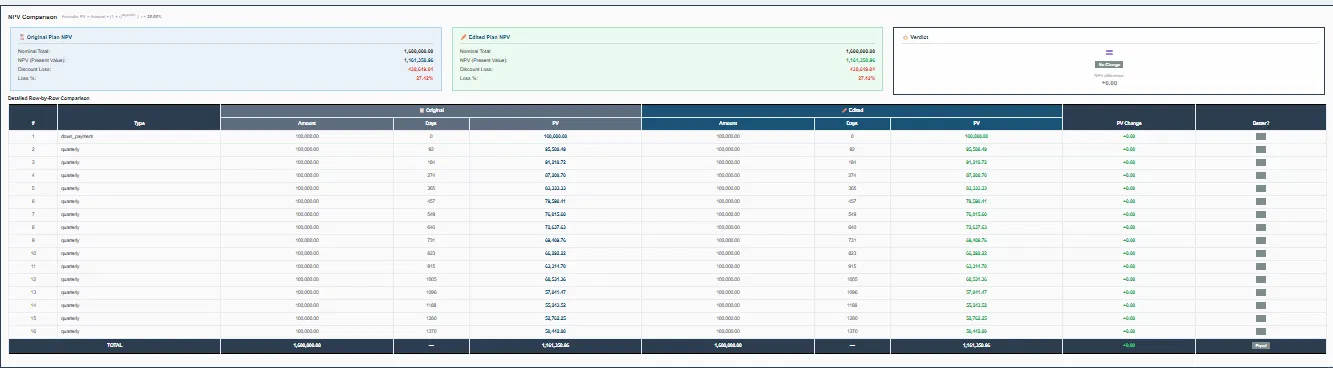
The screen is divided into three panels:
| Panel | Description |
|---|---|
| Original Plan NPV | The NPV figures for the unedited template plan. |
| Edited Plan NPV | The NPV figures for the plan after the salesman's adjustments. |
| Verdict | The final assessment — whether the change is acceptable or results in a loss. |
NPV Figures (shown for both Original and Edited)
| Field | Description |
|---|---|
| Nominal Total | The sum of all payments (should equal the unit price). |
| NPV (Present Value) | The true value of all payments in today's money, calculated using the project's discount rate. |
| Discount Loss | The difference between the Nominal Total and the NPV — represents the value lost due to the time value of money. |
| Loss % | The discount loss as a percentage of the Nominal Total. |
Detailed Row-by-Row Comparison
Below the summary panels, a detailed table shows every installment with:
| Column | Description |
|---|---|
| # | Installment number. |
| Type | Payment type (e.g., down_payment, quarterly, biannual, deliver). |
| Amount (Original) | The original installment amount. |
| Days (Original) | Days from the start date to this installment's due date. |
| PV (Original) | Present value of this installment in the original plan. |
| Amount (Edited) | The edited installment amount. |
| Days (Edited) | Days from the start date in the edited plan. |
| PV (Edited) | Present value of this installment in the edited plan. |
| PV Change | The difference in present value between original and edited. |
| Owner? | Indicates ownership or assignment of the installment. |
The Verdict
The Verdict panel shows the net result of all changes:
- No Change — the edited plan has the same NPV as the original.
- NPV difference — shown as a positive (gain) or negative (loss) amount in EGP.
💡 A positive PV Change means the edited plan collects more value earlier — better for the company. A negative PV Change means payments were pushed later, reducing their present value — a loss.
Saved NPV Plans
Overview
Once a payment plan has been validated and saved through the NPV Editor, it becomes a Saved NPV Plan linked to the unit. It can be viewed, edited, or deleted from the Unit Details screen.
What a Saved NPV Plan Shows
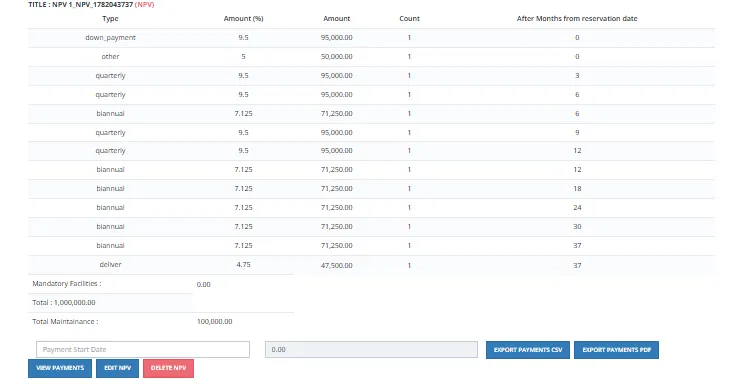
A saved plan displays the full installment schedule with the following details:
| Field | Description |
|---|---|
| Title | The plan name, including the NPV identifier (e.g., "NPV 1 — NPV_1782043737 (NPV)"). |
| Type | Payment type for each row (e.g., down_payment, quarterly, biannual, other, deliver). |
| Amount (%) | Each installment as a percentage of the total unit price. |
| Amount | The installment amount in EGP. |
| Count | Number of installments of this type. |
| After Months from reservation date | When this installment is due, counted from the reservation date. |
| Mandatory Facilities | Any mandatory facility costs added to the plan. |
| Total | The total unit price. |
| Total Maintenance | Total maintenance fees. |
Available Actions on a Saved Plan
| Button | Description |
|---|---|
| View Payments | Opens the full payment schedule with dates and amounts. |
| Edit NPV | Re-opens the NPV Editor to adjust the plan. Requires re-validation after any changes. |
| Delete NPV | Removes the saved NPV plan. |
| Export Payments CSV | Exports the payment schedule as a CSV file. |
| Export Payments PDF | Exports the payment schedule as a PDF. |
How the Saved Plan Connects to the Pipeline
Once saved, this NPV plan is the payment plan used when the unit is reserved. When the salesman proceeds to reserve the unit for this client, the plan flows into the Unit Sales Pipeline at the Hold step — it becomes the active payment schedule that Finance collects against throughout the contract lifecycle.
⚠️ If the NPV plan is edited after the unit has already entered the pipeline, re-validation is required and any override decisions are re-recorded.