NPV Editor
Overview
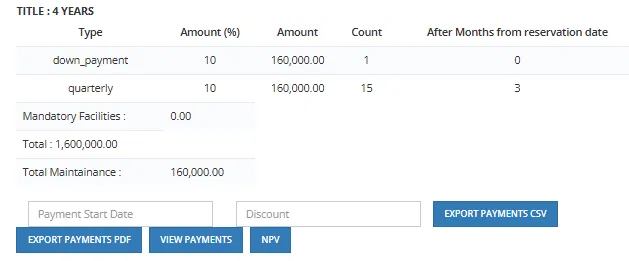
The NPV Editor is where the salesman builds and customizes a payment plan with the client, before the unit enters the Unit Sales Pipeline. It is accessed from inside the Unit Details screen by clicking the NPV button on a payment plan.
Auto-Rebalancing Logic
Whenever an installment amount is changed, the system automatically redistributes the difference across the remaining installments to keep the total equal to the unit price:
- If the edited amount is less than the standard installment — the difference is distributed equally across all other unlocked installments.
- If the edited amount is more than the standard installment — the extra amount is deducted equally from all other unlocked installments.
Any installment that has a radio button selected is locked — it will not be touched by the rebalancing engine regardless of changes made to other installments.
Accessing the NPV Editor
- Go to Units and open the unit the client is interested in.
- In the Unit Details screen, find the payment plan section.
- Select the payment plan template and click NPV.
- The NPV Editor opens.

The Editor Screen
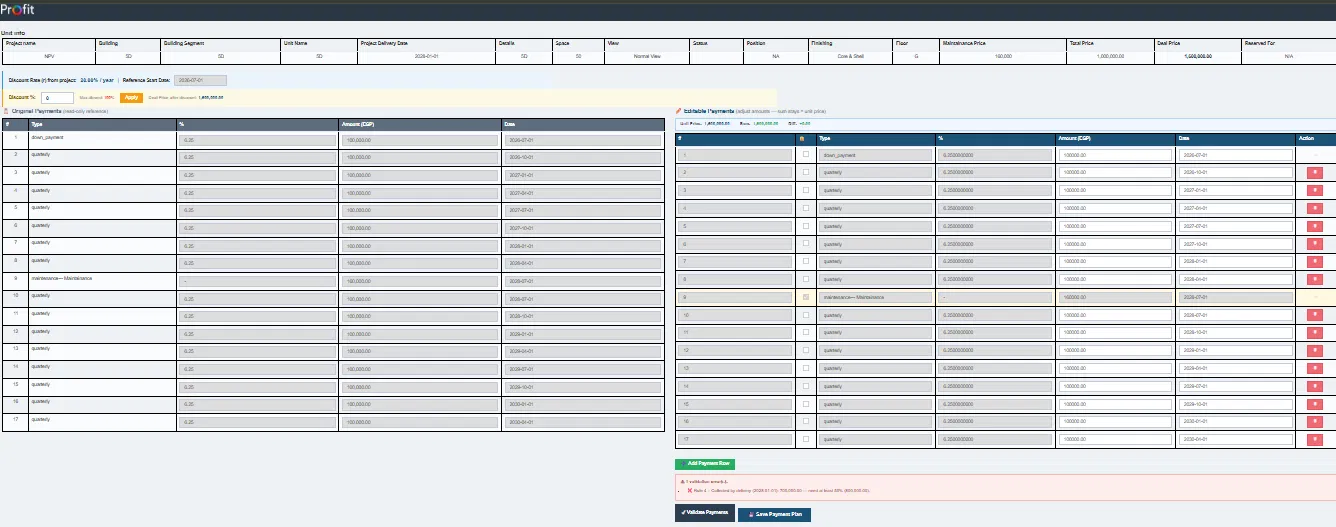
The NPV Editor shows two tables side by side:
| Side | Description |
|---|---|
| Original Payments (left) | The original payment plan template — read-only reference. |
| Editable Payments (right) | The working copy the salesman adjusts with the client. |
Above the editable table:
- Unit Info bar — shows Project, Building, Building Segment, Unit Name, Delivery Date, Space, View, Status, Finishing, Floor, Maintenance Price, Total Price, Deal Price, Reserved For.
- Discount Rate (r) from project — the current NPV rate for this project (shown as % / year).
- Reference Start Date — the starting date for calculating payment timelines. This is set in the Payment Start Date field on the unit details screen before clicking the NPV button.
- Discount % — the salesman can enter a discount percentage here; the system recalculates the Deal Price and shows it below (e.g., "Deal Price after discount: 1,400,000.00").
What the Salesman Can Do
| Action | Notes |
|---|---|
| Change an installment amount | System automatically rebalances remaining payments to keep the total equal to the unit price. |
| Change an installment date | Year and month only — allowed within the configured grace period. |
| Delete an installment | System rebalances remaining payments. |
| Add a custom payment row | Click Add Payment Row — system rebalances. |
| Enter a discount % | Recalculates the Deal Price. |
⚠️ The unit price and delivery date are locked — they cannot be changed from the NPV editor.
Validation Rules
After editing, the salesman clicks Validate Payments. The system runs 5 checks:
| Check | Rule |
|---|---|
| Total Check | Sum of all payments = unit price. The system rebalances automatically if not equal. |
| Pre-Delivery Check | Payments before the delivery date ≥ Delivery Percentage Limit % of the unit price. |
| Minimum Down Payment Check | The down payment must be at or above the Minimum Down Payment Percentage % configured on the payment plan. |
| Minimum Installment Check | Every installment ≥ Minimum Installment (NPV) % of the unit price. |
| XNPV Check | The present value of all payments ≥ unit price × (1 - Maximum Discount Limit %). |
If Validation Fails
| User Permission | Result |
|---|---|
| No override permission | If the plan fails the XNPV check, it is rejected and cannot be saved — a message shows the loss amount in EGP. The salesman must adjust the plan until it passes. |
| Has override permission | A warning is shown with the failure type and exact loss amount. User can click Save Anyway to save the plan. The override only applies to the XNPV check (the plan's present value being below the minimum acceptable worth) — all other validation checks still run normally and cannot be bypassed. |

💡 The loss amount is always shown explicitly so the authorized user understands the full financial impact before deciding to override.
Saving the Plan
Once validation passes (or an authorized user overrides), click Save Payment Plan.
The saved plan flows into the Unit Sales Pipeline — it becomes the payment plan used from the Hold step onwards when the unit is reserved for this client.