Roles & Users
Control who can access what across the entire CRM — build roles with granular permissions, place users in a hierarchy tree, and manage visibility from a single module.
Roles & Users
Overview
The Roles & Users module controls who can access what in the CRM. Access is managed through a two-step structure: first you create a Role with a specific set of permissions, then you create a User and assign them that role. The role defines what the user can see and do across the entire system.
How It Works
Create Role → Assign Permissions → Create User → Assign Role + Parent User
- Create a Role — give it a name and select which permissions it has from a categorized list.
- Create a User — assign them a Role, a Parent User, and their projects.
- The system uses the Parent User to build a hierarchy tree — this tree controls visibility: a parent can see everything their child users can see.
The Hierarchy Tree
The hierarchy tree is central to how the CRM works:
- Every user has a Parent — the user above them in the hierarchy.
- A parent can see all leads, tickets, and data belonging to any user below them in the tree.
- When assigning a lead or ticket to someone, the system shows users from the tree — a manager sees users under them and can assign to any of them.
- The tree also affects reports, dashboard views, and delayed lead visibility.
💡 Example: If Sales Manager A is the parent of Salesman B and Salesman C, then Manager A can see all leads assigned to B and C. B and C can only see their own leads.
Module Pages
| Page | Description |
|---|---|
| Roles | How to create roles, the role tree, and the full permissions reference. |
| Users | How to create users, assign roles and parents, and user-specific settings. |
| Permissions Reference | Full breakdown of every permission group and what each permission controls. |
Roles
Overview
A Role is a named set of permissions. Every user in the system must be assigned a role — the role determines what they can see and do across all modules.
The Roles Screen
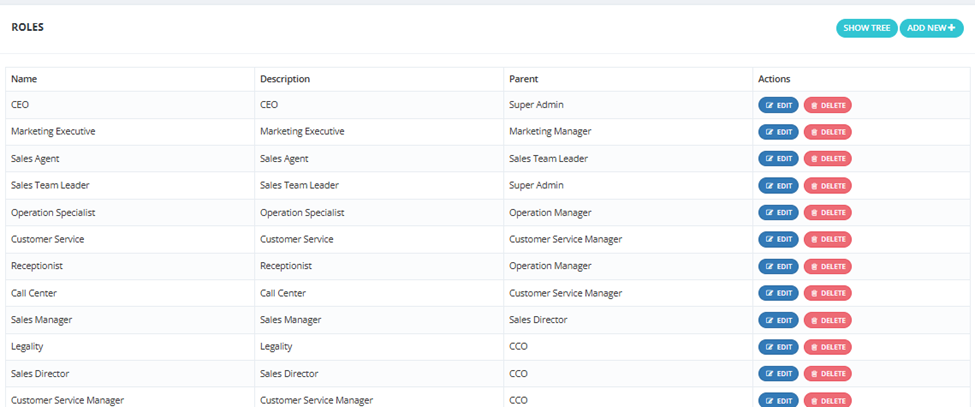
Go to Roles & Users → Roles. From here you can:
| Action | Description |
|---|---|
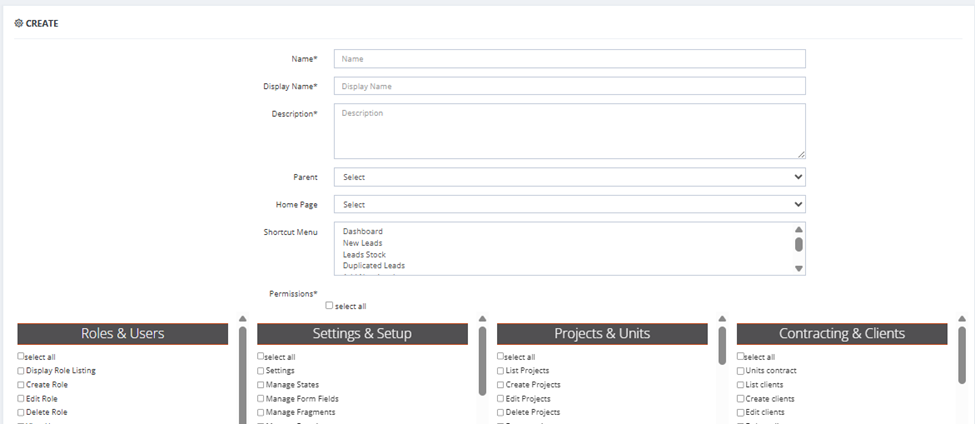
| Show Tree | View the full role hierarchy as a tree — shows how roles relate to each other via their parent roles.
|
| Create Role | Add a new role. |
Creating a Role
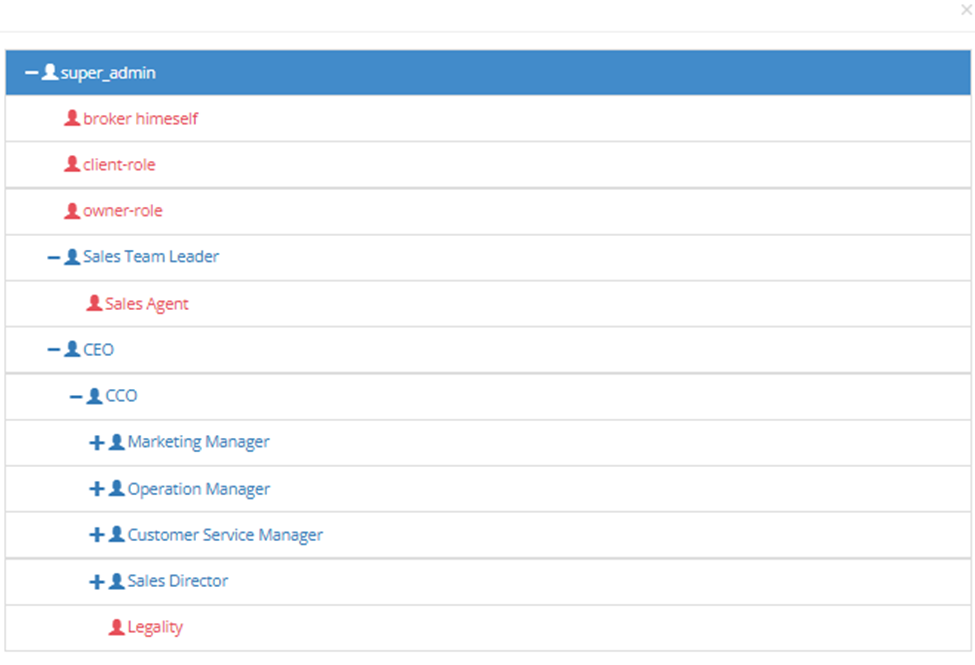
- Click Create Role.
- Fill in the role details and select its permissions (see Permissions Reference page).
- Select the Parent Role — the role above this one in the hierarchy tree. This determines which users will be able to see data from users assigned to this role.
- Save.

How the Role Tree Works
When creating a user, you select both a Role and a Parent User. The system uses the parent role structure to determine the hierarchy. When assigning a user's parent, it looks at the parent role selected on the role — and shows you all users who have that parent role assigned, so you can pick the correct one.
💡 Example: You create a "Salesman" role with "Sales Manager" as its parent role. When you create a user with the Salesman role and need to pick their Parent User, the system shows all users who have the Sales Manager role — you pick the specific manager this salesman reports to.
Role Permissions
Permissions are organized into groups. Each group covers a specific area of the CRM. See the Permissions Reference page for the full breakdown of every permission and what it controls.
The Select All option within each group grants every permission in that group at once.
⚠️ Some permissions have dependencies — enabling one may require another to be enabled as well, or a permission may be useless without a related one. Review the Permissions Reference carefully when building a new role.
Users
Overview
A User is anyone who logs into the CRM. Each user is assigned a Role (which defines their permissions) and a Parent User (which places them in the hierarchy tree).
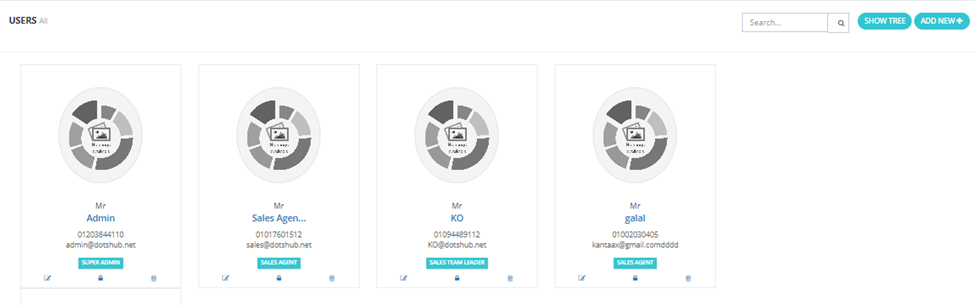
The Users Screen
Go to Roles & Users → Users. From here you can:
| Action | Description |
|---|---|
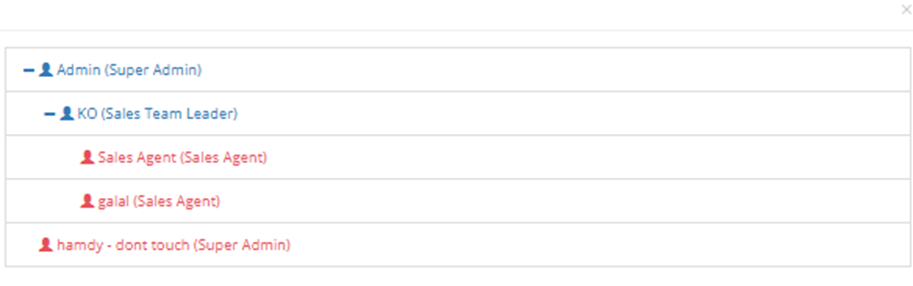
| Show Tree | View all users arranged in the hierarchy tree.
|
| Create User | Add a new user. |
| Edit | Edit an existing user's details, role, or parent. |
Creating a User
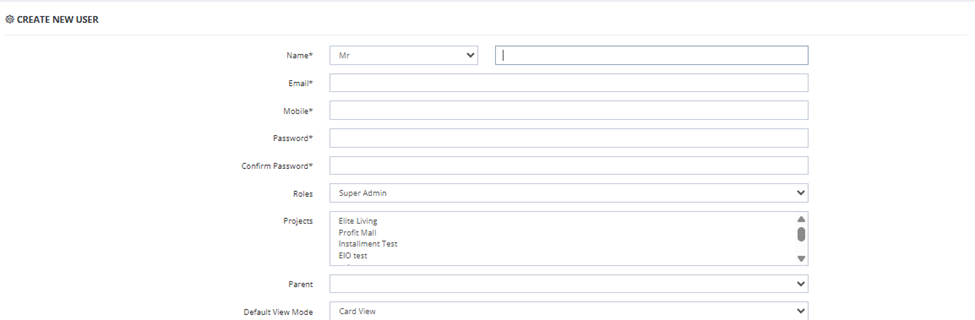
Click Create User and fill in the following fields:
Fields
| Field | Required | Description |
|---|---|---|
| Name | ✅ | User's full name. Includes a title prefix (e.g., Mr). |
| ✅ | User's email address — used for login and system notifications. | |
| Mobile | ✅ | User's mobile number. |
| Password | ✅ | Login password. |
| Confirm Password | ✅ | Password confirmation. |
| Roles | ✅ | The role assigned to this user — determines all permissions. |
| Projects | Optional | The projects this user has access to (e.g., Elite Living, Profit Mall, Installment). |
| Parent | Optional | The user above this user in the hierarchy tree. The system shows available parent users based on the parent role configured on the selected role. |
| Default View Mode | Optional | The default display mode for units (e.g., Card View). |
User-Level Settings
In addition to the role-based permissions, each user has the following individual settings:
| Setting | Description |
|---|---|
| SMS Assign | When ON, the user receives an SMS notification when a lead is assigned to them. |
| SMS Not Reply | When ON, the user receives an SMS notification when a lead hasn't been replied to within a set time. |
| User Logs | View a log of all actions taken by this user in the system. |
| SMS Logs | View all SMS messages sent to or from this user. |
| Email Logs | View all emails sent to or from this user. |
The Parent User & Hierarchy Tree
The Parent field places this user in the hierarchy tree under the selected parent. This has several effects:
- The parent user can see all leads, data, and activity belonging to this user.
- When this user needs to assign a lead, they see users below them in the tree.
- Reports and dashboards respect the tree — a manager sees aggregate data for their entire team.
- The dashboard's delayed leads section shows a manager all delayed leads across their team.
⚠️ A user without a parent sits at the top of their own tree branch — they will not be visible to any other user unless someone is set as their parent.
Permissions Reference
Overview
Permissions are organized into groups — each group covers a specific area of the CRM. When building a role, you select which permissions to grant from these groups. Select All within a group grants every permission in that group.
⚠️ The Settings permission is a special case — a user who has access to any Settings section without this permission can view the settings but any edits they make will not be saved.
Roles & Users
| Permission | Description |
|---|---|
| Display Role Listing | View the list of roles only — cannot edit or manage. |
| Create Role | Create new roles. |
| Edit Role | Edit existing roles. |
| Delete Role | Delete roles. |
| View Users | View the list of users only — cannot edit or manage. |
| Create Users | Create new users. |
| Show User Profile | View a user's full profile. |
| Edit User Profile | Edit user profile details. |
| Delete Users | Delete users. |
| Dashboard | Access the main dashboard. |
| Display Totals in Units List | See aggregate totals at the top of the units list. |
| Block Users | Block a user from logging in. |
| Users Logs | View the action log for users. |
| SMS Logs | View SMS logs. |
| Email Logs | View email logs. |
Settings & Setup
| Permission | Description |
|---|---|
| Settings | Required to save any changes in Settings — without this, settings pages are view-only. |
| Manage States | Create, edit, and delete lead states. |
| Manage Form Fields | Manage custom fields on lead/client forms. |
| Manage Fragments | Manage reusable content fragments. |
| Manage Rotation | Configure lead rotation and auto-assignment rules. |
| General Settings | Access General Settings. |
| Sales Settings | Access Sales Settings. |
| Inventory Settings | Access Inventory Settings. |
| Brokers Settings | Access Broker Settings. |
| Finance Settings | Access Finance Settings. |
| Customer Service Settings | Access Customer Service Settings. |
| Manage Global Contracts | Create and manage contract templates. |
| List Facebook Integration | View Facebook lead integration settings. |
| Inventory Uploads | Bulk upload units via Excel. |
| Upload Brokers | Bulk upload broker companies. |
| Upload For Assign | Bulk upload leads for assignment. |
| List States Group | View states groups. |
| Create States Group | Create new states groups. |
| Edit States Group | Edit existing states groups. |
| Delete States Group | Delete states groups. |
| Manage Global Appendices | Manage global appendix documents. |
Projects & Units
| Permission | Description |
|---|---|
| List Projects | View the list of projects. |
| Create Projects | Create new projects. |
| Edit Projects | Edit project details. |
| Delete Projects | Delete projects. |
| Freeze Units | Freeze a unit to prevent any sales actions on it. |
| List Units | View the units list. |
| Hold Units | Move a unit to the Hold stage. |
| View Non Available Units (Hidden) | See units that are hidden from the standard list. |
| Units Availability Settings | Configure unit availability rules. |
| See Full Projects Info | View complete project details including financial info. |
| Pricing | View and manage unit pricing. |
| Un Hold | Remove a unit from Hold and return it to Available. |
| Un Hold Limit Management | Manage limits on how many units can be un-held. |
| Unit Actions | Perform actions on units in the pipeline. |
| Show Unit History | View the full action history of a unit. |
| Discard Show Units | Bulk cancel all pending View-to-Client assignments. |
| Export Units Table | Export the units list. |
| See Units Payment Details | View payment schedule details on a unit. |
| View to Client | Show a unit to a client (View to Client button). |
| Quick Hold Unit | Use the Quick Hold button (for clients without an existing profile). |
| Unblock Unit | Unblock a frozen or blocked unit. |
| View Delayed Payment | See installments in the Delayed Payments tab. |
| View Extra Delayed Payment | See installments in the Extra Delayed Payments tab. |
| QR Code | Generate and view unit QR codes. |
| Compare Units | Use the unit comparison feature. |
| View Sold Units | See units that have been sold. |
| Units Actions Filter | Access the Units Actions Filter report. |
| Unit Hold Limit | Set and manage the hold limit per unit. |
| Compare Projects | Use the project comparison feature. |
| Unit State Change Notifications | Receive notifications when a unit's pipeline state changes. |
| Price Change | Use the bulk price change tool. |
| List Buildings | View buildings within a project. |
| Create Buildings | Add new buildings. |
| Edit Buildings | Edit building details. |
| Delete Buildings | Delete buildings. |
| List Building Segments | View building segments. |
| Create Building Segments | Add new building segments. |
| Edit Building Segments | Edit building segment details. |
| Delete Building Segments | Delete building segments. |
| Create Units | Add new units. |
| Edit Units | Edit unit details. |
| Delete Units | Delete units. |
| Force Inventory List | View the full inventory list regardless of project assignment. |
| Change Premium Segment | Change a unit's premium segment designation. |
| Add EOI Project | Enable EOI on a project. |
| Contract Log | View the contract log for units. |
| Units Repricing | Use the units repricing tool. |
| Quick Reserve Unit | Use the Quick Reserve button (for existing clients). |
Contracting & Clients
| Permission | Description |
|---|---|
| Units Contract | Access and manage unit contracts in the pipeline. |
| List Clients | View the clients list. |
| Create Clients | Create new client profiles. |
| Edit Clients | Edit client details. |
| Delete Clients | Delete client profiles. |
| Add Reservation Fees | Add reservation fees on a unit. |
| Make Down Payment | Process the down payment step. |
| Unit Delivery | Mark a unit as delivered. |
| Un-Deliver Unit | Reverse a unit delivery. |
| Export Clients | Export the clients list. |
| Force Client List | View all clients regardless of hierarchy. |
| Modify Client User Access | Change which users can access a client's profile. |
| Reset Clients Credentials | Reset a client's login credentials. |
| Client Updates | Post client updates. |
| List Client Requests | View client requests. |
| Create Client Requests | Submit new client requests. |
| Edit Client Requests | Edit existing client requests. |
| Delete Client Requests | Delete client requests. |
| Assign Client Requests | Assign client requests to a team member. |
| Download Contract Form | Download the contract document. |
| Change Client Permission | Modify a client's access permissions. |
| Client Requests Seen | Mark client requests as seen. |
| Payment History In Client Profile | View payment history from inside the client profile. |
| Client History In Client Profile | View client interaction history from inside the client profile. |
| Unit Action History In Client Profile | View unit pipeline history from inside the client profile. |
| Owner Open Profile | Allow the profile owner to open and view their own profile. |
| Force Refund | Process a forced refund on a unit. |
| Client Private Files Edit | Edit files in the client's private files section. |
| Client Private Files | View the client's private files section. |
| In-Profile Delivery Update | Post delivery updates from inside the client profile. |
| Download Contract as Word | Download the contract as a Word document. |
Financial
| Permission | Description |
|---|---|
| View Payments | View installments in the Payments tab. |
| Pay | Collect a payment (PAY button). |
| Refund | Process a refund. |
| Add Payment | Add an extra payment to a unit's plan. |
| View Wallet | View the client's payment wallet. |
| Edit Payment | Edit an existing payment's details. |
| View Payment Details | View the full payment schedule of a unit. |
| Edit Non-Available Unit's Payment | Edit payments on units that are not in an active pipeline stage. |
| List Targets | View sales targets. |
| Create Targets | Create new sales targets. |
| Edit Targets | Edit existing targets. |
| Delete Targets | Delete targets. |
| Edit Non-Available Units | Edit units outside the active pipeline. |
| Export Payments | Export the payments list. |
| Export Wallet | Export wallet data. |
| Export Penalties | Export the penalties list. |
| Export Benefits | Export the client benefits list. |
| Discard Collection Payment | Cancel/discard a collected payment. |
| Download Reservation Form | Download the reservation form document. |
| Auto Contract | Use the auto-contract generation feature. |
| Export Payment Method Excel | Export payment methods as Excel. |
| View Payment Methods Table | View the payment plans on a unit and download as PDF. |
| Set Global Payment Methods | Configure global payment methods in Setup. |
| Select Global Payment Methods | Select which global payment methods apply to a unit. |
| Manage Discounts | Set maximum discount limits per role. |
| Add Offer | Create new promotional offers. |
| Edit Offer | Edit existing offers. |
| Delete Offer | Delete offers. |
| List Offers | View all offers. |
| Force Offer List | View all offers regardless of hierarchy. |
| Upload Payment Attachment | Upload a file attachment to a payment. |
| Download Payment Attachment | Download a file attached to a payment. |
| Add EOI Form | Create a new EOI. |
| Edit EOI | Edit an existing EOI. |
| Collect EOI | Process the Collect action on an EOI. |
| Refund EOI | Process the Refund action on an EOI. |
| List EOIs In Client Profile | View EOIs from inside the client profile. |
| Delete EOI | Delete an EOI. |
| Download EOI Form | Download the EOI document. |
| EOI Management | Access the EOI Management screen. |
| Export EOI | Export the EOI list. |
| Restore EOI | Restore a deleted EOI. |
| Edit Payment Cheque Info | Edit cheque/bank details on a payment. |
| Override NPV Payment Plan Validation | Save an NPV plan that fails the XNPV check (override permission). |
| View NPV Financial Rules | View the NPV financial rules and configuration. |
| Manage NPV Financial Rules | Edit NPV financial rules (Rate, Delivery %, Max Years). |
| Add Payment Calculator (NPV) | Create a new NPV payment plan. |
| Edit Payment Calculator (NPV) | Edit an existing NPV payment plan. |
| Delete Payment Calculator (NPV) | Delete an NPV payment plan. |
Leads & Sales
| Permission | Description |
|---|---|
| Manage Leads | Full lead management access. |
| Assign Leads | Assign leads to salesmen. |
| Manage Returned Leads | Manage leads in the Lead Stock / returned leads section. |
| Upload Leads | Bulk upload leads via Excel. |
| Create Leads | Manually create new leads. |
| New Leads | Access the New Leads screen. |
| Can Assign Leads To Him | Marks this user as a salesman — the system recognizes them as someone leads can be assigned to. Required for any user who receives lead assignments. |
| Force Lead Assign | Assign a lead to any user regardless of hierarchy. |
| View Lead | Open and view lead details. |
| Export Leads | Export the leads list. |
| Send SMS To Leads | Send SMS messages to leads. |
| Leads Actions Filter | Access the Leads Actions Filter report. |
| Convert CIL To Lead | Convert a broker CIL into a lead. |
| Add Master Additional Field | Add master-level additional fields to leads. |
| Manage Unit Updates | Manage unit updates from the lead/sales context. |
| Show Unit Updates | View unit updates. |
| Check In | Use the check-in feature on a lead. |
| Search FB / LinkedIn / Truecaller | Search for a lead's info on external platforms. |
| Assigned To Client Requests | Assign client requests to yourself. |
| QR Mail | Send QR code by email. |
| Force Sales List and Lead View | View all leads and sales regardless of hierarchy. |
| View Leads History | View the reassignment and action history of a lead. By default not visible — needed when a lead was reassigned from another salesman and you need to see its prior history. |
| Migrate Leads | Move leads between users or branches. |
| Change Lead's Lead ID | Change the marketing Lead ID attached to a lead. |
| Export Lead Action Filter | Export results from the Leads Actions Filter. |
| Delete Lead Comments | Delete comments left on a lead. |
| Move Leads To Trash | Send leads to the trash. |
| Change Lead Branch | Change the branch a lead is associated with. |
| Leads Bulk Action | Perform bulk actions on multiple leads at once. |
| Lead State On Create | Set a lead's state at the time of creation. |
| Force Lead Actions | Perform lead actions regardless of hierarchy restrictions. |
| Country Codes Control | Manage country code settings for lead phone numbers. |
| Delete Additional Field | Delete custom additional fields. |
| CIL Reminder Button | Show the CIL reminder button on a lead. |
| Who Can See Lead Creator | Controls visibility of the lead creator field. |
| Who Can See Lead Creation Date | Controls visibility of the lead creation date. |
| Unassigned Leads | Access the Unassigned Leads section. |
| Manual Withdraw Leads | Manually withdraw a lead from a salesman. |
| List Unassigned Leads | View the list of unassigned leads. |
| List Withdraw Leads | View the list of withdrawn leads. |
| Add Additional Field | Add custom additional fields to leads. |
| Show Broker Info In Lead Profile | See broker information displayed on a lead's profile. |
| Display Lead Source | See the marketing source/Lead ID information on a lead. |
| View Assignment Type | See how a lead was assigned — manually, reassigned, or via rotation. |
| Create a Client by Adding/Uploading Lead | Create a client profile directly when adding or uploading a lead. |
| Lead Tracking | For marketing users outside the hierarchy tree — allows them to see the leads they created and track what happened to them, without needing to be in the sales tree. |
| Change Broker Info on Lead | Edit the broker details attached to a lead. |
| Call Logs In Lead Profile | View call logs from inside the lead profile. |
| Reassign History Control | When reassigning a lead, choose whether to carry over the previous history or start fresh. |
Brokerage
| Permission | Description |
|---|---|
| List Brokers | View the active brokers list. |
| Create Brokers | Add new broker companies. |
| Edit Broker | Edit broker company details. |
| Delete Broker | Delete broker companies. |
| Create Brokers CIL | Submit a CIL on behalf of a broker. |
| Broker CILs | View broker CILs. |
| View All Brokers CILs | View CILs from all brokers regardless of assignment. |
| Change Broker State From Pending | Approve a broker from Pending status. |
| Discard Broker Request | Reject/discard a broker request. |
| Reset Brokers Credentials | Reset a broker's login credentials. |
| Delete CIL | Delete a CIL. |
| Brokers Approval | Approve pending broker companies. |
| Send Broker Emails | Send bulk emails to broker companies. |
| Export Brokers Table | Export the brokers list. |
| Export Brokers Requests Table | Export broker requests. |
| Force List Brokers | View all brokers regardless of assignment. |
| Archive Broker Credit | Archive a broker's credit record. |
| Add Comment On Broker Profile | Add a comment to a broker's profile. |
| Delete Comment On Broker Profile | Delete a comment from a broker's profile. |
| Add New Broker Request | Submit a new broker request. |
| Manage Broker Agents | Add and manage agents under a broker company. |
| Manage Activity Type | Manage broker activity types. |
| Edit Broker Activity | Edit a broker activity record. |
| Delete Broker Activity | Delete a broker activity record. |
| Add Broker Lead | Add a lead through the Brokerage module. |
| List Broker Agent | View broker agents. |
| Assign Brokers | Assign broker companies to indirect sales users. |
| Force Assign Broker | Assign brokers regardless of hierarchy. |
| Receive Broker | Marks this user as eligible to receive broker company assignments — identifies this user as an indirect sales person that broker companies can be assigned to. |
| Pending Brokers List | View the pending brokers list. |
| Block Broker | Block a broker company. |
| Unblock Broker | Unblock a broker company. |
| Bulk Delete Brokers | Delete multiple brokers at once. |
| Bulk Block Brokers | Block multiple brokers at once. |
| Bulk Assign Brokers | Assign multiple brokers at once. |
| Bulk Active Brokers | Activate multiple brokers at once. |
| Force Broker History | View a broker's full history regardless of assignment. |
| Export Brokers | Export broker data. |
| Broker Analysis In Broker Profile | View the analysis section on a broker's profile. |
| Force Broker Analysis In Broker Profile | View broker analysis regardless of assignment. |
| Brokers Activities List | View the broker activities list. |
| Force Broker Activities List | View all broker activities regardless of assignment. |
| Add New Activity | Add a new activity on a broker. |
| Receive Activity | Receive activity assignments. |
| Assign Activity | Assign activities to team members. |
| Force Assign Activity | Assign activities regardless of hierarchy. |
| Manage Activity | Full management of broker activities. |
| Export Activity | Export broker activity data. |
Marketing
| Permission | Description |
|---|---|
| Manage Sources | Create and manage lead sources. |
| Manage Applinks | Manage app links. |
| Manage Campaigns | Create and manage marketing campaigns. |
| Compose Emails | Send bulk email campaigns. |
| Compose SMS | Send bulk SMS campaigns. |
| Export Campaign | Export campaign data. |
| Customize Landing Page | Edit the landing page configuration. |
| Edit Lead ID | Edit an existing Lead ID. |
| Block Lead ID | Block a Lead ID from receiving new leads. |
| Duplicate Lead ID | Duplicate an existing Lead ID. |
| Change Landing Page Thanks URL | Change the redirect URL after a landing page form submission. |
| Force Show All Lead IDs | View all Lead IDs regardless of assignment. |
CC & CS (Call Center & Customer Service)
| Permission | Description |
|---|---|
| Call Center | Access the Call Center module. |
| Customer Service | Access the Customer Service module. |
| Manage Tickets | Full ticket management access. |
| Create Ticket Call Center | Create a ticket from the Call Center. |
| Export Call Center | Export Call Center data. |
| Filter Call Center | Use filters in the Call Center. |
| Export Tickets | Export the tickets list. |
| Ticket Show | View ticket details. |
| Delivery Updates | Access and manage Delivery Updates. |
| Call Center Recall | Use the Recall feature in the Call Center. |
| Call Center Add New Lead | Add a new lead from the Call Center. |
| Ticket Note | Add notes to tickets. |
| Show New Tickets | Access the View New Tickets screen (unassigned tickets). |
| Convert Just-Asking To Lead | Convert a Just Asking entry into a full lead. |
| See All Tickets | View all tickets in the system regardless of assignment or visibility mode. |
| Client Action Filter | Access the client action filter. |
| Force Ticket Assign | Assign tickets to any user regardless of hierarchy or ticket type assignment. |
| Delete Note | Delete a note from a ticket. |
| Show Client Tickets | View tickets from inside a client profile. |
| Edit Tickets | Edit ticket details. |
| Delete Ticket | Delete a ticket. |
General
| Permission | Description |
|---|---|
| Notes | Add and view general notes. |
| Public Search | Use the public search feature across the CRM. |
| Database Backup | Create a database backup. |
| Files Backup | Create a files backup. |
| Restore Database Backup | Restore from a database backup. |
| Delete Backups | Delete backup files. |
| View Trash | View deleted items in the trash. |
| Restore From Trash | Restore items from trash. |
| Permanent Delete | Permanently delete items from trash. |
| Download Backup | Download a backup file. |
Tasks
| Permission | Description |
|---|---|
| Manage Tasks | Full task management access. |
| Create Tasks | Create new tasks. |
| Edit Tasks | Edit existing tasks. |
| Delete Tasks | Delete tasks. |
| Assign Tasks | Assign tasks to team members. |
| Tasks Calendar | View tasks in calendar view. |
Reports
| Permission | Description |
|---|---|
| Force Report | View all reports regardless of hierarchy. |
| View Salesmen Summations Reports | Salesman performance summary report. |
| View Branches Summations Reports | Branch performance summary report. |
| View Projects Summations Reports | Project performance summary report. |
| View Salesmen According To States Report | Salesmen breakdown by lead state. |
| View Salesmen According To States Graph Report | Graph version of salesmen by lead state. |
| View Salesmen According To Classes Report | Salesmen breakdown by lead class. |
| View Salesmen Leads States According To Lead ID Report | Lead states per salesman broken down by Lead ID. |
| View Salesmen According To Unit Steps Report | Salesmen performance across pipeline steps. |
| View Salesmen Actions According To States Report | Salesman actions broken down by state. |
| View Lead Rates Report | Lead conversion rate report. |
| View Total Number Of Leads Per Lead ID Graph Table Report | Leads per Lead ID — graph and table. |
| View Total Number Of Leads Per Lead ID Last Month Graph Table Report | Same as above but for last month. |
| View Total Number Of Leads On Campaigns Per Lead ID Report | Leads per campaign broken down by Lead ID. |
| View Total Number Of Leads Per Source Graph Table Report | Leads per source — graph and table. |
| View Sources Per States Chart Report | Lead sources broken down by state — chart view. |
| View Total Number Of Leads On Source Per Lead ID And States Report | Source performance by Lead ID and state. |
| View Marketing Analysis Report | Full marketing analysis report. |
| View Sold Units Report | Report on sold units. |
| View Done Deals According To Project Report | Done deals broken down by project. |
| View Salesmen States According To Projects Report | Salesman states by project. |
| View Projects According To Leads States Report | Projects broken down by lead state. |
| View Project Spent Leads Count Report | Leads spent per project. |
| View Projects Rates Report | Conversion rates per project. |
| View Salesman Actions Summation | Summary of actions taken per salesman. |
| Salesman Performance Report | Detailed salesman performance report. |
| Account Manager to Brokers Report | Account manager performance across their broker portfolio. |
| Brokers Per Leads Report | Broker performance broken down by leads. |
| EOI Analysis Report | EOI activity and conversion report. |
| States Group Report | Leads broken down by states group. |
| Call Logs Report | Call activity report. |
Broker CRM
| Permission | Description |
|---|---|
| Select All | Grants all Broker CRM permissions at once. |
| Edit My Owners | Edit owners assigned to the current user only. |
| Send Leads | Send leads to developer companies via the Sent CILs feature. |
| Show Resale Unit | View resale unit details. |
| Create Broker Project | Create new projects in the Broker CRM. |
| Delete Broker Project | Delete broker projects. |
| Edit Broker Project | Edit broker project details. |
| List Broker Project | View the broker projects list. |
| List Developers | View the developers list. |
| Create Developers | Add new developer companies. |
| Edit Developers | Edit developer company details. |
| Delete Developers | Delete developer companies. |
| List Owners | View the owners list. |
| Create Owners | Add new owners. |
| Edit Owners | Edit owner details. |
| Delete Owners | Delete owners. |
| List Project Units | View primary project units. |
| View Project Units to Client | Show a primary unit to a client (View to Client). |
| List Project Units Log | View the Project Units History log. |
| List Resale Units | View the resale units list. |
| View Resale Units to Client | Show a resale unit to a client (View to Client). |
| List Resale Units Log | View the Resale Units History log. |
| Freeze Broker Units | Freeze a primary broker unit to prevent any sales actions on it. |
| Freeze Resale Units | Freeze a resale unit to prevent any sales actions on it. |
| Manage Locations | Add, edit, and delete locations in Setup → Locations. |
| Manage Broker Unit to Client | Manage the View to Client process for broker units. |
| Create Resale Units | Add new resale unit listings. |
| Edit Resale Units | Edit existing resale unit listings. |
| Delete Resale Units | Delete resale unit listings. |
| Change Transaction Status | Change the status of a resale transaction. |
| List Transactions | View the transactions list. |
| List Transactions Wallet | View the transactions wallet. |
| Resale Units Accept | Accept a pending resale unit — moves it from Pending to Accepted status. |
| Compare Resale Units | Use the unit comparison feature on resale units. |
| Force List Owners | View all owners regardless of assignment or hierarchy. |
| List My Targets | View the current user's own targets. |
| Create My Targets | Create personal targets for the current user. |
| Edit My Targets | Edit the current user's own targets. |
| Delete My Targets | Delete the current user's own targets. |
| Force Resale Unit Edit | Edit any resale unit regardless of who created it or who it is assigned to. |
| Force Resale Unit Delete | Delete any resale unit regardless of assignment. |
| View Sent CILs Log | View the Sent CILs Log in the Network module. |
| Show Owners List | View the owners list screen. |
| Hold Broker Units | Move a primary broker unit to the Hold stage. |
| Resale Unit Sold by Other | Mark a resale unit as sold by another party outside the CRM. |
| Owners Bulk Send | Send bulk SMS or email to multiple owners at once. |
| Change Resale Unit Owner | Change the owner assigned to a resale unit. |
| Force Show Resale Units | View all resale units regardless of assignment or hierarchy. |
| Export Developers | Export the developers list. |
| Export Owners | Export the owners list. |
User Logs
Overview
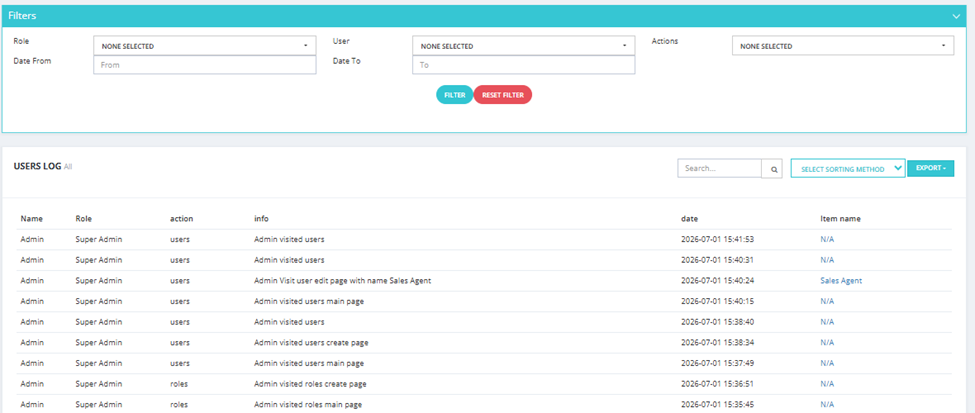
User Logs is a system-wide audit trail that tracks every action taken by every user in the CRM — who did what, when, and on which item. Accessible from Roles & Users → User Logs.
What You See
| Column | Description |
|---|---|
| Name | The user who performed the action. |
| Role | The role assigned to that user. |
| Action | The module or area where the action took place (e.g., users, roles, leads). |
| Info | A description of the specific action (e.g., "Admin visited users main page", "Admin Visit user edit page with name Sales Agent"). |
| Date | The date and time the action was recorded. |
| Item Name | The specific item that was acted on, if applicable (e.g., a user name, a lead name). Shown as N/A if not applicable. |
Available Filters
| Filter | Description |
|---|---|
| Role | Filter by the role of the user who performed the action. |
| User | Filter by a specific user. |
| Actions | Filter by action type. |
| Date From / Date To | Filter by date range. |
Available Actions
- Search — search across the log entries.
- Select Sorting Method — change the sort order of results.
- Export — export the log as a file.
💡 Use User Logs to audit system activity, investigate a specific action, or monitor what users are accessing and changing in the CRM.
SMS Logs
Overview
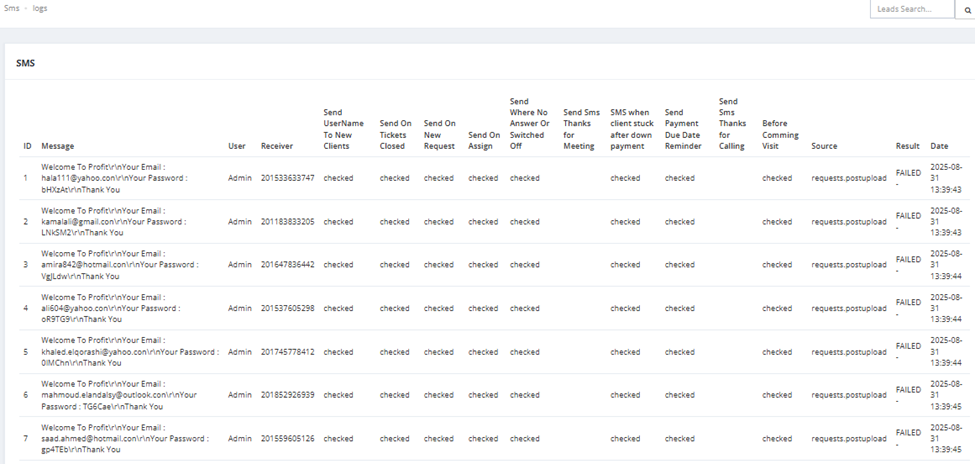
SMS Logs records every SMS message sent through the CRM — showing the message content, who sent it, who received it, what triggered it, whether it was delivered, and when. Accessible from Roles & Users → SMS Logs.
What You See
| Column | Description |
|---|---|
| ID | Sequential log ID. |
| Message | The full content of the SMS sent. |
| User | The CRM user who triggered the SMS. |
| Receiver | The phone number the SMS was sent to. |
| Send Username To New Clients | Checked if this SMS was triggered by the "send credentials to new clients" event. |
| Send On New Tickets Closed | Checked if triggered when a ticket is closed. |
| Send On New Request | Checked if triggered when a new request is created. |
| Send On Assign | Checked if triggered when a lead is assigned. |
| Send Where No Answer Or Switched Off | Checked if triggered when a client is unreachable. |
| Send SMS Thanks for Meeting | Checked if triggered after a meeting. |
| SMS When Client Stuck After Down Payment | Checked if triggered when a client stalls after down payment. |
| Send Payment Due Date Reminder | Checked if triggered as a payment due date reminder. |
| Send SMS Thanks for Coming Visit | Checked if triggered after a client visit. |
| Before Coming Visit | Checked if triggered before a scheduled client visit. |
| Source | The system event or source that triggered this SMS (e.g., requests.postupload). |
| Result | Whether the SMS was delivered successfully or failed (e.g., FAILED). |
| Date | Date and time the SMS was sent. |
💡 Use SMS Logs to verify that notification messages are being sent and delivered correctly, or to investigate delivery failures.
Email Logs
Overview
Email Logs records every email sent through the CRM — showing the sender, recipient, message content, and date. Accessible from Roles & Users → Email Logs.
What You See
| Column | Description |
|---|---|
| ID | Sequential log ID. |
| Sender | The email address the message was sent from (e.g., system@dotshub.com). |
| Receiver | The recipient's email address. |
| Message | The full email content — including subject, body, and any login credentials or links sent. |
| Date | Date and time the email was sent. |
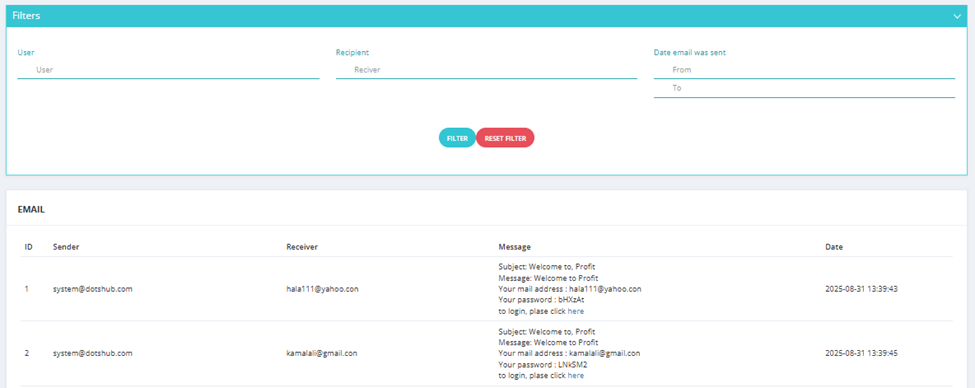
Available Filters
| Filter | Description |
|---|---|
| User | Filter by the CRM user who triggered the email. |
| Recipient | Filter by the recipient's email address. |
| Date Email Was Sent | Filter by date range (From / To). |
💡 Use Email Logs to confirm that system emails (e.g., welcome emails with credentials, notifications) were sent correctly, or to track email communication history.