| Page | Description |
|---|---|
| **Roles** | How to create roles, the role tree, and the full permissions reference. |
| **Users** | How to create users, assign roles and parents, and user-specific settings. |
| **Permissions Reference** | Full breakdown of every permission group and what each permission controls. |
| Action | Description |
|---|---|
| **Show Tree** | View the full role hierarchy as a tree — shows how roles relate to each other via their parent roles. [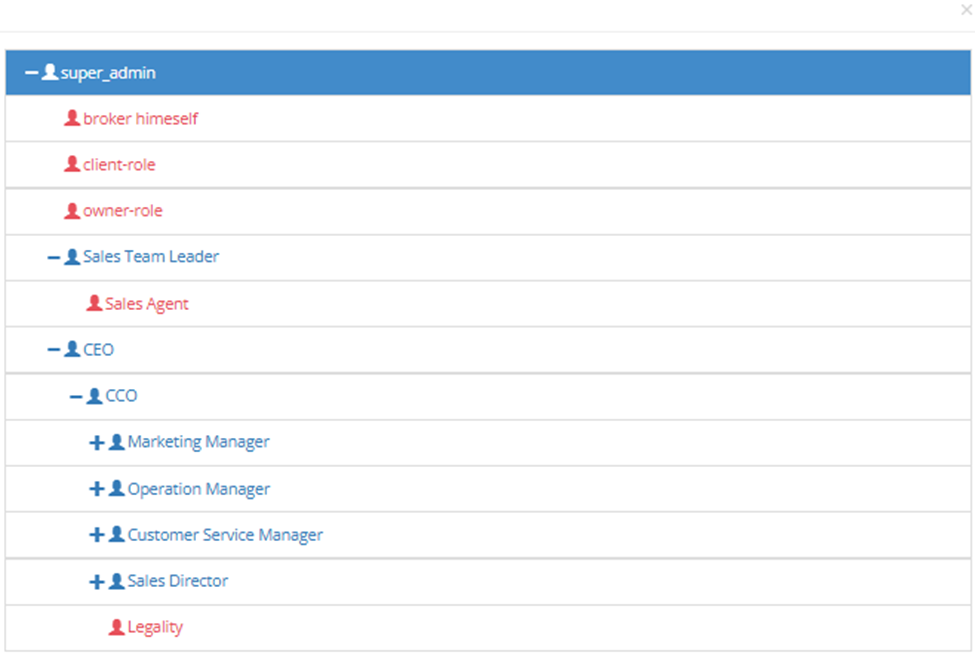](https://knowledge-base.profitcrm.net/uploads/images/gallery/2026-07/Jx3image.png) |
| **Create Role** | Add a new role. |
| Action | Description |
|---|---|
| **Show Tree** | View all users arranged in the hierarchy tree. [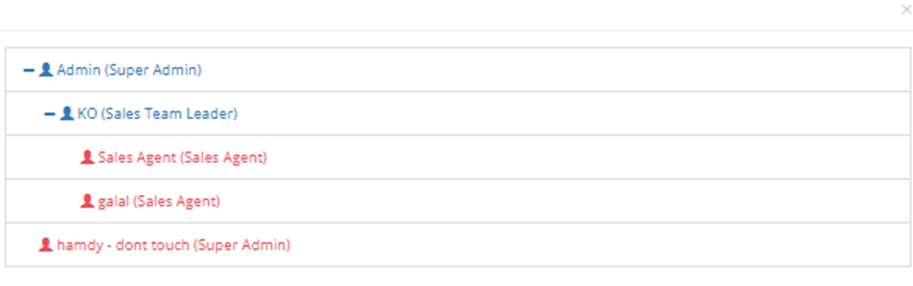](https://knowledge-base.profitcrm.net/uploads/images/gallery/2026-07/DW7image.png) |
| **Create User** | Add a new user. |
| **Edit** | Edit an existing user's details, role, or parent. |
| Field | Required | Description |
|---|---|---|
| **Name** | ✅ | User's full name. Includes a title prefix (e.g., Mr). |
| **Email** | ✅ | User's email address — used for login and system notifications. |
| **Mobile** | ✅ | User's mobile number. |
| **Password** | ✅ | Login password. |
| **Confirm Password** | ✅ | Password confirmation. |
| **Roles** | ✅ | The role assigned to this user — determines all permissions. |
| **Projects** | Optional | The projects this user has access to (e.g., Elite Living, Profit Mall, Installment). |
| **Parent** | Optional | The user above this user in the hierarchy tree. The system shows available parent users based on the parent role configured on the selected role. |
| **Default View Mode** | Optional | The default display mode for units (e.g., Card View). |
| Setting | Description |
|---|---|
| **SMS Assign** | When ON, the user receives an SMS notification when a lead is assigned to them. |
| **SMS Not Reply** | When ON, the user receives an SMS notification when a lead hasn't been replied to within a set time. |
| **User Logs** | View a log of all actions taken by this user in the system. |
| **SMS Logs** | View all SMS messages sent to or from this user. |
| **Email Logs** | View all emails sent to or from this user. |
| Permission | Description |
|---|---|
| **Display Role Listing** | View the list of roles only — cannot edit or manage. |
| **Create Role** | Create new roles. |
| **Edit Role** | Edit existing roles. |
| **Delete Role** | Delete roles. |
| **View Users** | View the list of users only — cannot edit or manage. |
| **Create Users** | Create new users. |
| **Show User Profile** | View a user's full profile. |
| **Edit User Profile** | Edit user profile details. |
| **Delete Users** | Delete users. |
| **Dashboard** | Access the main dashboard. |
| **Display Totals in Units List** | See aggregate totals at the top of the units list. |
| **Block Users** | Block a user from logging in. |
| **Users Logs** | View the action log for users. |
| **SMS Logs** | View SMS logs. |
| **Email Logs** | View email logs. |
| Permission | Description |
|---|---|
| **Settings** | Required to save any changes in Settings — without this, settings pages are view-only. |
| **Manage States** | Create, edit, and delete lead states. |
| **Manage Form Fields** | Manage custom fields on lead/client forms. |
| **Manage Fragments** | Manage reusable content fragments. |
| **Manage Rotation** | Configure lead rotation and auto-assignment rules. |
| **General Settings** | Access General Settings. |
| **Sales Settings** | Access Sales Settings. |
| **Inventory Settings** | Access Inventory Settings. |
| **Brokers Settings** | Access Broker Settings. |
| **Finance Settings** | Access Finance Settings. |
| **Customer Service Settings** | Access Customer Service Settings. |
| **Manage Global Contracts** | Create and manage contract templates. |
| **List Facebook Integration** | View Facebook lead integration settings. |
| **Inventory Uploads** | Bulk upload units via Excel. |
| **Upload Brokers** | Bulk upload broker companies. |
| **Upload For Assign** | Bulk upload leads for assignment. |
| **List States Group** | View states groups. |
| **Create States Group** | Create new states groups. |
| **Edit States Group** | Edit existing states groups. |
| **Delete States Group** | Delete states groups. |
| **Manage Global Appendices** | Manage global appendix documents. |
| Permission | Description |
|---|---|
| **List Projects** | View the list of projects. |
| **Create Projects** | Create new projects. |
| **Edit Projects** | Edit project details. |
| **Delete Projects** | Delete projects. |
| **Freeze Units** | Freeze a unit to prevent any sales actions on it. |
| **List Units** | View the units list. |
| **Hold Units** | Move a unit to the Hold stage. |
| **View Non Available Units (Hidden)** | See units that are hidden from the standard list. |
| **Units Availability Settings** | Configure unit availability rules. |
| **See Full Projects Info** | View complete project details including financial info. |
| **Pricing** | View and manage unit pricing. |
| **Un Hold** | Remove a unit from Hold and return it to Available. |
| **Un Hold Limit Management** | Manage limits on how many units can be un-held. |
| **Unit Actions** | Perform actions on units in the pipeline. |
| **Show Unit History** | View the full action history of a unit. |
| **Discard Show Units** | Bulk cancel all pending View-to-Client assignments. |
| **Export Units Table** | Export the units list. |
| **See Units Payment Details** | View payment schedule details on a unit. |
| **View to Client** | Show a unit to a client (View to Client button). |
| **Quick Hold Unit** | Use the Quick Hold button (for clients without an existing profile). |
| **Unblock Unit** | Unblock a frozen or blocked unit. |
| **View Delayed Payment** | See installments in the Delayed Payments tab. |
| **View Extra Delayed Payment** | See installments in the Extra Delayed Payments tab. |
| **QR Code** | Generate and view unit QR codes. |
| **Compare Units** | Use the unit comparison feature. |
| **View Sold Units** | See units that have been sold. |
| **Units Actions Filter** | Access the Units Actions Filter report. |
| **Unit Hold Limit** | Set and manage the hold limit per unit. |
| **Compare Projects** | Use the project comparison feature. |
| **Unit State Change Notifications** | Receive notifications when a unit's pipeline state changes. |
| **Price Change** | Use the bulk price change tool. |
| **List Buildings** | View buildings within a project. |
| **Create Buildings** | Add new buildings. |
| **Edit Buildings** | Edit building details. |
| **Delete Buildings** | Delete buildings. |
| **List Building Segments** | View building segments. |
| **Create Building Segments** | Add new building segments. |
| **Edit Building Segments** | Edit building segment details. |
| **Delete Building Segments** | Delete building segments. |
| **Create Units** | Add new units. |
| **Edit Units** | Edit unit details. |
| **Delete Units** | Delete units. |
| **Force Inventory List** | View the full inventory list regardless of project assignment. |
| **Change Premium Segment** | Change a unit's premium segment designation. |
| **Add EOI Project** | Enable EOI on a project. |
| **Contract Log** | View the contract log for units. |
| **Units Repricing** | Use the units repricing tool. |
| **Quick Reserve Unit** | Use the Quick Reserve button (for existing clients). |
| Permission | Description |
|---|---|
| **Units Contract** | Access and manage unit contracts in the pipeline. |
| **List Clients** | View the clients list. |
| **Create Clients** | Create new client profiles. |
| **Edit Clients** | Edit client details. |
| **Delete Clients** | Delete client profiles. |
| **Add Reservation Fees** | Add reservation fees on a unit. |
| **Make Down Payment** | Process the down payment step. |
| **Unit Delivery** | Mark a unit as delivered. |
| **Un-Deliver Unit** | Reverse a unit delivery. |
| **Export Clients** | Export the clients list. |
| **Force Client List** | View all clients regardless of hierarchy. |
| **Modify Client User Access** | Change which users can access a client's profile. |
| **Reset Clients Credentials** | Reset a client's login credentials. |
| **Client Updates** | Post client updates. |
| **List Client Requests** | View client requests. |
| **Create Client Requests** | Submit new client requests. |
| **Edit Client Requests** | Edit existing client requests. |
| **Delete Client Requests** | Delete client requests. |
| **Assign Client Requests** | Assign client requests to a team member. |
| **Download Contract Form** | Download the contract document. |
| **Change Client Permission** | Modify a client's access permissions. |
| **Client Requests Seen** | Mark client requests as seen. |
| **Payment History In Client Profile** | View payment history from inside the client profile. |
| **Client History In Client Profile** | View client interaction history from inside the client profile. |
| **Unit Action History In Client Profile** | View unit pipeline history from inside the client profile. |
| **Owner Open Profile** | Allow the profile owner to open and view their own profile. |
| **Force Refund** | Process a forced refund on a unit. |
| **Client Private Files Edit** | Edit files in the client's private files section. |
| **Client Private Files** | View the client's private files section. |
| **In-Profile Delivery Update** | Post delivery updates from inside the client profile. |
| **Download Contract as Word** | Download the contract as a Word document. |
| Permission | Description |
|---|---|
| **View Payments** | View installments in the Payments tab. |
| **Pay** | Collect a payment (PAY button). |
| **Refund** | Process a refund. |
| **Add Payment** | Add an extra payment to a unit's plan. |
| **View Wallet** | View the client's payment wallet. |
| **Edit Payment** | Edit an existing payment's details. |
| **View Payment Details** | View the full payment schedule of a unit. |
| **Edit Non-Available Unit's Payment** | Edit payments on units that are not in an active pipeline stage. |
| **List Targets** | View sales targets. |
| **Create Targets** | Create new sales targets. |
| **Edit Targets** | Edit existing targets. |
| **Delete Targets** | Delete targets. |
| **Edit Non-Available Units** | Edit units outside the active pipeline. |
| **Export Payments** | Export the payments list. |
| **Export Wallet** | Export wallet data. |
| **Export Penalties** | Export the penalties list. |
| **Export Benefits** | Export the client benefits list. |
| **Discard Collection Payment** | Cancel/discard a collected payment. |
| **Download Reservation Form** | Download the reservation form document. |
| **Auto Contract** | Use the auto-contract generation feature. |
| **Export Payment Method Excel** | Export payment methods as Excel. |
| **View Payment Methods Table** | View the payment plans on a unit and download as PDF. |
| **Set Global Payment Methods** | Configure global payment methods in Setup. |
| **Select Global Payment Methods** | Select which global payment methods apply to a unit. |
| **Manage Discounts** | Set maximum discount limits per role. |
| **Add Offer** | Create new promotional offers. |
| **Edit Offer** | Edit existing offers. |
| **Delete Offer** | Delete offers. |
| **List Offers** | View all offers. |
| **Force Offer List** | View all offers regardless of hierarchy. |
| **Upload Payment Attachment** | Upload a file attachment to a payment. |
| **Download Payment Attachment** | Download a file attached to a payment. |
| **Add EOI Form** | Create a new EOI. |
| **Edit EOI** | Edit an existing EOI. |
| **Collect EOI** | Process the Collect action on an EOI. |
| **Refund EOI** | Process the Refund action on an EOI. |
| **List EOIs In Client Profile** | View EOIs from inside the client profile. |
| **Delete EOI** | Delete an EOI. |
| **Download EOI Form** | Download the EOI document. |
| **EOI Management** | Access the EOI Management screen. |
| **Export EOI** | Export the EOI list. |
| **Restore EOI** | Restore a deleted EOI. |
| **Edit Payment Cheque Info** | Edit cheque/bank details on a payment. |
| **Override NPV Payment Plan Validation** | Save an NPV plan that fails the XNPV check (override permission). |
| **View NPV Financial Rules** | View the NPV financial rules and configuration. |
| **Manage NPV Financial Rules** | Edit NPV financial rules (Rate, Delivery %, Max Years). |
| **Add Payment Calculator (NPV)** | Create a new NPV payment plan. |
| **Edit Payment Calculator (NPV)** | Edit an existing NPV payment plan. |
| **Delete Payment Calculator (NPV)** | Delete an NPV payment plan. |
| Permission | Description |
|---|---|
| **Manage Leads** | Full lead management access. |
| **Assign Leads** | Assign leads to salesmen. |
| **Manage Returned Leads** | Manage leads in the Lead Stock / returned leads section. |
| **Upload Leads** | Bulk upload leads via Excel. |
| **Create Leads** | Manually create new leads. |
| **New Leads** | Access the New Leads screen. |
| **Can Assign Leads To Him** | Marks this user as a salesman — the system recognizes them as someone leads can be assigned to. Required for any user who receives lead assignments. |
| **Force Lead Assign** | Assign a lead to any user regardless of hierarchy. |
| **View Lead** | Open and view lead details. |
| **Export Leads** | Export the leads list. |
| **Send SMS To Leads** | Send SMS messages to leads. |
| **Leads Actions Filter** | Access the Leads Actions Filter report. |
| **Convert CIL To Lead** | Convert a broker CIL into a lead. |
| **Add Master Additional Field** | Add master-level additional fields to leads. |
| **Manage Unit Updates** | Manage unit updates from the lead/sales context. |
| **Show Unit Updates** | View unit updates. |
| **Check In** | Use the check-in feature on a lead. |
| **Search FB / LinkedIn / Truecaller** | Search for a lead's info on external platforms. |
| **Assigned To Client Requests** | Assign client requests to yourself. |
| **QR Mail** | Send QR code by email. |
| **Force Sales List and Lead View** | View all leads and sales regardless of hierarchy. |
| **View Leads History** | View the reassignment and action history of a lead. By default not visible — needed when a lead was reassigned from another salesman and you need to see its prior history. |
| **Migrate Leads** | Move leads between users or branches. |
| **Change Lead's Lead ID** | Change the marketing Lead ID attached to a lead. |
| **Export Lead Action Filter** | Export results from the Leads Actions Filter. |
| **Delete Lead Comments** | Delete comments left on a lead. |
| **Move Leads To Trash** | Send leads to the trash. |
| **Change Lead Branch** | Change the branch a lead is associated with. |
| **Leads Bulk Action** | Perform bulk actions on multiple leads at once. |
| **Lead State On Create** | Set a lead's state at the time of creation. |
| **Force Lead Actions** | Perform lead actions regardless of hierarchy restrictions. |
| **Country Codes Control** | Manage country code settings for lead phone numbers. |
| **Delete Additional Field** | Delete custom additional fields. |
| **CIL Reminder Button** | Show the CIL reminder button on a lead. |
| **Who Can See Lead Creator** | Controls visibility of the lead creator field. |
| **Who Can See Lead Creation Date** | Controls visibility of the lead creation date. |
| **Unassigned Leads** | Access the Unassigned Leads section. |
| **Manual Withdraw Leads** | Manually withdraw a lead from a salesman. |
| **List Unassigned Leads** | View the list of unassigned leads. |
| **List Withdraw Leads** | View the list of withdrawn leads. |
| **Add Additional Field** | Add custom additional fields to leads. |
| **Show Broker Info In Lead Profile** | See broker information displayed on a lead's profile. |
| **Display Lead Source** | See the marketing source/Lead ID information on a lead. |
| **View Assignment Type** | See how a lead was assigned — manually, reassigned, or via rotation. |
| **Create a Client by Adding/Uploading Lead** | Create a client profile directly when adding or uploading a lead. |
| **Lead Tracking** | For marketing users outside the hierarchy tree — allows them to see the leads they created and track what happened to them, without needing to be in the sales tree. |
| **Change Broker Info on Lead** | Edit the broker details attached to a lead. |
| **Call Logs In Lead Profile** | View call logs from inside the lead profile. |
| **Reassign History Control** | When reassigning a lead, choose whether to carry over the previous history or start fresh. |
| Permission | Description |
|---|---|
| **List Brokers** | View the active brokers list. |
| **Create Brokers** | Add new broker companies. |
| **Edit Broker** | Edit broker company details. |
| **Delete Broker** | Delete broker companies. |
| **Create Brokers CIL** | Submit a CIL on behalf of a broker. |
| **Broker CILs** | View broker CILs. |
| **View All Brokers CILs** | View CILs from all brokers regardless of assignment. |
| **Change Broker State From Pending** | Approve a broker from Pending status. |
| **Discard Broker Request** | Reject/discard a broker request. |
| **Reset Brokers Credentials** | Reset a broker's login credentials. |
| **Delete CIL** | Delete a CIL. |
| **Brokers Approval** | Approve pending broker companies. |
| **Send Broker Emails** | Send bulk emails to broker companies. |
| **Export Brokers Table** | Export the brokers list. |
| **Export Brokers Requests Table** | Export broker requests. |
| **Force List Brokers** | View all brokers regardless of assignment. |
| **Archive Broker Credit** | Archive a broker's credit record. |
| **Add Comment On Broker Profile** | Add a comment to a broker's profile. |
| **Delete Comment On Broker Profile** | Delete a comment from a broker's profile. |
| **Add New Broker Request** | Submit a new broker request. |
| **Manage Broker Agents** | Add and manage agents under a broker company. |
| **Manage Activity Type** | Manage broker activity types. |
| **Edit Broker Activity** | Edit a broker activity record. |
| **Delete Broker Activity** | Delete a broker activity record. |
| **Add Broker Lead** | Add a lead through the Brokerage module. |
| **List Broker Agent** | View broker agents. |
| **Assign Brokers** | Assign broker companies to indirect sales users. |
| **Force Assign Broker** | Assign brokers regardless of hierarchy. |
| **Receive Broker** | Marks this user as eligible to receive broker company assignments — identifies this user as an indirect sales person that broker companies can be assigned to. |
| **Pending Brokers List** | View the pending brokers list. |
| **Block Broker** | Block a broker company. |
| **Unblock Broker** | Unblock a broker company. |
| **Bulk Delete Brokers** | Delete multiple brokers at once. |
| **Bulk Block Brokers** | Block multiple brokers at once. |
| **Bulk Assign Brokers** | Assign multiple brokers at once. |
| **Bulk Active Brokers** | Activate multiple brokers at once. |
| **Force Broker History** | View a broker's full history regardless of assignment. |
| **Export Brokers** | Export broker data. |
| **Broker Analysis In Broker Profile** | View the analysis section on a broker's profile. |
| **Force Broker Analysis In Broker Profile** | View broker analysis regardless of assignment. |
| **Brokers Activities List** | View the broker activities list. |
| **Force Broker Activities List** | View all broker activities regardless of assignment. |
| **Add New Activity** | Add a new activity on a broker. |
| **Receive Activity** | Receive activity assignments. |
| **Assign Activity** | Assign activities to team members. |
| **Force Assign Activity** | Assign activities regardless of hierarchy. |
| **Manage Activity** | Full management of broker activities. |
| **Export Activity** | Export broker activity data. |
| Permission | Description |
|---|---|
| **Manage Sources** | Create and manage lead sources. |
| **Manage Applinks** | Manage app links. |
| **Manage Campaigns** | Create and manage marketing campaigns. |
| **Compose Emails** | Send bulk email campaigns. |
| **Compose SMS** | Send bulk SMS campaigns. |
| **Export Campaign** | Export campaign data. |
| **Customize Landing Page** | Edit the landing page configuration. |
| **Edit Lead ID** | Edit an existing Lead ID. |
| **Block Lead ID** | Block a Lead ID from receiving new leads. |
| **Duplicate Lead ID** | Duplicate an existing Lead ID. |
| **Change Landing Page Thanks URL** | Change the redirect URL after a landing page form submission. |
| **Force Show All Lead IDs** | View all Lead IDs regardless of assignment. |
| Permission | Description |
|---|---|
| **Call Center** | Access the Call Center module. |
| **Customer Service** | Access the Customer Service module. |
| **Manage Tickets** | Full ticket management access. |
| **Create Ticket Call Center** | Create a ticket from the Call Center. |
| **Export Call Center** | Export Call Center data. |
| **Filter Call Center** | Use filters in the Call Center. |
| **Export Tickets** | Export the tickets list. |
| **Ticket Show** | View ticket details. |
| **Delivery Updates** | Access and manage Delivery Updates. |
| **Call Center Recall** | Use the Recall feature in the Call Center. |
| **Call Center Add New Lead** | Add a new lead from the Call Center. |
| **Ticket Note** | Add notes to tickets. |
| **Show New Tickets** | Access the View New Tickets screen (unassigned tickets). |
| **Convert Just-Asking To Lead** | Convert a Just Asking entry into a full lead. |
| **See All Tickets** | View all tickets in the system regardless of assignment or visibility mode. |
| **Client Action Filter** | Access the client action filter. |
| **Force Ticket Assign** | Assign tickets to any user regardless of hierarchy or ticket type assignment. |
| **Delete Note** | Delete a note from a ticket. |
| **Show Client Tickets** | View tickets from inside a client profile. |
| **Edit Tickets** | Edit ticket details. |
| **Delete Ticket** | Delete a ticket. |
| Permission | Description |
|---|---|
| **Notes** | Add and view general notes. |
| **Public Search** | Use the public search feature across the CRM. |
| **Database Backup** | Create a database backup. |
| **Files Backup** | Create a files backup. |
| **Restore Database Backup** | Restore from a database backup. |
| **Delete Backups** | Delete backup files. |
| **View Trash** | View deleted items in the trash. |
| **Restore From Trash** | Restore items from trash. |
| **Permanent Delete** | Permanently delete items from trash. |
| **Download Backup** | Download a backup file. |
| Permission | Description |
|---|---|
| **Manage Tasks** | Full task management access. |
| **Create Tasks** | Create new tasks. |
| **Edit Tasks** | Edit existing tasks. |
| **Delete Tasks** | Delete tasks. |
| **Assign Tasks** | Assign tasks to team members. |
| **Tasks Calendar** | View tasks in calendar view. |
| Permission | Description |
|---|---|
| **Force Report** | View all reports regardless of hierarchy. |
| **View Salesmen Summations Reports** | Salesman performance summary report. |
| **View Branches Summations Reports** | Branch performance summary report. |
| **View Projects Summations Reports** | Project performance summary report. |
| **View Salesmen According To States Report** | Salesmen breakdown by lead state. |
| **View Salesmen According To States Graph Report** | Graph version of salesmen by lead state. |
| **View Salesmen According To Classes Report** | Salesmen breakdown by lead class. |
| **View Salesmen Leads States According To Lead ID Report** | Lead states per salesman broken down by Lead ID. |
| **View Salesmen According To Unit Steps Report** | Salesmen performance across pipeline steps. |
| **View Salesmen Actions According To States Report** | Salesman actions broken down by state. |
| **View Lead Rates Report** | Lead conversion rate report. |
| **View Total Number Of Leads Per Lead ID Graph Table Report** | Leads per Lead ID — graph and table. |
| **View Total Number Of Leads Per Lead ID Last Month Graph Table Report** | Same as above but for last month. |
| **View Total Number Of Leads On Campaigns Per Lead ID Report** | Leads per campaign broken down by Lead ID. |
| **View Total Number Of Leads Per Source Graph Table Report** | Leads per source — graph and table. |
| **View Sources Per States Chart Report** | Lead sources broken down by state — chart view. |
| **View Total Number Of Leads On Source Per Lead ID And States Report** | Source performance by Lead ID and state. |
| **View Marketing Analysis Report** | Full marketing analysis report. |
| **View Sold Units Report** | Report on sold units. |
| **View Done Deals According To Project Report** | Done deals broken down by project. |
| **View Salesmen States According To Projects Report** | Salesman states by project. |
| **View Projects According To Leads States Report** | Projects broken down by lead state. |
| **View Project Spent Leads Count Report** | Leads spent per project. |
| **View Projects Rates Report** | Conversion rates per project. |
| **View Salesman Actions Summation** | Summary of actions taken per salesman. |
| **Salesman Performance Report** | Detailed salesman performance report. |
| **Account Manager to Brokers Report** | Account manager performance across their broker portfolio. |
| **Brokers Per Leads Report** | Broker performance broken down by leads. |
| **EOI Analysis Report** | EOI activity and conversion report. |
| **States Group Report** | Leads broken down by states group. |
| **Call Logs Report** | Call activity report. |
| Permission | Description |
|---|---|
| **Select All** | Grants all Broker CRM permissions at once. |
| **Edit My Owners** | Edit owners assigned to the current user only. |
| **Send Leads** | Send leads to developer companies via the Sent CILs feature. |
| **Show Resale Unit** | View resale unit details. |
| **Create Broker Project** | Create new projects in the Broker CRM. |
| **Delete Broker Project** | Delete broker projects. |
| **Edit Broker Project** | Edit broker project details. |
| **List Broker Project** | View the broker projects list. |
| **List Developers** | View the developers list. |
| **Create Developers** | Add new developer companies. |
| **Edit Developers** | Edit developer company details. |
| **Delete Developers** | Delete developer companies. |
| **List Owners** | View the owners list. |
| **Create Owners** | Add new owners. |
| **Edit Owners** | Edit owner details. |
| **Delete Owners** | Delete owners. |
| **List Project Units** | View primary project units. |
| **View Project Units to Client** | Show a primary unit to a client (View to Client). |
| **List Project Units Log** | View the Project Units History log. |
| **List Resale Units** | View the resale units list. |
| **View Resale Units to Client** | Show a resale unit to a client (View to Client). |
| **List Resale Units Log** | View the Resale Units History log. |
| **Freeze Broker Units** | Freeze a primary broker unit to prevent any sales actions on it. |
| **Freeze Resale Units** | Freeze a resale unit to prevent any sales actions on it. |
| **Manage Locations** | Add, edit, and delete locations in Setup → Locations. |
| **Manage Broker Unit to Client** | Manage the View to Client process for broker units. |
| **Create Resale Units** | Add new resale unit listings. |
| **Edit Resale Units** | Edit existing resale unit listings. |
| **Delete Resale Units** | Delete resale unit listings. |
| **Change Transaction Status** | Change the status of a resale transaction. |
| **List Transactions** | View the transactions list. |
| **List Transactions Wallet** | View the transactions wallet. |
| **Resale Units Accept** | Accept a pending resale unit — moves it from Pending to Accepted status. |
| **Compare Resale Units** | Use the unit comparison feature on resale units. |
| **Force List Owners** | View all owners regardless of assignment or hierarchy. |
| **List My Targets** | View the current user's own targets. |
| **Create My Targets** | Create personal targets for the current user. |
| **Edit My Targets** | Edit the current user's own targets. |
| **Delete My Targets** | Delete the current user's own targets. |
| **Force Resale Unit Edit** | Edit any resale unit regardless of who created it or who it is assigned to. |
| **Force Resale Unit Delete** | Delete any resale unit regardless of assignment. |
| **View Sent CILs Log** | View the Sent CILs Log in the Network module. |
| **Show Owners List** | View the owners list screen. |
| **Hold Broker Units** | Move a primary broker unit to the Hold stage. |
| **Resale Unit Sold by Other** | Mark a resale unit as sold by another party outside the CRM. |
| **Owners Bulk Send** | Send bulk SMS or email to multiple owners at once. |
| **Change Resale Unit Owner** | Change the owner assigned to a resale unit. |
| **Force Show Resale Units** | View all resale units regardless of assignment or hierarchy. |
| **Export Developers** | Export the developers list. |
| **Export Owners** | Export the owners list. |
| Column | Description |
|---|---|
| **Name** | The user who performed the action. |
| **Role** | The role assigned to that user. |
| **Action** | The module or area where the action took place (e.g., users, roles, leads). |
| **Info** | A description of the specific action (e.g., "Admin visited users main page", "Admin Visit user edit page with name Sales Agent"). |
| **Date** | The date and time the action was recorded. |
| **Item Name** | The specific item that was acted on, if applicable (e.g., a user name, a lead name). Shown as N/A if not applicable. |
| Filter | Description |
|---|---|
| **Role** | Filter by the role of the user who performed the action. |
| **User** | Filter by a specific user. |
| **Actions** | Filter by action type. |
| **Date From / Date To** | Filter by date range. |
| Column | Description |
|---|---|
| **ID** | Sequential log ID. |
| **Message** | The full content of the SMS sent. |
| **User** | The CRM user who triggered the SMS. |
| **Receiver** | The phone number the SMS was sent to. |
| **Send Username To New Clients** | Checked if this SMS was triggered by the "send credentials to new clients" event. |
| **Send On New Tickets Closed** | Checked if triggered when a ticket is closed. |
| **Send On New Request** | Checked if triggered when a new request is created. |
| **Send On Assign** | Checked if triggered when a lead is assigned. |
| **Send Where No Answer Or Switched Off** | Checked if triggered when a client is unreachable. |
| **Send SMS Thanks for Meeting** | Checked if triggered after a meeting. |
| **SMS When Client Stuck After Down Payment** | Checked if triggered when a client stalls after down payment. |
| **Send Payment Due Date Reminder** | Checked if triggered as a payment due date reminder. |
| **Send SMS Thanks for Coming Visit** | Checked if triggered after a client visit. |
| **Before Coming Visit** | Checked if triggered before a scheduled client visit. |
| **Source** | The system event or source that triggered this SMS (e.g., `requests.postupload`). |
| **Result** | Whether the SMS was delivered successfully or failed (e.g., FAILED). |
| **Date** | Date and time the SMS was sent. |
| Column | Description |
|---|---|
| **ID** | Sequential log ID. |
| **Sender** | The email address the message was sent from (e.g., system@dotshub.com). |
| **Receiver** | The recipient's email address. |
| **Message** | The full email content — including subject, body, and any login credentials or links sent. |
| **Date** | Date and time the email was sent. |
| Filter | Description |
|---|---|
| **User** | Filter by the CRM user who triggered the email. |
| **Recipient** | Filter by the recipient's email address. |
| **Date Email Was Sent** | Filter by date range (From / To). |