
EOI Actions & Management
EOI Management
Overview
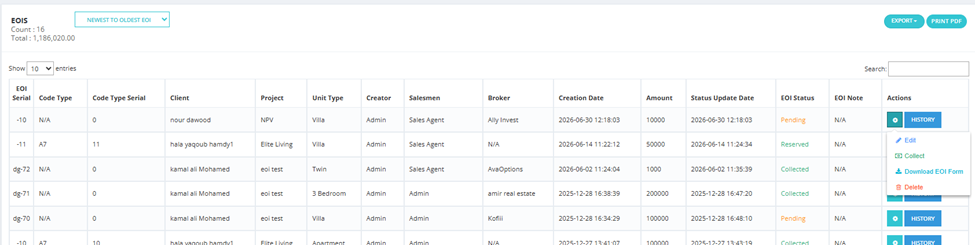
EOI Management is the central screen, under Financial Module, that lists every EOI in the system across all clients and projects.
What You See
The page header shows Count (total EOIs displayed) and Total (combined EOI value), with a sort option Newest to Oldest EOI.
Columns
| Column | Description |
|---|---|
| EOI Serial | The sequential number determining priority — see the Overview page. |
| Code Type | The code type assigned to the EOI. |
| Code Type Serial | The sequential number within that code type. |
| Client | The client's name. |
| Project | The project linked to this EOI. |
| Unit Type | The type of unit the client is interested in. |
| Creator | The user who created the EOI. |
| Salesmen | The assigned salesman. |
| Broker | The broker, if any. |
| Creation Date | Date the EOI was created. |
| Amount | The EOI amount. |
| Status Update Date | Date the status was last changed. |
| EOI Status | Current status (Pending, Collected, Reserved, etc.). |
| EOI Note | Any notes on the EOI. |
| Actions | Available actions — vary by status, see below. |
Actions by Status
| Status | Available Actions |
|---|---|
| Pending | Edit, Collect, Download EOI Form, Delete |
| Collected | Reserve, Refund, Download EOI Form |
Each action is covered in detail on its own page: Collect Action, Reserve & Selling Pipeline, Refund Action.
💡 The same actions are also available from Client Profile → View Client EOIs, without needing to go through EOI Management.
Available Actions
- Export — export the EOI list.
- Print PDF — print a PDF report of the current view.
Available Filters
| Filter | Description |
|---|---|
| Project | Filter by project. |
| Client | Filter by client name. |
| Broker | Filter by broker. |
| EOI Payment Status | Filter by payment status. |
| Salesman | Filter by assigned salesman. |
| Creation Date | Filter by creation date (From / To). |
| Last Update Date | Filter by the date the status was last updated. |
Collect Action
Overview
Use Collect to record that the EOI amount has actually been received from the client. This moves the EOI from Pending to Collected.
How to Collect an EOI Amount
- From EOI Management (or Client Profile → View Client EOIs), find the EOI in Pending status.
- Click Collect in the Actions column.
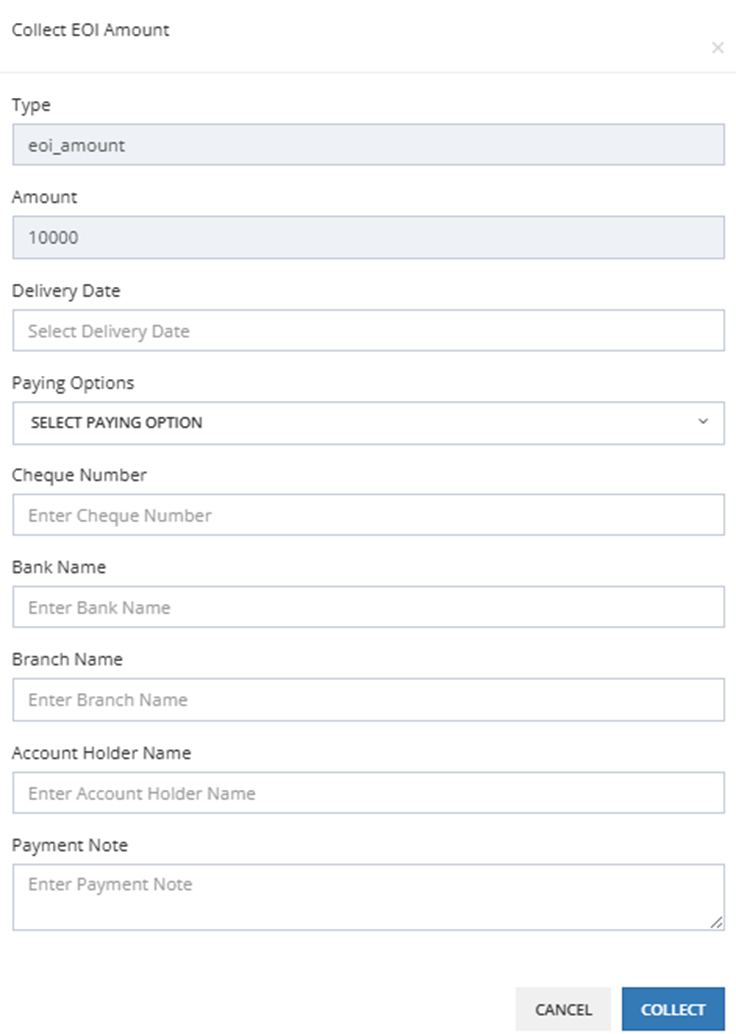
- Fill in the fields below.
- Click Collect to confirm, or Cancel to close without saving.
Fields
| Field | Description |
|---|---|
| Type | The collection type — defaults to eoi_amount. |
| Amount | The amount to collect — pre-filled from the EOI amount. |
| Delivery Date | The due/delivery date for this collection. |
| Paying Options | The payment method used. |
| Cheque Number | Cheque number, if paying by cheque. |
| Bank Name | The bank name, if applicable. |
| Branch Name | The branch name, if applicable. |
| Account Holder Name | The name on the paying account. |
| Payment Note | Free text note. |
After Collection
| Before | After |
|---|---|
| EOI Status: Pending | EOI Status: Collected |
| Actions: Edit, Collect, Download EOI Form, Delete | Actions: Reserve, Refund, Download EOI Form |
From here, the client can either:
- Reserve a unit — see Reserve & Selling Pipeline.
- Refund — see Refund Action.
💡 Collect is what separates a simple registered intent (Pending) from a confirmed, paid commitment (Collected).
Reserve & Selling Pipeline
Overview
Once an EOI is Collected, use Reserve if the client decides to reserve an actual unit in the project.
How to Reserve a Unit
- From EOI Management (or Client Profile → View Client EOIs), find the EOI in Collected status.
- Click Reserve in the Actions column.
- Select a unit from the Unit dropdown — this list shows only Available units in the project linked to the EOI.
- Click Reserve to confirm, or Cancel.
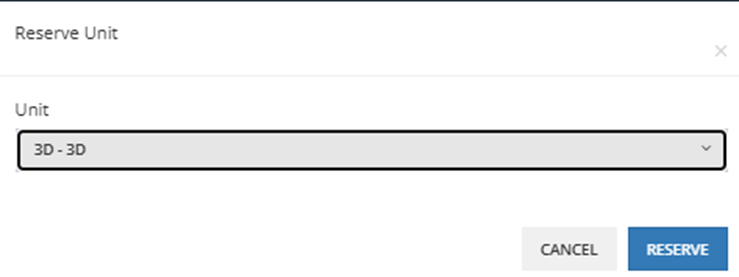
💡 Only units with status Available in the EOI's project appear in this list — not the full inventory.
Entering the Selling Pipeline
Once reserved, the unit enters the standard Unit Sales Pipeline at the Hold step:
Show → Hold → Reservation → Confirm Reservation → Down Payment → Confirm Down Payment → Contract → Delivery
See Unit Sales Pipeline for the full breakdown of every step after Hold.
Hold Step Fields (from EOI)
When the unit enters Hold, the following fields are available to complete the sale:
| Field | Required | Description |
|---|---|---|
| Sales Man | ✅ | Pre-filled from the EOI's salesman — can be changed. |
| Offer | Optional | Any promotional offer linked to the unit. |
| Reservation Fees | ✅ | Actual reservation fee — shown alongside the original EOI Amount for comparison. |
| Discount | Optional | Discount applied. May change automatically depending on the payment method selected. |
| Broker | Optional | Pre-filled from the EOI's broker — can be changed. |
| Broker Agent | Optional | The broker's agent. |
| Contract Date | Optional | Can be left empty — system uses today's date. |
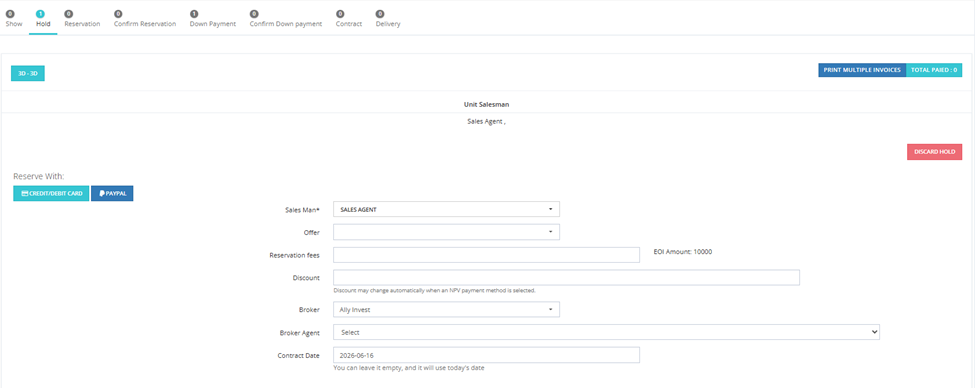
A Reserve With option (Credit/Debit Card or PayPal) and Discard Hold are also available, same as a standard Hold step.
Refund Action
Overview
Use Refund when a client, after their EOI amount has been collected, decides not to continue — either by choice or because no available unit suits them.
How to Refund an EOI
- From EOI Management (or Client Profile → View Client EOIs), find the EOI in Collected status.
- Click Refund in the Actions column.
- Confirm the refund.
Refund and the Serial Order
As covered in the Overview page, EOIs are prioritized by Serial. If a client (based on their turn) chooses to refund instead of reserve a unit, their turn passes automatically to the next client in serial order — allocation continues uninterrupted.
Refund Policies Vary by Company
This is an important business rule to document, since refund policy is not a fixed system setting — it's a company decision applied manually each time:
| Policy | Description |
|---|---|
| Full Refund | The full amount is returned to the client. If they register interest in another project, a new EOI and a new payment are required — the process restarts from scratch. |
| Partial Refund (fees deducted) | The company keeps the reservation fees and returns only the remaining balance to the client. |
⚠️ Confirm which policy your company follows before processing a Refund — this is a business decision, not a system default.
Refund vs. Discard Hold
| Action | What It Does |
|---|---|
| Discard Hold | Cancels the unit's hold in the Unit Sales Pipeline only — does not touch the EOI amount itself. |
| Refund | Returns the collected EOI amount to the client — the correct action when cancelling the process entirely, not just stepping back from one unit. |
This covers the full EOI lifecycle: registration (Pending), collection (Collected), and the two possible outcomes — Reserve (into the Selling Pipeline) or Refund.