
Ticket
Overview
Use Ticket when an existing client (not just a lead) calls with a request, complaint, or issue. Tickets are routed to the Customer Service (CS) team.
⚠️ Important: The caller must have a Client Profile in the system for a ticket to be created. If they only exist as a lead (no client profile), the ticket option will not be available for them.
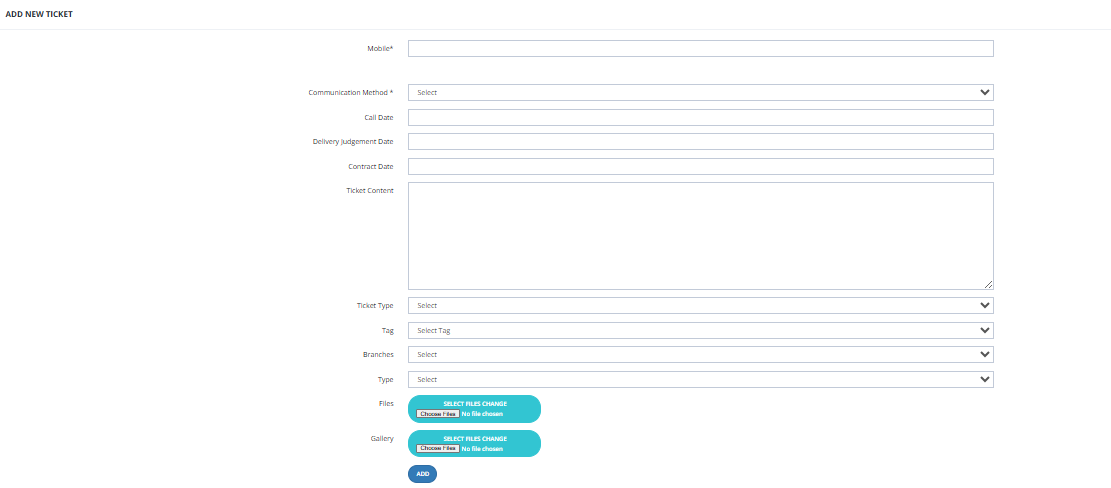
How to Open a Ticket
- Go to Call Center → Ticket.
- Enter the caller's mobile number to search for their client profile.
- Select the correct client from the results.
- Fill in the ticket details:
| Field | Description |
|---|---|
| Communication Method | How the client contacted us (e.g., phone call). |
| Call Date | Date of the call. |
| Delivery Judgement Date | Expected or relevant delivery date, if applicable. |
| Ticket Content | Description of the client's request or complaint. |
| Ticket Type | Category of the ticket (e.g., complaint, inquiry, request). |
| Tag | Tag to label the ticket for filtering. |
| Branches | The branch this ticket is associated with. |
| Type | If the client has a purchased unit, select the project and unit to link the ticket to it. |
- Click Add — the ticket is sent to the Customer Service module.
Key Things to Know
- Tickets are handled by the CS team — the call center only creates them.
- The call center agent's job ends after submitting the ticket.
- If the mobile number search returns no client profile (only a lead), a ticket cannot be created — the caller must first have a completed client profile.
- Use the Type field to link the ticket to a specific unit if the client has a purchased property.