
Customer Service Settings
Overview
Customer Service Settings is where all configuration for the Customer Service module lives — ticket types, update types, and ticket visibility rules.
💡 The settings below (Client Updates Types, Unit Updates Types, Delivery Updates Types, and Ticket Types) were moved here from General Settings into their own dedicated Customer Service Settings section.
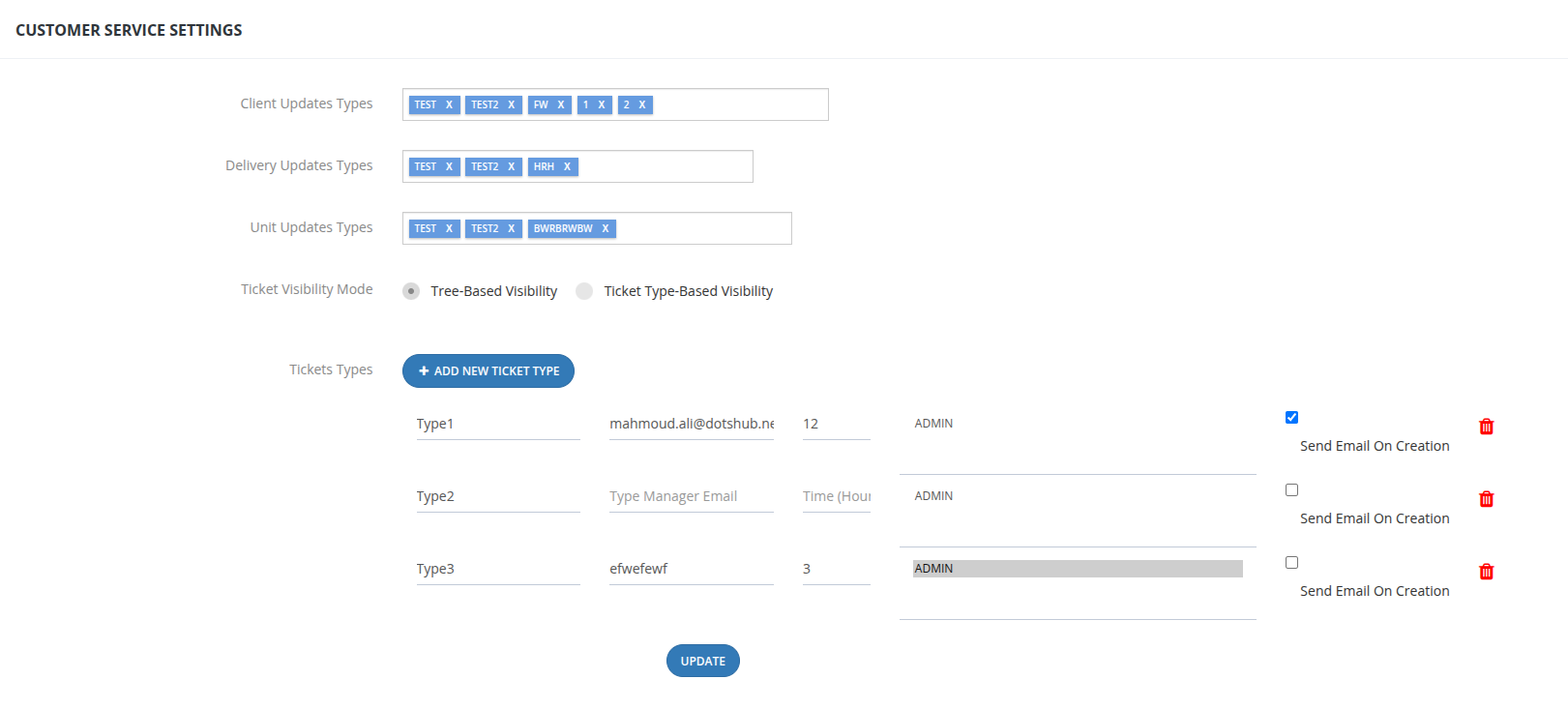
Update Types
| Setting | Used By |
|---|---|
| Client Updates Types | The Type dropdown on the Clients Updates Create form. |
| Delivery Updates Types | The Type dropdown on the Delivery Updates Create form. |
| Unit Updates Types | The Type dropdown on the Units Updates Create form. |
Each is managed as a tag list — add or remove values directly from the settings screen.
Ticket Types
Click + Add New Ticket Type to create a new type. Each ticket type has the following configuration:
| Field | Description |
|---|---|
| Type Name | The name of the ticket type (e.g., Type1, Complaint, Maintenance Request). |
| Type Manager Email | The email notified for tickets of this type. |
| Time (Hours) | The expected resolution/response time, in hours, for this ticket type. |
| Assigned Users | The users assigned to handle tickets of this type. |
| Send Email On Creation | When checked, an email is sent automatically whenever a ticket of this type is created. |
| Delete | Remove the ticket type. |
Click Update to save changes.
Tree-Based Visibility
Visibility follows the user hierarchy tree.
- A user sees only the tickets assigned to them.
- A parent user (manager) can see all tickets assigned to any user below them in the hierarchy tree.
- If you are not in someone's hierarchy chain, you cannot see their tickets.
💡 Example: If User A is a parent of User B, User A can see all of User B's tickets. But if User A and User C are peers (no hierarchy between them), User A cannot see User C's tickets.
Ticket Type-Based Visibility
Visibility is controlled by Ticket Type instead of hierarchy.
- Each Ticket Type has a list of Assigned Users (configured in the Ticket Types section above).
- When a ticket is created under a specific Ticket Type, all users assigned to that Ticket Type can see it — regardless of where they sit in the hierarchy.
- A user can be assigned to multiple Ticket Types and will see tickets from all of them.
- A user cannot see tickets that belong to a Ticket Type they are not assigned to.
- Tree-Based Visibility is disabled when this mode is active.
💡 Example: "Legal" is a Ticket Type with Users X and Y assigned. Any ticket created under "Legal" will be visible to both X and Y — even if they have no hierarchy relationship with whoever created the ticket.
⚠️ If you switch from Tree-Based to Ticket Type-Based Visibility, any ticket previously assigned to a user who is not in that ticket's Type will remain visible only to that assigned user — and will not appear to the Type's assigned users until the ticket is reassigned to someone who belongs to the correct Ticket Type.