
Units Management
Overview
From the Client Details page, you can manage all unit interactions for a client — from showing them a unit all the way through to delivery.
Unit Sale Workflow
Units move through the following stages:
| Stage | Description |
|---|---|
| Show | Unit has been presented to the client. |
| Hold | Unit is reserved temporarily while waiting for the client's confirmation. |
| Reservation | Client's interest is confirmed — reservation is formalized. |
| Confirm Reservation | Reservation is finalized and confirmed. |
| Down Payment | Client makes a down payment. |
| Confirm Down Payment | Down payment is verified. |
| Contract | Sales contract is prepared and issued. |
| Delivery | Unit is delivered to the client — transaction is complete. |
How to Show a Unit to a Client
- Go to the client's detail page → Units tab.
- Select the unit you want to show.
- Click the Show button.
- Select the client from the dropdown.
- If the client doesn't have a profile yet, click Quick Hold to create a client profile on the spot, fill in their details, then proceed.
- Confirm to move the unit to the Hold tab.
Hold & Reservation — Required Fields
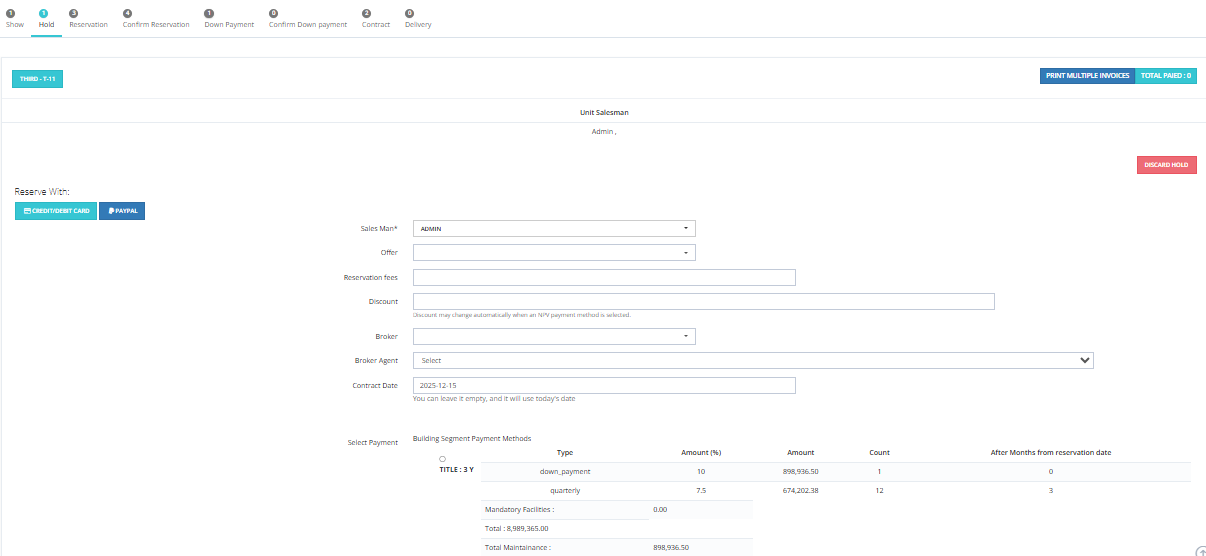
When moving a unit to Hold or Reservation, fill in the following:
| Field | Description |
|---|---|
| Salesman | Choose the salesman responsible for this client. |
| Offer | Select an applicable offer, if any. |
| Reservation Fees | Enter the reservation fee amount. Enter 0 if no fee applies. |
| Discount | Specify the discount percentage, if applicable. |
| Broker | Select the associated broker, if any. |
| Broker Agent | Select the broker's agent, if applicable. |
| Contract Date | Enter the contract date. |
| Payment Method | Choose the appropriate payment method. |
Delivery Updates
The Delivery section tracks the progress of unit delivery for each client. Use it to monitor pending steps and ensure the client receives their unit on time.