
Users
Overview
A User is anyone who logs into the CRM. Each user is assigned a Role (which defines their permissions) and a Parent User (which places them in the hierarchy tree).
The Users Screen
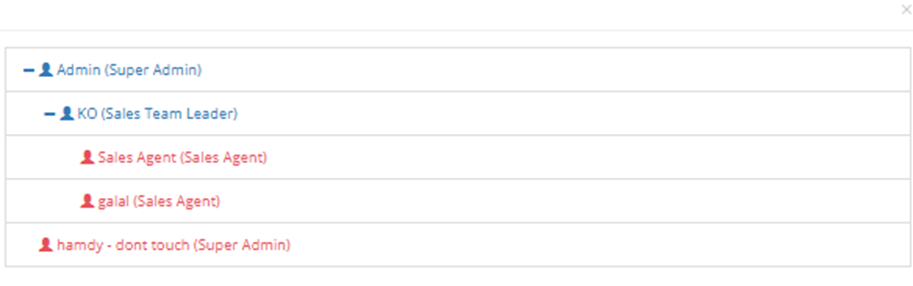
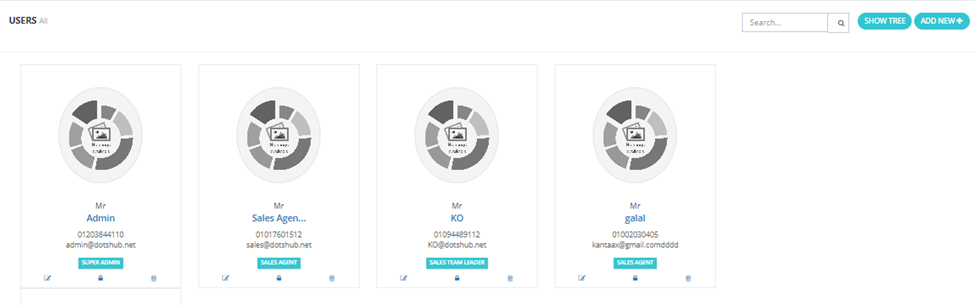
Go to Roles & Users → Users. From here you can:
| Action | Description |
|---|---|
| Show Tree | View all users arranged in the hierarchy tree.
|
| Create User | Add a new user. |
| Edit | Edit an existing user's details, role, or parent. |
Creating a User
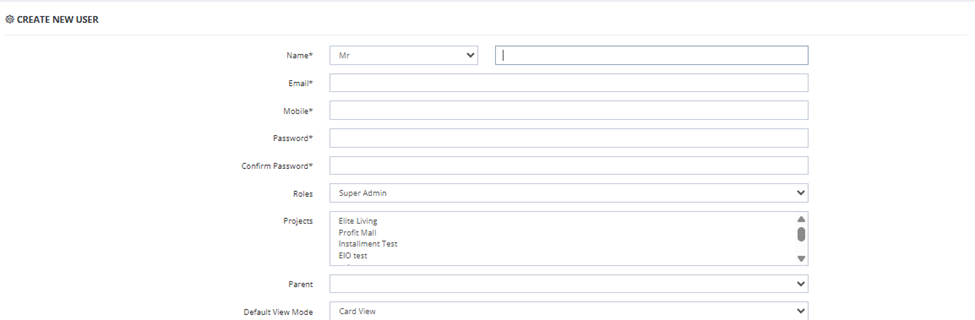
Click Create User and fill in the following fields:
Fields
| Field | Required | Description |
|---|---|---|
| Name | ✅ | User's full name. Includes a title prefix (e.g., Mr). |
| ✅ | User's email address — used for login and system notifications. | |
| Mobile | ✅ | User's mobile number. |
| Password | ✅ | Login password. |
| Confirm Password | ✅ | Password confirmation. |
| Roles | ✅ | The role assigned to this user — determines all permissions. |
| Projects | Optional | The projects this user has access to (e.g., Elite Living, Profit Mall, Installment). |
| Parent | Optional | The user above this user in the hierarchy tree. The system shows available parent users based on the parent role configured on the selected role. |
| Default View Mode | Optional | The default display mode for units (e.g., Card View). |
User-Level Settings
In addition to the role-based permissions, each user has the following individual settings:
| Setting | Description |
|---|---|
| SMS Assign | When ON, the user receives an SMS notification when a lead is assigned to them. |
| SMS Not Reply | When ON, the user receives an SMS notification when a lead hasn't been replied to within a set time. |
| User Logs | View a log of all actions taken by this user in the system. |
| SMS Logs | View all SMS messages sent to or from this user. |
| Email Logs | View all emails sent to or from this user. |
The Parent User & Hierarchy Tree
The Parent field places this user in the hierarchy tree under the selected parent. This has several effects:
- The parent user can see all leads, data, and activity belonging to this user.
- When this user needs to assign a lead, they see users below them in the tree.
- Reports and dashboards respect the tree — a manager sees aggregate data for their entire team.
- The dashboard's delayed leads section shows a manager all delayed leads across their team.
⚠️ A user without a parent sits at the top of their own tree branch — they will not be visible to any other user unless someone is set as their parent.