
Create Payment Plans
Overview
Payment plans define how a unit's price is split into installments. They can be created at multiple levels — Global, Project, Building Segment, and Unit — and are applied during the Hold/Reservation step when the salesman selects a payment plan for the client.
Payment Plan Hierarchy
Payment plans can exist at 4 levels. The system always shows all available plans from all levels, and the salesman selects the one that applies. If a plan is created at the building segment level, it only appears for units in that segment. If at the unit level, only for that specific unit.
Global Payment Methods (Setup → Payment Methods)
    ↓ can be used by
Project level plans
    ↓ can be used by
Building Segment level plans
    ↓ can be used by
Unit level plans
How to Create a Global Payment Plan
Go to Setup → Payment Methods → Add:
| Field | Required | Description |
|---|---|---|
| Title | ✅ | Plan name (e.g., "3Y", "5Y", "7Y"). |
| Minimum Down Payment Percentage % | Optional | Minimum down payment percentage allowed. |
| Add Phase | — | Add installment phases to the plan. |

Adding Phases
Each phase has:
| Field | Description |
|---|---|
| Payment Type | Type of installment (Down Payment, Quarterly, Monthly, Biannual, Delivery, Cash, etc.). |
| Amount | Percentage of the unit price for this phase. |
| Count | Number of installments of this type. |
| After Months | How many months after the contract date the first installment of this phase starts. |
💡 The calculator icon (🖩) on the last phase auto-fills the remaining percentage to reach 100% — so you don't have to calculate it manually.
💡 The total of all phases must equal or exceed 100%. It can exceed 100% but not be below.
TOTAL shows the running percentage total as you add phases. Click Add Phase to add more rows. Click Save when done.
How to Create a Plan at Project / Building Segment / Unit Level
Same fields as the Global plan, but at the Building Segment and Unit level you can create a payment plan using a fixed Amount instead of a percentage — useful when you know the exact monetary value rather than a percentage of the unit price.

💡 If creating a plan by Amount at the Building Segment or Unit level, the total amount across all phases must equal or exceed the unit price.
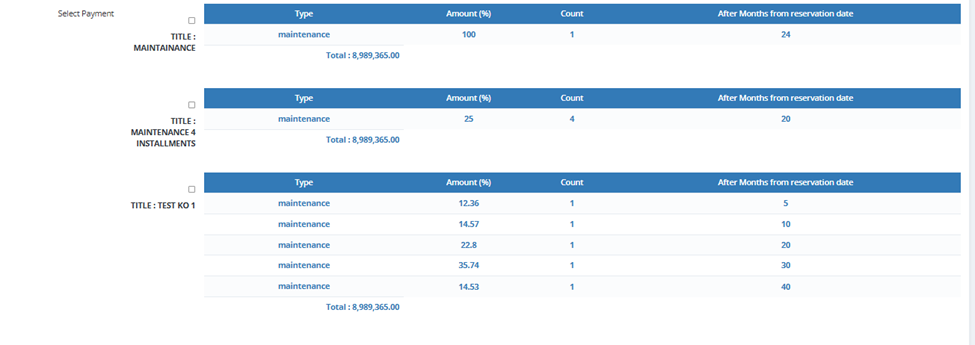
Go to the relevant level (Project edit, Building Segment edit, or Unit edit) and use the Select Payment section to either:
- Select from existing global plans — choose one or more to make available for this project/segment/unit.
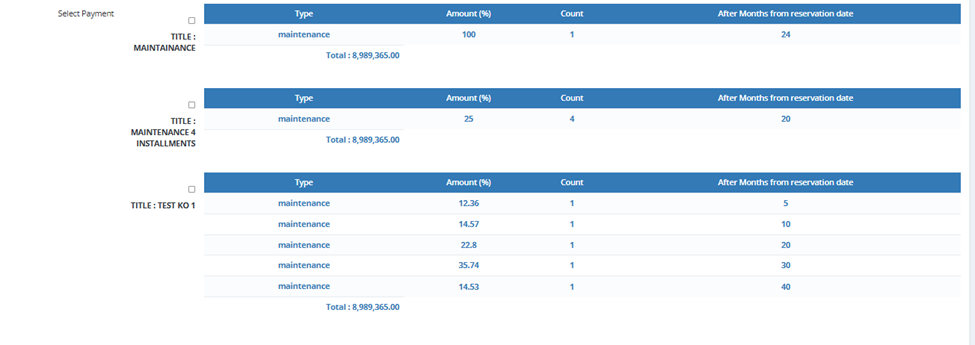
- Add a new plan — create a plan specific to this level.
Maintenance
Maintenance works the same way as payment plans — same fields, same hierarchy levels (Global, Project, Building Segment, Unit).
Maintenance Fields
| Field | Description |
|---|---|
| Name | Maintenance name (e.g., Maintenance, Annual Maintenance). |
| Amount | Can be a fixed amount or a percentage (%) — if %, it's calculated from the unit price. |
| Payment Method | Select which Global Payment Method to use for collecting this maintenance. The dropdown shows all plans created in Setup → Payment Methods — for example, if you created a plan called "Maintenance 4 Installments", select it here and the maintenance amount will be split across 4 installments automatically. |
| Payment Type | % — maintenance is calculated as a percentage of the unit price. Amount — maintenance is a fixed monetary value. |

Maintenance Priority Rule
If maintenance exists at multiple levels simultaneously (Project + Building Segment + Unit), the unit-level maintenance takes priority — only the unit-level maintenance is applied.
Maintenance in the Payment Plan
When a payment plan is created, the maintenance amount is shown separately as Total Maintenance — it's not included in the unit price total but is a separate obligation for the client.
Facilities
Facilities are optional add-ons to a unit's sale (e.g., Garage, Parking Slot, Club Membership). They can be added at the Project, Building Segment, or Unit level.
Facility Fields
| Field | Description |
|---|---|
| Name | Facility name (e.g., Club, Parking Slot, Garage). |
| Amount | Facility price. |
| Payment Method | Select which Global Payment Method to use for collecting this facility's cost. Same as maintenance — the dropdown shows all plans from Setup → Payment Methods. For example, select "4 Installments" to split the facility cost across 4 payments. |
| Added to Total Unit Price? | ✅ = facility price is added to the unit's total price. ☐ = facility is a separate charge not included in the unit price. |
| Calculated in Maintenance? | ✅ = the facility price is included when calculating maintenance fees. |

Facility Priority Rule
Same as payment plans — if facilities exist at multiple levels, all of them are shown to the salesman during the Hold step and they select which ones apply. If a facility is set at the Building Segment level, it only appears for units in that segment. If set at the Unit level, only for that specific unit.
Facility Merge Options (selected during Confirm Reservation step)
When confirming a reservation that includes a facility, you choose how to merge the facility cost into the payment plan:
| Option | Description |
|---|---|
| Merge Facility on Payment Plan with Down Payment | Facility cost is split across ALL installments including the down payment. |
| Merge Facility on Payment Plan without Down Payment | Facility cost is split across all installments EXCEPT the down payment. |
| No selection | Facility appears as a completely separate standalone installment — not merged with any payment phase. |

Adding a Facility After Contract Stage
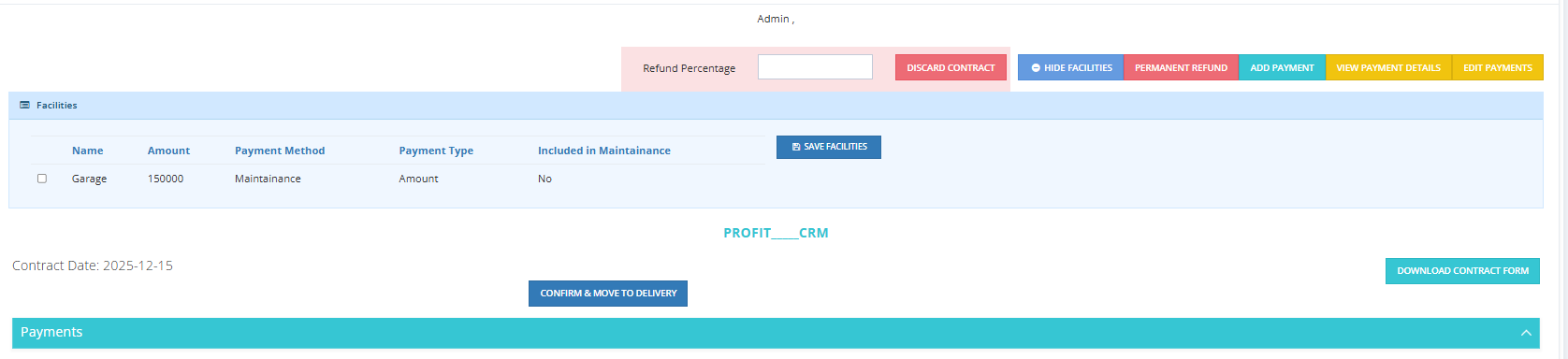
If a client buys a unit without a facility and later (e.g., after a year) decides they want one — you can add it from the Contract step using the Add Facilities button. The facility's installments are automatically added to the existing payment plan.
How the Payment Plan Appears in the Hold Step
When a salesman clicks Hold on a unit, the Select Payment section shows all available payment plans for that unit. Each plan is shown with:
- Title (e.g., TITLE: 3Y)
- Type breakdown (Down Payment, Quarterly, etc.)
- Amount % and calculated Amount
- Count (number of installments)
- After Months from Contract date
- Mandatory Facilities total
- Total unit price
- Total Maintenance
The salesman selects one plan using the radio button.