
Price Change
Overview
The Price Change tool allows you to bulk update prices for units across a project by a percentage — increasing or decreasing all selected units' prices at once.
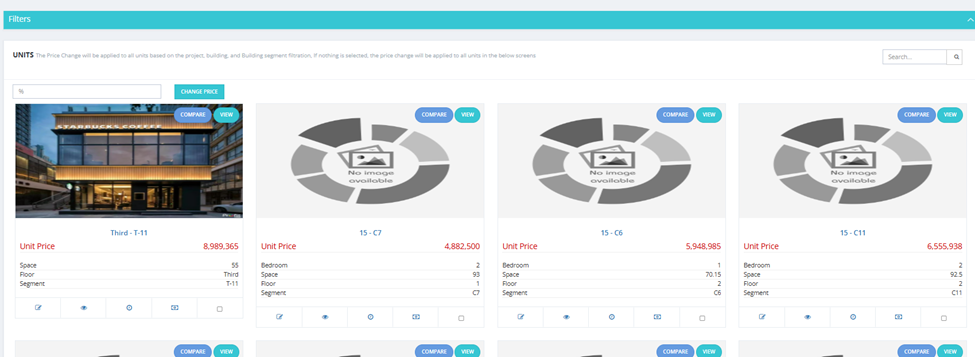
How It Works
- Go to Financial Module → Price Change.
- Use the Filters to select which units to apply the price change to (by project, building, segment, type, etc.).
- Enter a percentage in the % field:
- Positive number (e.g.,
10) = increase prices by 10%. - Negative number (e.g.,
-10) = decrease prices by 10%.
- Positive number (e.g.,
- Click Change Price.
- A confirmation dialog appears: "Warning, The Selected or Filtered Units prices will be Changed!"
- Click OK to confirm.
⚠️ Important Note: If a unit is currently priced at 10 EGP and you increase by 10%, it becomes 11 EGP. If you then want to go back to 10 EGP, you cannot use -10% — because -10% of 11 EGP is not the same as -10% of 10 EGP. Plan your percentage changes carefully.
💡 If no Unit is selected, the price change applies to all units in filter in the system.
Available Filters
Same as the Units tab filters: Unit Name, Delivery Date, Position, Bedroom, Type, Unit Code, View, Finishing, Project, Floor, Building, Building Segments, Project Type, Status, Salesman, Phase, Unit Delivery Date, Space, Price, Meter Price, Bathroom, State.