
Delayed Payments & Extra Delayed Payments
Overview
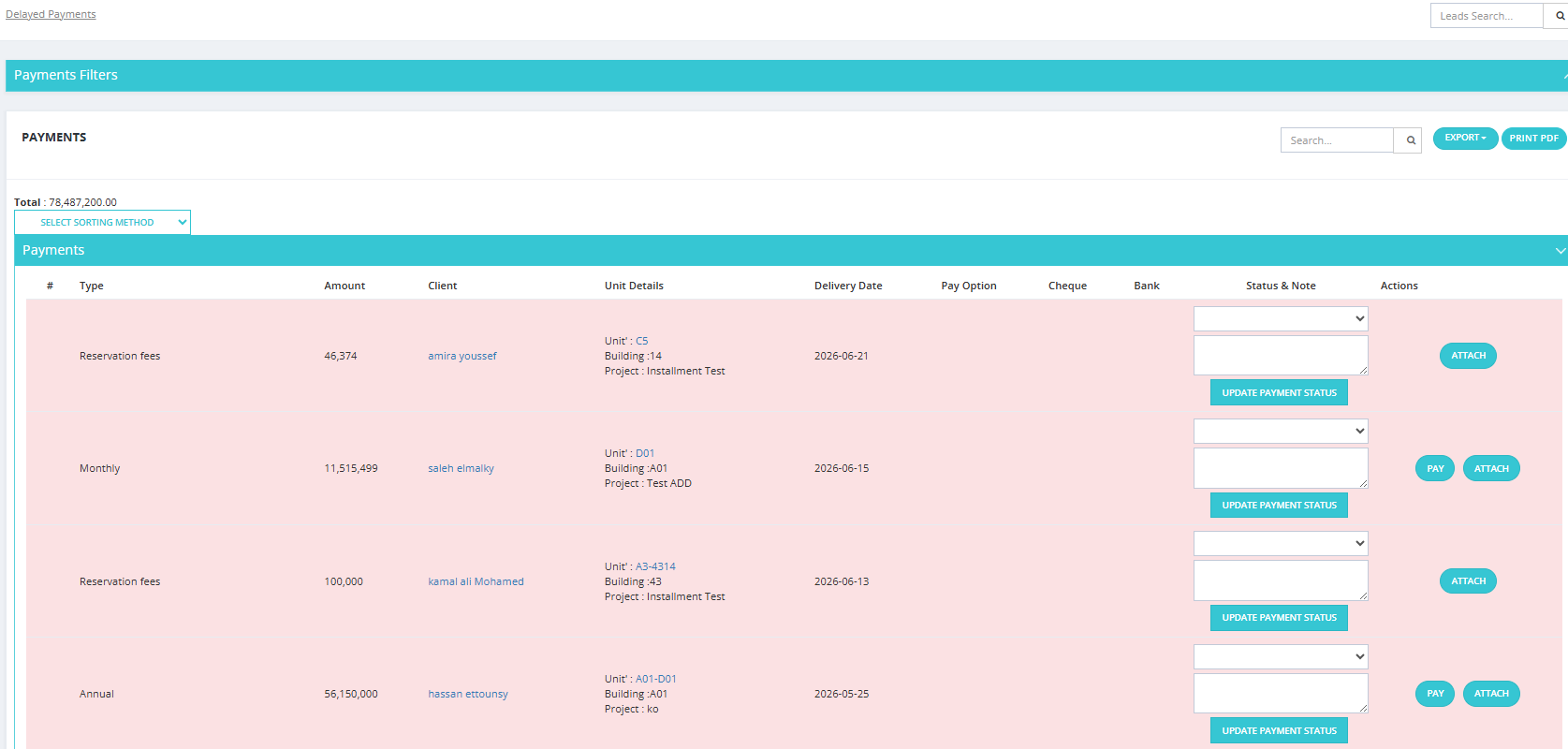
The system automatically moves overdue installments between tabs based on grace periods configured in Finance Settings.
How the Flow Works
Payments tab
    ↓ (after Delay Payment Grace Period days)
Delayed Payments tab
    ↓ (after Extra Delay Payment Grace Period days)
Extra Delayed Payments tab
Delayed Payments
An installment moves from Payments to Delayed Payments when:
- Its due date has passed AND
- The number of days since the due date exceeds the Delay Payment Grace Period configured in Finance Settings.
Example: If grace period = 7 days and the installment was due on the 1st, it appears in Delayed Payments on the 8th.
Late Payment Penalty
If Delay Payment Fees is enabled in Finance Settings, a penalty percentage is automatically added to delayed installments:
- Delay Payment Fees ON/OFF — enables/disables automatic penalty calculation.
- Delay Payment Fees Percentage % — the penalty percentage calculated from the installment amount.
The penalty amount appears in the Penalties tab.
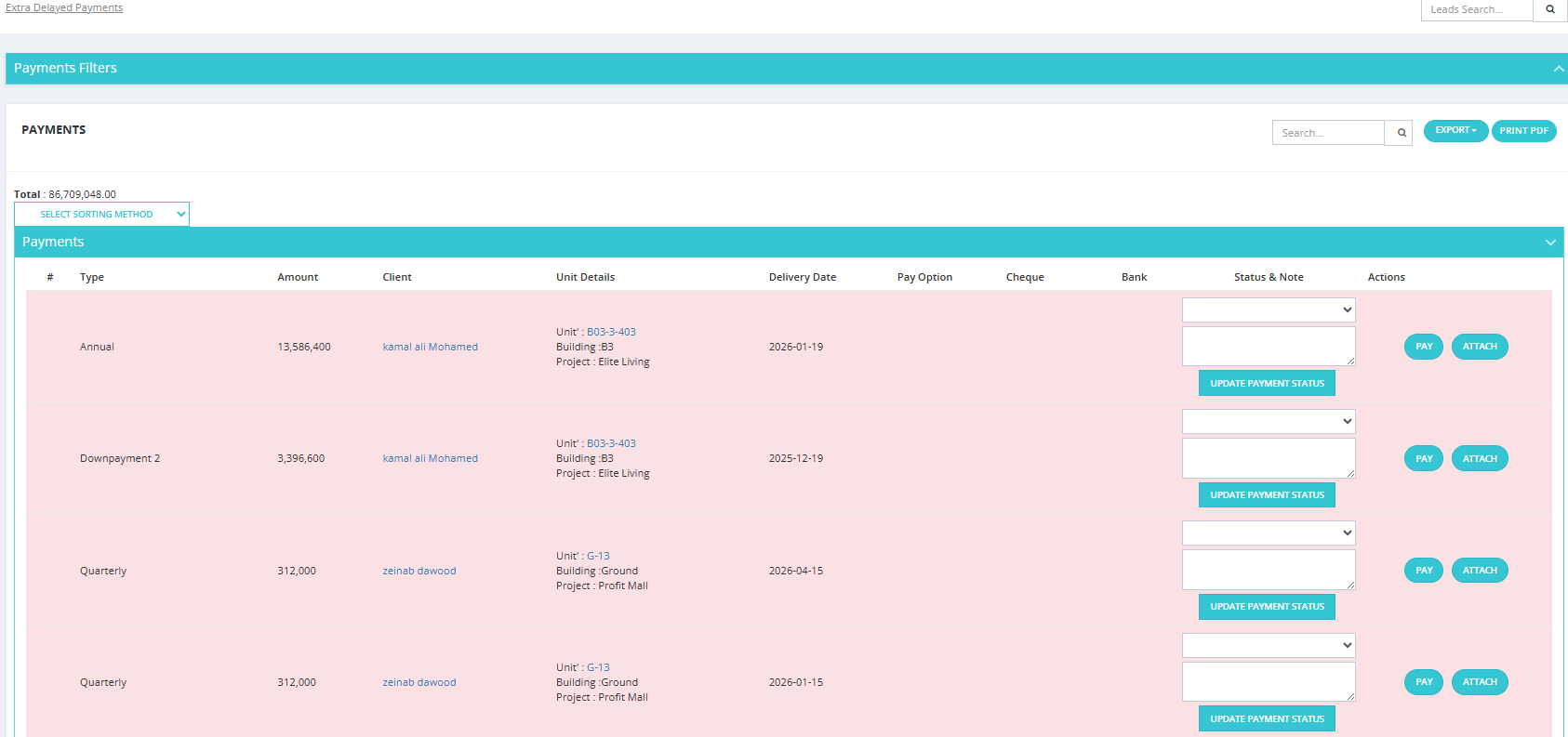
Extra Delayed Payments
An installment moves from Delayed Payments to Extra Delayed Payments when:
- The number of days since the due date also exceeds the Extra Delay Payment Grace Period configured in Finance Settings.
Both Tabs
Both tabs have the same interface and functionality as the main Payments tab:
- Same filters (Date, Project, Client, Paying Option, Payment Type, Payment State, Payment Status).
- Same PAY, ATTACH actions.
- Same receipt printing capability.