
Lead ID
Overview
A Lead ID is the unique identifier that links a Source and a Campaign together. When a lead enters the CRM — via landing page, Facebook, upload, or any other channel — the Lead ID tells you exactly which campaign and source it came from.
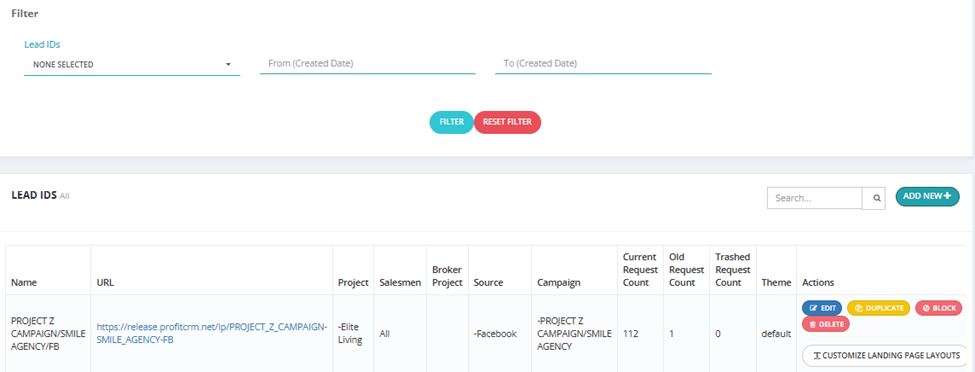
Lead IDs List
The Lead IDs page displays:
| Column | Description |
|---|---|
| Name | The Lead ID name. |
| URL | The landing page URL linked to this Lead ID. |
| Project | The project this Lead ID is associated with. |
| Salesmen | The salesman(s) assigned to receive leads from this Lead ID. |
| Broker Project | Broker project linked, if any. |
| Source | The source this Lead ID belongs to. |
| Campaign | The campaign this Lead ID belongs to. |
| Current Request Count | Number of active leads from this Lead ID. |
| Old Request Count | Historical lead count. |
| Trashed Request Count | Number of deleted/trashed leads. |
| Theme | The landing page theme used. |
| Actions | Edit, Duplicate, Block, Delete, Customize Landing Page Layouts. |
How to Add a New Lead ID
Click Add New and fill in:
| Field | Required | Description |
|---|---|---|
| Name | ✅ | Lead ID name. |
| URL | Optional | Landing page URL (must include http://). |
| Project | Optional | Select one project only. |
| Thanks URL | Optional | Page shown after form submission. |
| Planned | Optional | Planned number of leads. |
| Source | ✅ | Select one source. |
| Campaign | Optional | Select one campaign. |
| Form Fields | Optional | Select which fields appear on the landing page form. |
| Email Body | Optional | Email content sent after lead submission. |
| Upload Email Attachment | Optional | Attach a file to the email. |
| Landing Page Theme | Optional | Choose the visual theme of the landing page. |
| Pixel Code | Optional | Add a tracking pixel for ads. |
| Salesmen | Optional | If selected, only these salesmen will see this Lead ID. Leave blank to show to all. |
Adding Custom Fields to the Landing Page
You can add custom fields to the landing page form via Setup → Fields Setup:
- Go to Setup → Fields Setup.
- Click Add New.
- Configure the field:
- Landing Page — Set to True to show this field on the landing page form.
- Field Name — Enter a name (e.g., Passport Number).
- Data Type — Select the type (text, number, date, etc.).
- Set as Unique — Enable to prevent duplicates for that value.
- Save — the field will appear on the landing page form.
Filters Available
| Filter | Description |
|---|---|
| Lead IDs | Filter by specific Lead ID. |
| From / To (Created Date) | Filter by when the Lead ID was created. |
Key Things to Know
- The Salesmen field controls who sees this Lead ID when creating or uploading leads. If left blank, all salesmen can see it.
- Use Duplicate to quickly create a similar Lead ID without starting from scratch.
- Use Block to stop new leads from coming in through a specific Lead ID.
- Customize Landing Page Layouts lets you design the visual appearance of the landing page.