
Mail Campaign
Overview
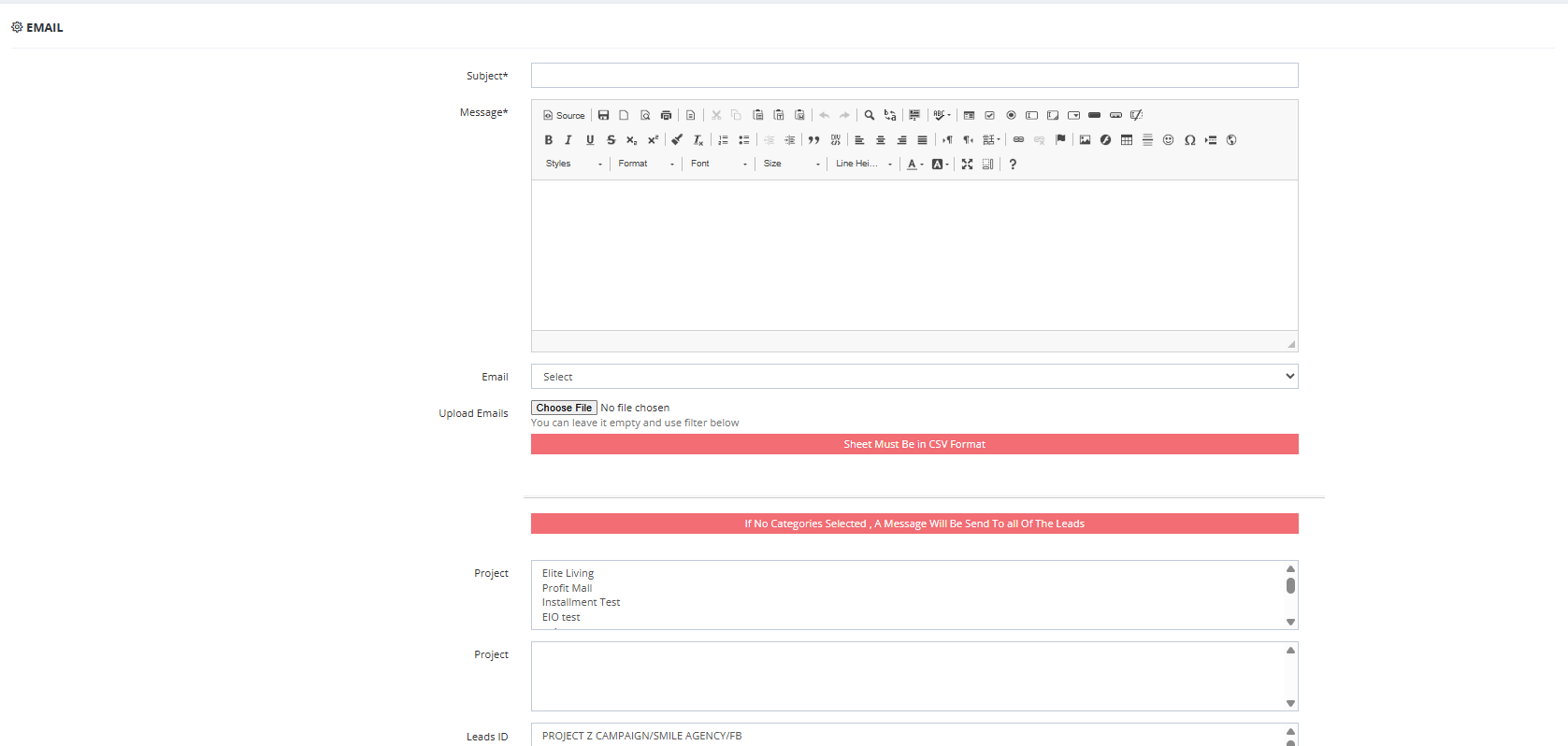
The Mail Campaign feature works the same as SMS Campaign but sends emails instead. It requires SMTP configuration before use.
Before You Start
Email must be configured first in General Settings:
| Setting | Description |
|---|---|
| SMTP Host | Your outgoing mail server (e.g., smtp.gmail.com). |
| Encryption Type | TLS or SSL. |
| SMTP Port | The port used by your mail server. |
| Email Address | The sender email address. |
| Email Password | The password for the sender email. |
How to Send a Mail Campaign
- Go to Marketing → Mail Campaign.
- Compose your email — subject and body.
- Choose your recipients using filters (same as SMS Campaign).
💡 The filter options correspond to fields collected on the lead profile. For example, filtering by Gender will only work if the Gender field was filled in when the lead was created. Make sure the relevant fields are captured during lead creation or upload to get accurate targeting.
💡 Custom Fields: If you have created custom fields via Setup → Fields Setup and set them to appear on the System Form (e.g., a field called "Counter" or "Preference"), these fields will also appear as filter options here. You can target leads based on a specific value in that custom field — for example, send an email only to leads where "Counter = 3".
- Send.
Key Things to Know
- SMTP settings must be configured in General Settings before any emails can be sent.
- The same lead filters available in SMS Campaign apply here.