
Source
Overview
Sources represent where a lead originally came from — for example, Facebook, Instagram, WhatsApp, or a Hotline. Each source shows how many leads it has generated.
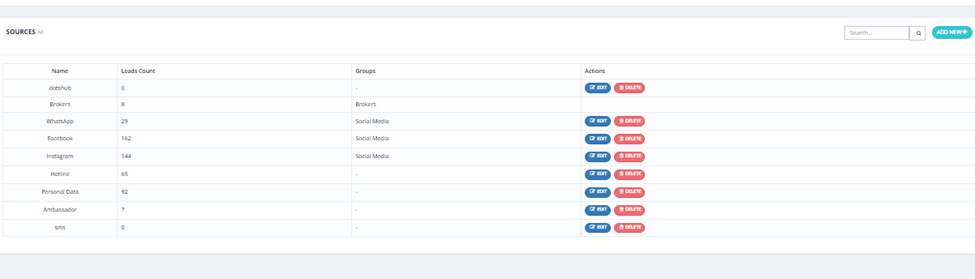
Sources List
The sources page displays:
| Column | Description |
|---|---|
| Name | The source name (e.g., Facebook, WhatsApp, Brokers). |
| Leads Count | Total number of leads generated from this source. |
| Groups | The group this source belongs to (e.g., Social Media, Brokers). |
| Actions | Edit or Delete the source. |
How to Add a New Source
- Click Add New.
- Enter the source Name (e.g., TikTok, Snapchat).
- Assign it to a Group if applicable (e.g., Social Media).
- Save.
Key Things to Know
- Sources can be grouped (e.g., Facebook, Instagram, WhatsApp all under "Social Media").
- The Leads Count updates automatically as leads come in from that source.
- Sources are selected when creating a Lead ID.