
Active Brokers
Overview
The Active Brokers tab shows all broker companies currently active in the system.
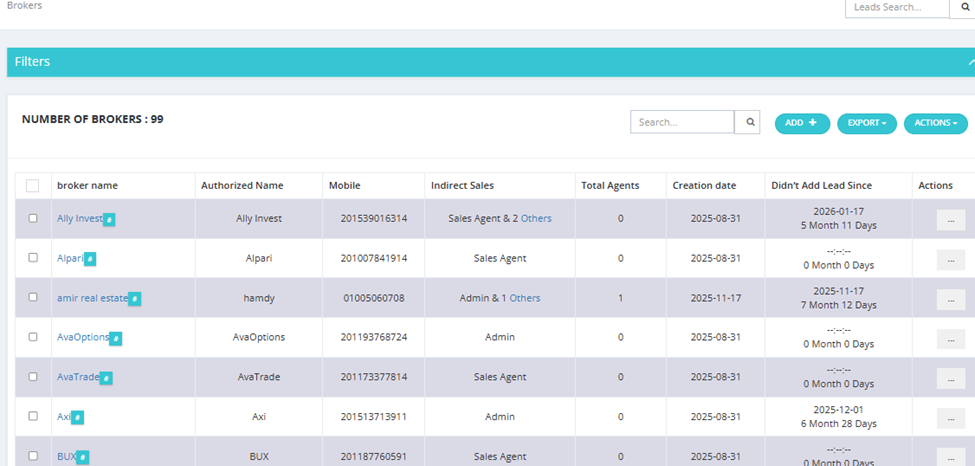
Brokers List
| Column | Description |
|---|---|
| Broker Name | The broker company name. |
| Authorized Name | The authorized representative's name. |
| Mobile | Contact number. |
| Indirect Sales | Which salesmen are assigned as indirect sales for this broker. |
| Total Agents | Number of broker agents under this company. |
| Creation Date | When this broker was added to the system. |
| Didn't Add Lead Since | How long since this broker submitted a lead — useful for identifying inactive brokers. |
| Actions | Options menu (···). |
Available Actions
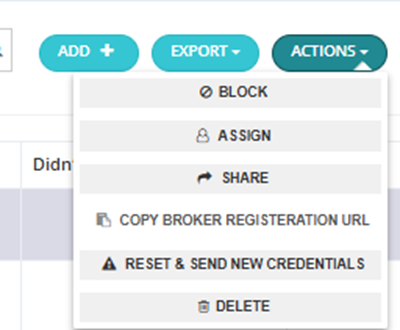
From the Actions dropdown (top right) or the (···) menu on each row:
| Action | Description |
|---|---|
| Block | Block the broker from submitting new leads or CILs. |
| Assign | Assign a salesman to this broker. |
| Share | Share broker information. |
| Copy Broker Registration URL | Copies a registration link to send to the broker company. When the broker opens the link, they fill in their own data directly — no need for you to enter it manually. The registration form includes: Type, Company Name, Authorized Name, Authorized ID Number, CRN, Tax Card, Mobile, Email, Address, Description, Files (e.g., tax card scan, commercial registration), Land Line, Tag, Co. History, Website/Social Media, Branches, Owners, Sales Team, Administrative Contact Person, Finance Team, and Logo. After submitting, the broker also receives their contract automatically — the system generates it based on whichever contract template is configured in Broker Settings. The broker can then print it, sign it physically, and bring it to the company or upload it back. |
| Reset & Send New Credentials | Reset the broker's CRM login and send new credentials to their email. |
| Delete | Remove the broker from the system. |
| Export | Export the broker list. |
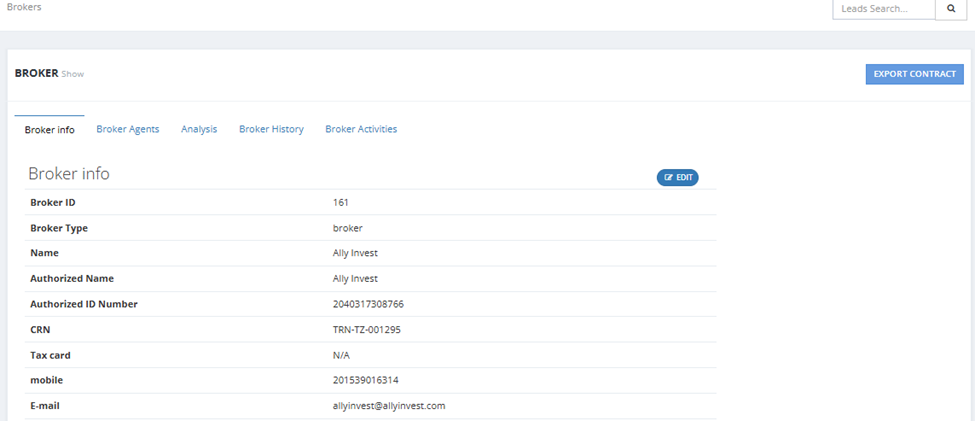
Broker Profile
Clicking on a broker company opens their full profile with these tabs:
| Tab | Description |
|---|---|
| Broker Info | Full company details (ID, Type, Name, Authorized Name, CRN, Tax Card, Mobile, Email, Address). |
| Broker Agents | List of agents working under this company. |
| Analysis | Performance data for this broker. |
| Broker History | Log of all interactions and changes. |
| Broker Activities | Activities logged against this broker. |
A Download Broker Contract button is available on the profile page.
How to Add a New Broker
Click Add and choose:
Add Broker (Company)
| Field | Required | Description |
|---|---|---|
| Type | ✅ | Broker type. |
| Company Name | ✅ | Official company name. |
| Authorized Name | Optional | Name of the authorized representative. |
| Authorized ID Number | Optional | ID number of the authorized rep. |
| CRN | Optional | Commercial Registration Number. |
| Tax Card | Optional | Tax card number. |
| Mobile | ✅ | Contact number. |
| ✅ | Email address (changing this affects login credentials). | |
| Address | Optional | Company address. |
| Description | Optional | Notes about the company. |
| Indirect Sale | Optional | Assign indirect sales team members. |
| Files | Optional | Upload documents. |
| Land Line | Optional | Landline number. |
| Tag | Optional | Tags for filtering. |
| Co. History | Optional | Company history notes. |
| Website / Social Media | Optional | Online presence links. |
| Branches | Optional | Branch information. |
| Owners | Optional | Owner details. |
| Sales Team | Optional | Assign sales team members. |
| Administrative Contact Person | Optional | Admin contact details. |
| Finance Team | Optional | Finance team assignment. |
| Logo | Optional | Company logo. |
Add Broker Agent
| Field | Required | Description |
|---|---|---|
| Broker | ✅ | Select the parent broker company. |
| Name | ✅ | Agent's full name. |
| Mobile | ✅ | Agent's mobile number. |
| ID | Optional | Agent's ID number. |
| Bank Account | Optional | Agent's bank account details. |