
Add Broker Request / Lead
Overview
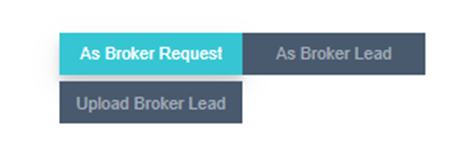
When adding from the Brokerage module, you have two options:
- As Broker Request — A request submitted by a broker company for a specific unit type (e.g., "4-bedroom duplex"). This is not a regular lead — it comes with a specific property requirement.
- As Broker Lead — A standard lead that comes through a broker company and enters the CRM normally.
- Upload Broker Lead — Bulk import broker leads via Excel file.
Broker Request vs Broker Lead
| Broker Request | Broker Lead | |
|---|---|---|
| What it is | A property inquiry from a broker company for a specific unit | A regular lead referred by a broker |
| Fields | Different from standard lead fields — includes property requirements | Similar to standard lead fields |
| Lead ID | Uses a special static source called "Brokers" — the Lead ID only appears in Brokerage tabs, not in the standard Add Lead screen | Standard Lead ID |
How to Add a Broker Request / Lead
- Go to Brokerage Module → Add Broker Request / Lead.
- Choose: As Broker Request or As Broker Lead.
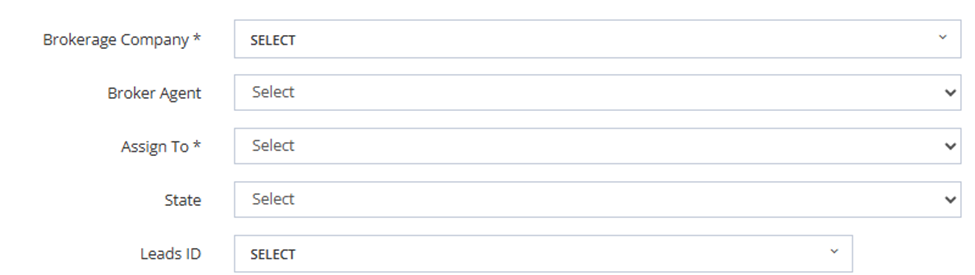
- Fill in the required fields:
| Field | Required | Description |
|---|---|---|
| Brokerage Company | ✅ | Select the broker company. |
| Broker Agent | Optional | Select the agent within that company. |
| Assign To | ✅ | Assign to a salesman. |
| State | Optional | Select the lead state. |
| Leads ID | ✅ | Select the Lead ID for this broker request/lead. The Lead ID must be created under the Brokers source in the Marketing Module — this is a static source dedicated to broker leads. Lead IDs from other sources will not appear here. To create one: go to Marketing → Lead IDs → Add New → set Source to "Brokers" → save. |
Upload Broker Lead
Works the same as the standard Upload Leads feature, with one additional required field:
| Extra Field | Description |
|---|---|
| Broker Company ID | The ID of the broker company. Get this from the broker's profile in Active Brokers. |
💡 To find the Broker Company ID, go to Active Brokers → open the broker's profile → copy the ID.
Adding Custom Fields to the Broker Request Form
- Go to Setup → Fields Setup.
- Click Add New.
- Set Broker Request option to True.
- Configure: Field Name, Data Type, Set as Unique if needed.
- Save — the field will appear on the Broker Request form.