
Broker Contract
Overview
The Broker Contract feature allows you to create contract templates that can be auto-filled with broker company data and downloaded as a Word document.
How It Works
Contracts are built using Document Words — placeholder codes that the system replaces automatically with real data from the broker's profile when the contract is generated.
For example, the code -broker-name- in the contract template will be replaced with the actual broker company name when downloaded.
Document Words
Available placeholder codes include:
Broker Information Codes:
| Field | Code |
|---|---|
| Broker Type | -Broker_type- |
| Broker Company Name | -Broker_company_name- |
| Broker Authorized Name | -Broker_authorized_name- |
| Broker Authorized ID Number | -Broker_authorized_id_number- |
| Broker CRN | -Broker_CRN- |
| Broker Tax Card | -Broker_tax_card- |
| Broker Mobile | -Broker_mobile- |
| Broker Email | -Broker_email- |
| Broker Address | -Broker_address- |
| Broker Description | -Broker_description- |
| Broker Indirect Sale | -Broker_indirect_sale- |
| Broker Land Line | -Broker_land_line- |
| Broker Tag | -Broker_tag- |
| Broker Co. History | -Broker_co_history- |
| Broker Website / Social Media | -Broker_website- |
| Broker Branches | -Broker_branches- |
| Broker Owners | -Broker_owners- |
| Broker Sales Team | -Broker_sales_team- |
| Broker Administrative Contact Person | -Broker_administrative- |
| Broker Finance Team | -Broker_finance_team- |
| Code | Description |
|---|---|
-broker-name- |
Broker company name. |
-payments- |
Payment methods. |
-payments_list- |
List of payments. |
-reservation_fees- |
Reservation fees amount. |
-total_paid- |
Total amount paid. |
-total_remaining- |
Total remaining amount. |
-total_amount- |
Total contract amount. |
-maintenance- |
Maintenance fees. |
And many more — view the full list in Setup → Global Contracts → Document Words.
How to Create a Broker Contract Template
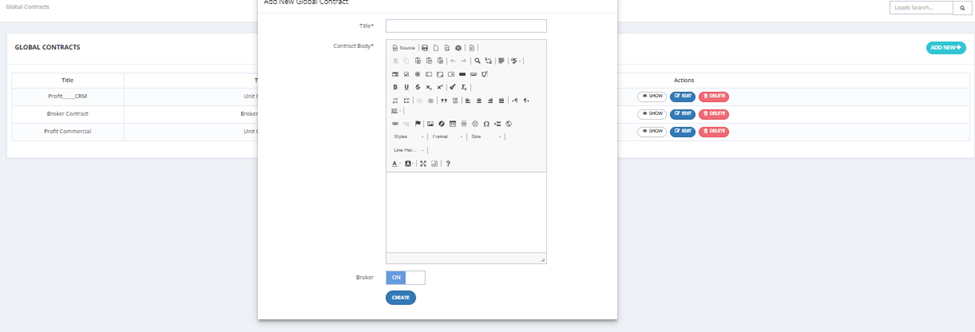
- Go to Setup → Global Contracts.
- Click Add New.
- Fill in:
- Title — Contract name (e.g., "Broker Contract 2025").
- Contract Body — Write the contract text and insert placeholder codes where dynamic data should appear.
- Broker — Toggle ON to mark this as a broker contract.
- Click Create.
How to Download a Broker Contract
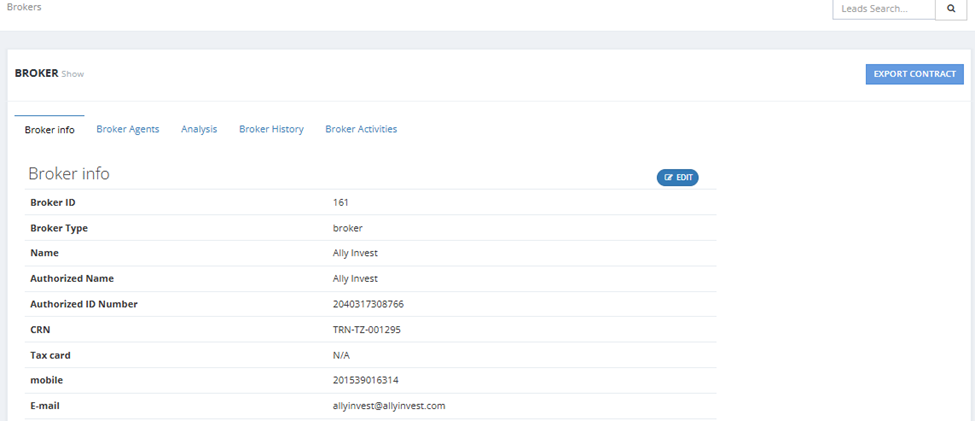
- Go to Active Brokers → open the broker's profile.
- Click Download Broker Contract (or Export Contract).
- Select which contract template to use.
- The system generates a Word document with the broker's data filled in automatically.
Broker Settings
Access via Settings → Broker Settings:
| Setting | Description |
|---|---|
| Broker Contract | Upload the default contract file template. |
| Can't Add Duplicated CIL | When ON, prevents duplicate CILs from being added. |
| Can't Add Duplicated CIL to the Same Broker CILs | When ON, prevents the same broker from submitting a duplicate CIL. |
| CIL Duplication Rejection Message | Message shown when a CIL is rejected as duplicate (e.g., "This CIL is Rejected"). |
| CIL Duplication Acceptance Message | Message shown when a CIL is accepted (e.g., "CIL Added Successfully"). |
| CIL Expiration Days | Number of days before a CIL expires. |
| Leads ID | Default Lead ID assigned to broker leads. |
| Block New Brokers By Default | When ON, all new brokers go to Pending/Blocked tab automatically. |
| Activity Todo Date (accept old date) | When ON, allows setting past dates for activity todo dates. |
| Start Contract Serial From | The starting number for contract serial numbering. |