Projects
Overview
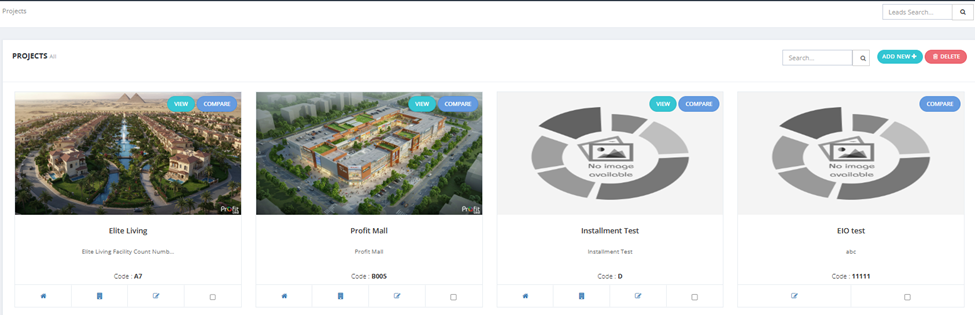
The Projects tab is where you manage all real estate projects. Each project contains buildings, each building contains segments, and each segment generates units.
Hierarchy: Project → Building → Building Segment → Units
Projects List
Projects are displayed as cards showing the project image, name, description, and code.
Project Card Buttons
| Button | Description |
|---|---|
| Units (home icon) | Opens the Units tab filtered automatically to show all units in this project. |
| Buildings (grid icon) | Opens the buildings view for this project. |
| Edit | Edit the project details. |
| Select (checkbox) | Select for bulk actions. |
How to Add a New Project
| Field | Required | Description |
|---|---|---|
| EOI Project | Toggle ON to enable EOI fields for this project. | |
| Name | ✅ | Project name. |
| Description | ✅ | Project description. |
| Reservation Serial Number | ✅ | Starting serial number for reservations. |
| About | Optional | Additional project info shown to clients. |
| Location Name | ✅ | Project location. |
| Payment Systems | Optional | Assign payment systems. |
| Prices Range | Optional | Set min/max price range. |
| Delivery Date | ✅ | Expected project delivery date. |
| Search on Map / lat / lon | Optional | Set exact map coordinates. |
| Code | ✅ | Project code (can be left as default). |
| Gross Land Space | ✅ | Total land space. |
| Project Access | Optional | Control which salesmen and brokers can see this project. Use "Select All The Team" or select specific salesmen/brokers. |
| Currency | Optional | Project currency. |
| Type | ✅ | Project type (e.g., Residential, Commercial). |
| Delivery Percentage Limit % | Optional | NPV delivery percentage limit. |
| Rate (NPV) % | Optional | NPV interest rate. |
| Max Payment Method Year (NPV) | Optional | Maximum years for NPV payment method. |
| Price Type | ✅ | full — total price per unit. meter_price — price per sqm (system calculates total). |
| Select Payment | Optional | Assign global payment methods. For each selected method, set the Installment Fees. |
| Facilities | Optional | Project-level facilities: Name, Amount, Payment Method, Included in total price?, Included in Maintenance?. |
| Maintenance | Optional | Project-level maintenance: Name, Amount, Payment Method, Payment Type. |
| Project Brochure Files | Optional | Upload project PDF brochure. |
| Videos | Optional | Upload project videos. |
| Gallery | Optional | Upload project photos. |
| Logo | Optional | Project logo. |
| Contract Appendix Images | Optional | Images appended to contracts. |
EOI Fields (shown only when EOI Project is ON)
| Field | Description |
|---|---|
| EOI Form | Custom EOI form link/settings. |
| EOI Value | The EOI payment amount. |
| EOI Code | Code assigned to each EOI. |
| EOI Serial Starting From | Starting serial number for EOIs. |
| EOI Code Type | Type of code generation. |
| EOI Code Type Starting From | Starting value for code type. |
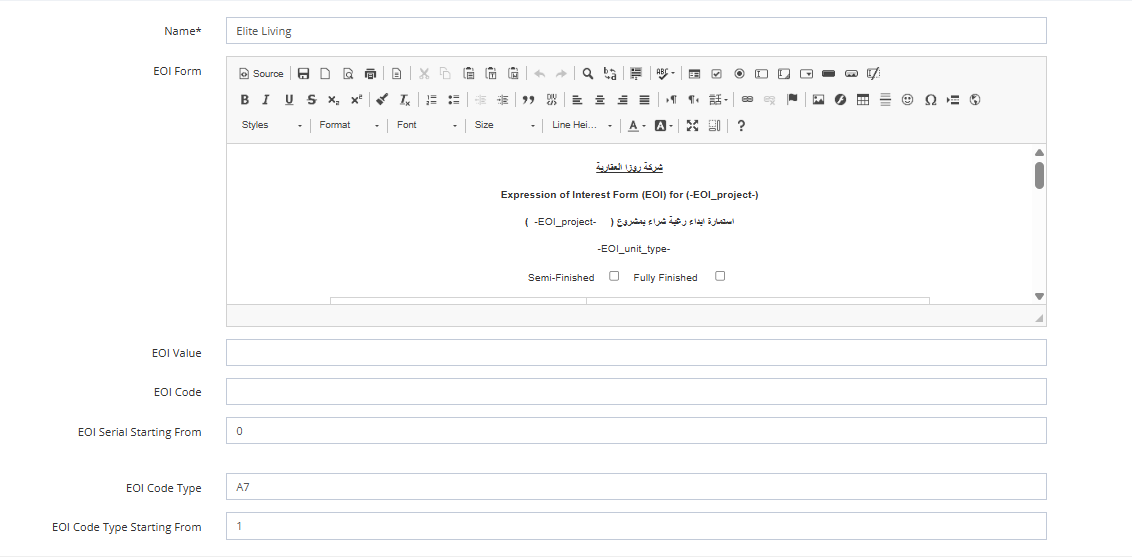
💡 The EOI Project toggle controls whether EOI fields appear in the project. If OFF, EOI section is hidden completely.
💡 The EOI form in the project supports Document Words — placeholder codes that the system replaces automatically with real data when the EOI document is generated. For example, inserting
-client-name-in the EOI form body will be replaced with the actual client's name when the EOI is printed or downloaded. This works the same way as the contract template system. To view all available placeholder codes, go to Setup → Document Words.
Managing Buildings
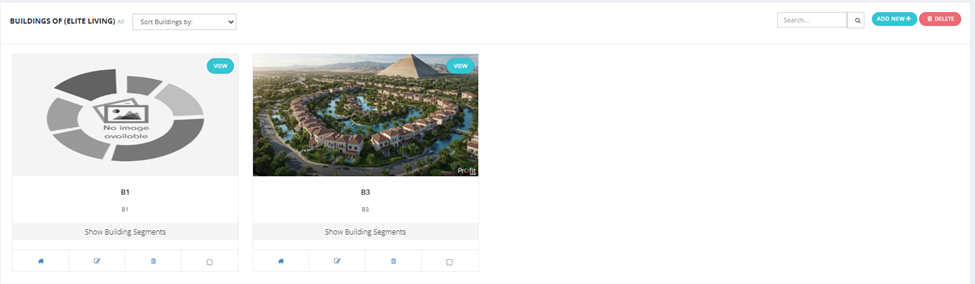
Click the Buildings button on a project card to see all buildings.
Each building card shows its name, image, and a Show Building Segments button.
Building Action Buttons (inside building edit page)
| Button | Description |
|---|---|
| Duplicate | Creates an exact copy of this building including all its segments and unit structure. |
| Freeze | Freezes the building — prevents any sales actions on all units within it. |
| Un Freeze | Removes the freeze — units become available for sales again. |
| Delete | Permanently deletes the building and all its units. |
Building Card Buttons
| Button | Description |
|---|---|
| Units | Opens Units filtered to this specific project AND building. |
| Delete | Delete the building. |
| Edit | Edit the building details. |
Building Fields (Add / Edit)
| Field | Required | Description |
|---|---|---|
| Name | ✅ | Building name. |
| Tag | Optional | Tag for filtering. |
| Details | ✅ | Building details. |
| Description | Optional | Building description. |
| Brokers | Optional | Assign broker access to this building. |
| Facilities | Optional | Building-level facilities: Name, Amount, Payment Method, Included in total unit price?, Included in Maintenance?. |
| Maintenance | Optional | Building-level maintenance fees: Name, Amount, Payment Method, Payment Type. |
| Files / Videos / Gallery / Logo | Optional | Building media. |
| Contract Appendix Images | Optional | Images appended to contracts. |
| Building Segments | Optional | View all segments and their bedroom/bathroom count at the bottom of the building form. |
Building Segments
💡 You can assign a specific payment method to a building segment — this overrides the project-level payment method for units generated from this segment. Use the Select Payment field when adding or editing a segment.
A Building Segment is a unit type template within a building (e.g., 2-bedroom apartment on the ground floor). Adding a segment lets you generate multiple identical units at once.
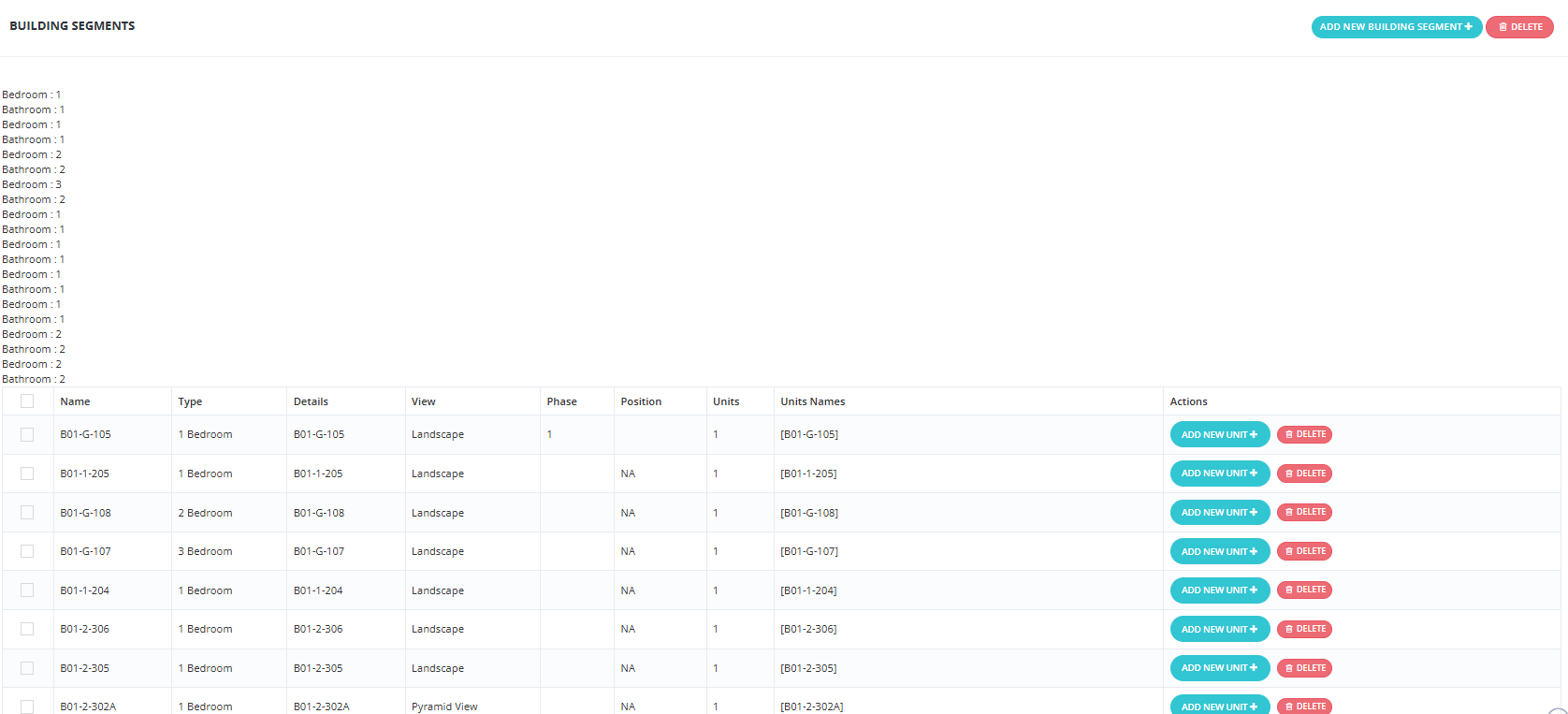
How to Add a Building Segment
| Field | Required | Description |
|---|---|---|
| Name | ✅ | Segment name (e.g., B01-G). |
| Type | ✅ | Unit type (e.g., Apartment, Villa) — must be added to Inventory Settings first. |
| Details | ✅ | Segment details. |
| Type Description | Optional | Additional description. |
| Space | ✅ | Unit space in sqm. |
| Garden Space | Optional | Garden space in sqm. |
| Roof Space | Optional | Roof space in sqm. |
| Premium % | Optional | Price premium percentage added on top of base price. |
| Space In Details | Optional | Detailed space breakdown. |
| Price | ✅ | Unit price (or price per meter if project is meter_price type). |
| Position | Optional | Must be added to Inventory Settings first. |
| View | Optional | Must be added to Inventory Settings first. |
| Finishing | Optional | Must be added to Inventory Settings first. |
| Phase | Optional | Must be added to Inventory Settings first. |
| Unit Code | Optional | Must be added to Inventory Settings first. |
| Select Payment | Optional | Payment methods for this segment. |
| Facilities | Optional | Segment-level facilities. |
| Maintenance | Optional | Segment-level maintenance fees. |
| Files / Videos / Gallery / Logo | Optional | Segment media. |
| Number Of Units | Optional | How many units to generate from this segment — all will have identical specs. |
💡 If you edit a segment (e.g., change the Space), the change applies to all units generated from that segment automatically.
Edit Building Segment
Same fields as Add — with the addition that after saving, all units within the segment reflect the updated values.
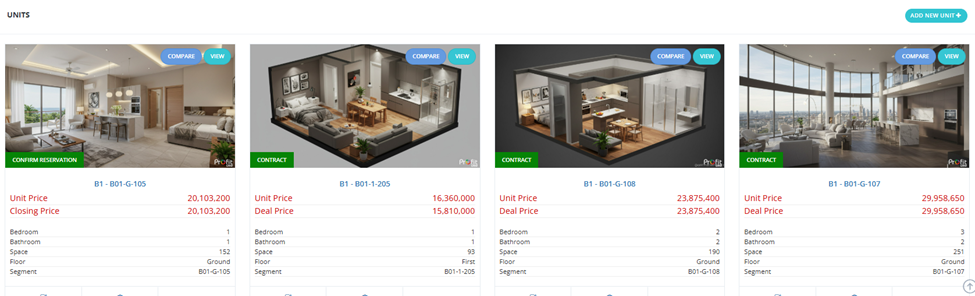
At the bottom of the building segment view, you can see all the units generated from it with their Unit Price, Space, Floor, and Segment — and take actions on them directly.