Units
Overview
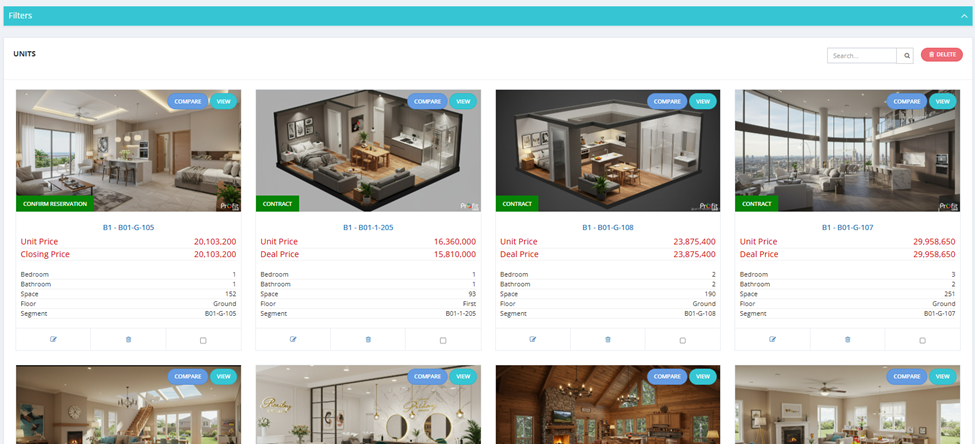
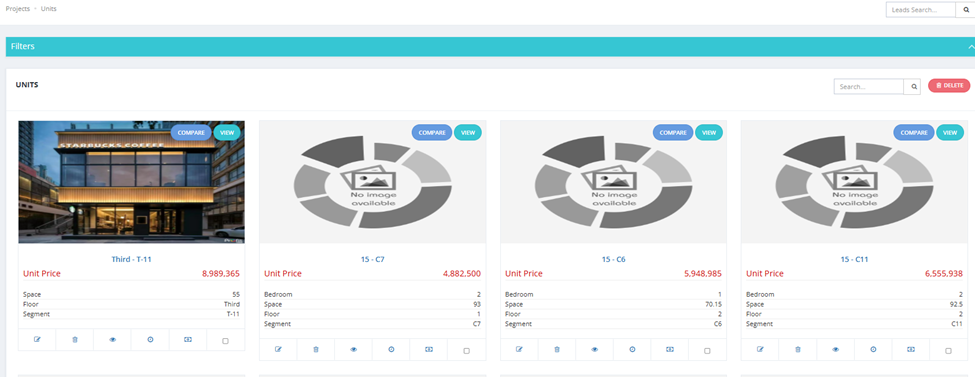
The Units tab is the main view for browsing and selling available units. Units are displayed as cards with photos and key details.
Who Sees What
| User Role | What They See |
|---|---|
| Salesman | Available units only (not sold/held/reserved by others). |
| Operations / Financial / Top Management | All units including sold, held, and reserved. Also sees additional action buttons. |
The unit card only appears to a salesman when the unit has not been assigned to another pipeline stage. Once a hold is confirmed by any salesman, the unit disappears from all other clients' views and from the salesman's Units tab.
Unit Card Information
Each unit card shows:
- Unit photo / rendered image
- Unit name (Building - Segment - Unit Code)
- Unit Price / Deal Price / Closing Price
- Bedroom, Bathroom, Space, Floor, Segment
- Current pipeline stage label (e.g., Contract, Confirm Reservation)
Unit Card Action Buttons
For Sales
| Button | Icon | Description |
|---|---|---|
| View to Client | 👁 Eye | Shows the unit to a client in their client-facing interface. Multiple salesmen can show the same unit to multiple clients simultaneously — this is just a view, no action is taken. Once any salesman confirms a hold on the unit, it disappears from all other clients' views automatically. |
| Compare | — | Compare this unit side by side with another unit. |
For Operations / Top Management (additional)
| Button | Description |
|---|---|
| Quick Hold | Use when the buyer has no existing client profile or lead in the CRM. Creates a new client profile on the spot and moves the unit to the Hold stage for that client. Two client types can be created: Regular Client or Broker Client — the distinction affects how the client is tracked and reported in the system. |
| Quick Reserve | Use when the buyer already exists as a client in the CRM. Moves the unit directly to the Reservation stage. |
| Edit | Edit the full unit details. |
| Custom Payment Plan | Override the standard payment plan for this specific unit. |
| Custom Maintenance | Set custom maintenance fees for this unit. |
| Facilitate | Add a facilitation option to this unit. |
| Freeze | Freeze the unit — prevents any sales actions on it. |
| Select Payments | Choose which global payment methods apply to this unit. Go to Setup → Payment Methods to manage global payment methods. |
Available Filters
| Filter | Description |
|---|---|
| Unit Name | Search by unit name. |
| Delivery Date | Filter by expected delivery date. |
| Position | Filter by unit position. |
| Bedroom | Filter by number of bedrooms. |
| Type | Filter by unit type (e.g., Apartment, Villa). |
| Unit Code | Filter by unit code. |
| View | Filter by view type (e.g., Pool View, Garden View). |
| Finishing | Filter by finishing type (e.g., Fully Finished, Core & Shell). |
| Project | Filter by project name. |
| Floor | Filter by floor number. |
| Building | Filter by building name. |
| Building Segments | Filter by segment within a building. |
| Project Type | Filter by project type. |
| Status | Filter by unit status (Pending, Under Construction, Completed, Resale). |
| Salesman | Filter by assigned salesman. |
| Phase | Filter by project phase. |
| Unit Delivery Date | Filter by unit delivery date. |
| Space | Filter by unit space in sqm. |
| Price | Filter by price range. |
| Meter Price | Filter by price per meter. |
| Bathroom | Filter by number of bathrooms. |
| State | Filter by pipeline state. |
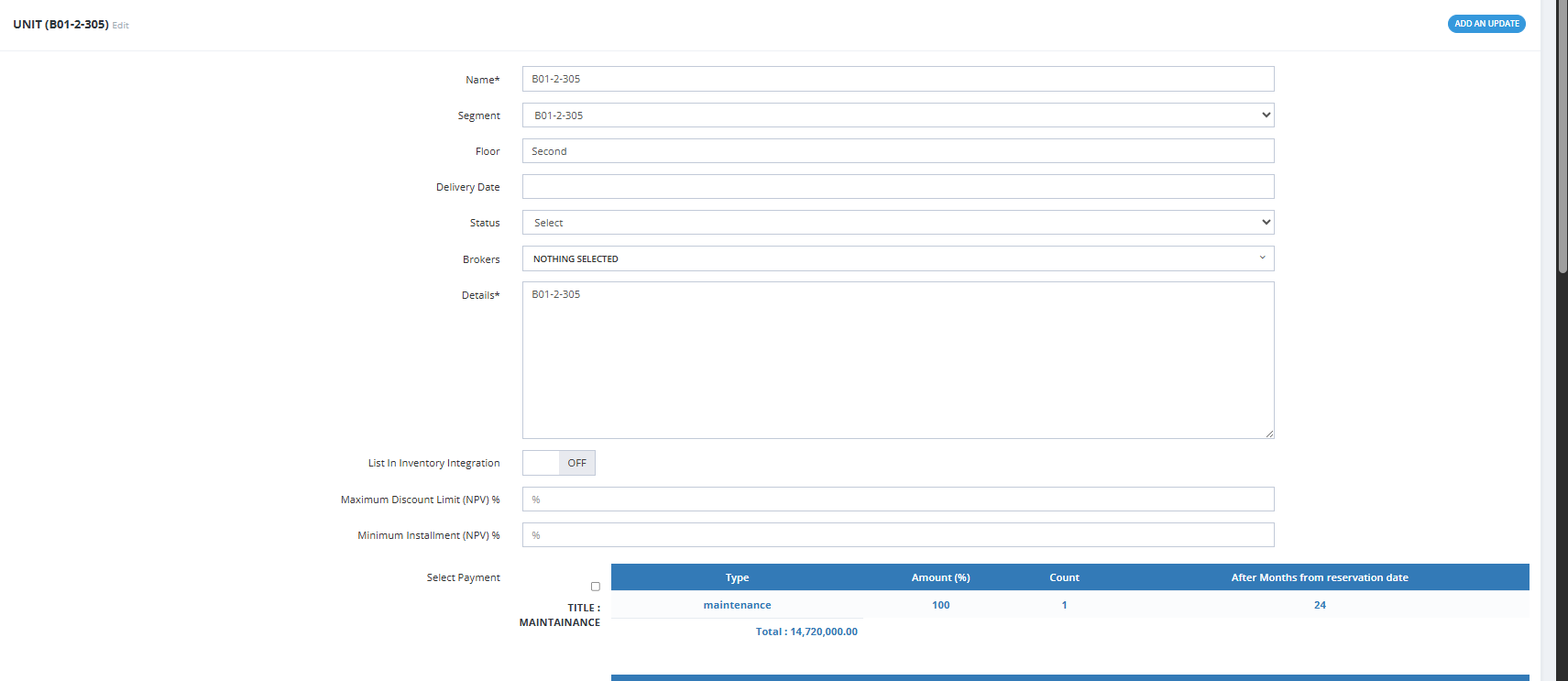
Unit Fields (Edit)
| Field | Required | Description |
|---|---|---|
| Name | ✅ | Unit name. |
| Segment | Optional | The building segment this unit belongs to. |
| Floor | Optional | Floor number or name. |
| Delivery Date | Optional | Expected delivery date. |
| Status | Optional | Pending / Under Construction / Completed / Resale. |
| Brokers | Optional | Assign broker access to this unit. |
| Details | ✅ | Unit description/details. |
| List In Inventory Integration | Optional | Include this unit in external inventory integrations. |
| Maximum Discount Limit (NPV) % | Optional | Maximum discount allowed for NPV calculations. |
| Minimum Installment (NPV) % | Optional | Minimum installment percentage for NPV calculations. |
| Select Payment | Optional | Select applicable payment methods from the global list. |
| Add Payment Method | Optional | Override the standard payment plan for this specific unit. |
| Facilities | Optional | Add facility items: Name, Amount, Payment Method. |
| Maintenance | Optional | Add maintenance fees: Name, Amount, Payment Method, Payment Type. |
| Files | Optional | Upload supporting documents. |
| Videos | Optional | Upload unit videos. |
| Gallery | Optional | Upload unit photos. |
| Contract Appendix Images | Optional | Images appended to the unit contract. |