
Primary Units — Unit Types & Selling
Overview
Unit Types are the types of units within a project phase (e.g., Villa, Twin). Each unit type contains the individual units available for sale. From here you can view units, show them to clients, and move them through the selling pipeline.
Unit Types List
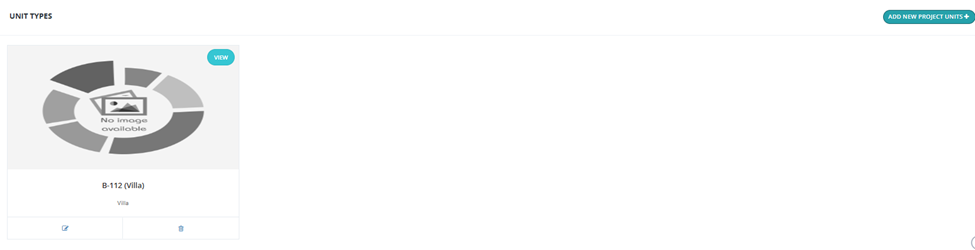
Unit types are displayed as cards showing the type name and tag. Each card has:
| Button | Description |
|---|---|
| VIEW | Opens the unit type's full details and units list. |
| Edit (✏️) | Edit the unit type. |
| Delete (🗑️) | Delete the unit type. |
Available action: Project --> Phase --> add New Project Units +.
Adding a Unit Type
Scroll down inside a phase and click Add New Project Unit. Fill in the following fields:
| Field | Required | Description |
|---|---|---|
| Name | ✅ | Unit type name (e.g., B-112 Villa). |
| Type | ✅ | Select the unit type (e.g., Villa, Twin, Apartment). |
| Details | ✅ | Description of the unit type. |
| Payments Description | ✅ | Payment terms description. |
| Availability | ✅ | Whether the unit is available. |
| Finishing | Optional | Finishing type. |
| Space fields | Optional | Net Area, Garden Space, Roof Space, Price From, Price To, Direction, View — add one row per unit size/variant using Add Units. |
| Files | Optional | Attach documents. |
| Videos | Optional | Attach video links. |
| Gallery | Optional | Upload unit photos. |
| Logo | Optional | Unit logo or featured image. |
💡 The additional fields entered here (Space, Price From, Price To, Direction, View, etc.) are applied to all units within this unit type. Each row in the units table represents a specific unit variant.
Viewing Unit Type Details
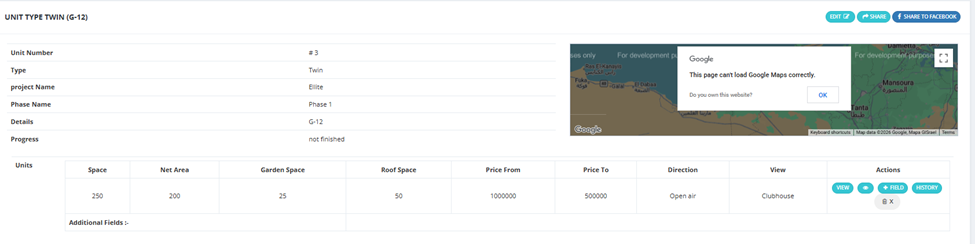
Clicking VIEW on a unit type opens its full details page showing:
- Unit Number, Type, Project Name, Phase Name, Details, Progress status.
- A Units table with all unit variants — each row shows: Space, Net Area, Garden Space, Roof Space, Price From, Price To, Direction, View, and action buttons.
- Additional Fields section for any custom fields.
- Edit, Share, Share to Facebook buttons at the top right.
Unit Row Actions
| Button | Description |
|---|---|
| VIEW | Show this unit to a client — opens the selling pipeline. |
| 👁️ | Quick view of unit details. |
| + Field | Add a custom field to this unit. |
| History | View the full action history of this unit. |
The Unit Types Tab
Accessible from the project view, the Unit Types tab shows all unit types across all phases of the project in one list, with the same card layout and filters.
Available Filters
| Filter | Description |
|---|---|
| Space | Filter by space range (From / To). |
| Date | Filter by date range. |
| Price | Filter by price range (From / To). |
| Bedroom | Filter by number of bedrooms. |
| Bathroom | Filter by number of bathrooms. |
| Status | Filter by unit status. |
| Position | Filter by unit position. |
| Type | Filter by unit type. |
| View | Filter by view type. |
| Finishing | Filter by finishing type. |
| Project | Filter by project. |
Selling a Primary Unit — The Pipeline
When you click VIEW on a unit row, the selling pipeline opens. The pipeline has 3 stages:
Show → Hold → Contract
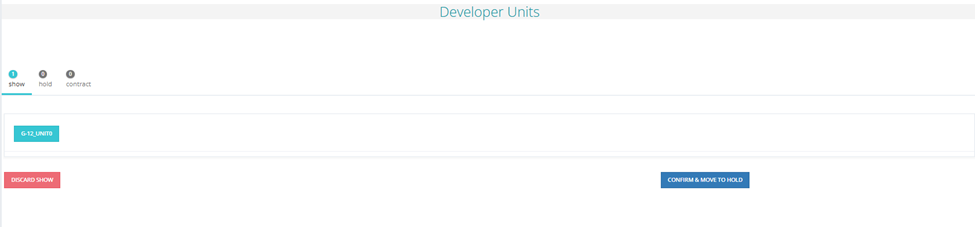
Show Stage
The unit is shown to the client. Actions available:
| Button | Description |
|---|---|
| Confirm & Move to Hold | Client confirms interest — moves to Hold. |
| Discard Show | Cancel the show — unit returns to available. |
Hold Stage
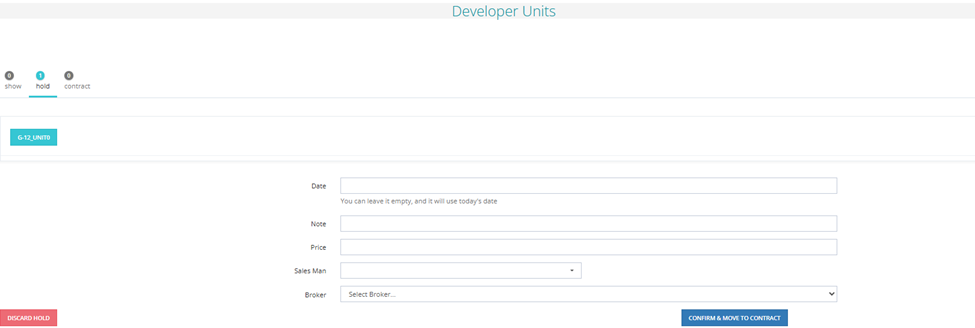
The client has confirmed interest. Fill in the hold details:
| Field | Required | Description |
|---|---|---|
| Date | Optional | Contract date — leave empty to use today's date. |
| Note | Optional | Any note on this hold. |
| Price | Optional | The agreed price. |
| Sales Man | Optional | The salesman responsible. |
Actions:
- Confirm & Move to Contract — moves to the Contract stage.
- Discard Hold — cancels the hold.
Contract Stage
The unit is under contract. Action available:
- Discard Contract — steps back to Hold.
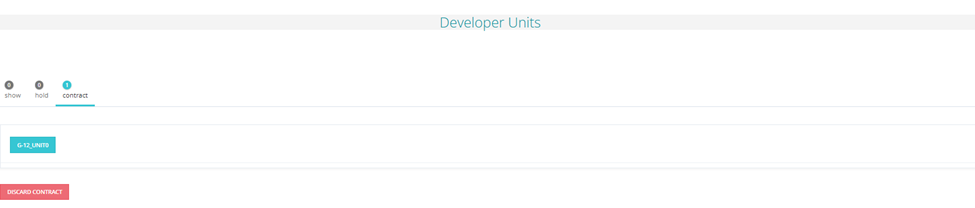
💡 The pipeline progress bar at the top shows Show / Hold / Contract with a count of units at each stage — click any stage to jump to it.