
My Leads
Overview
My Leads is your personal workspace in the CRM. It shows all leads currently assigned to you, organized into tabs based on their state.
If you are a manager, you can also see leads assigned to your team members based on the hierarchy tree.
Lead Tabs
| Tab | Description |
|---|---|
| Favorite | Leads you marked as favorite for quick access. Cannot be deleted. |
| Fresh Leads | Newly assigned leads with no state selected yet. Cannot be deleted. |
| VIP / Urgent | High-priority leads requiring immediate attention. |
| Pending | Leads awaiting a response or next step. |
| Following | Leads being actively followed up. |
| Planned Meeting | Leads with an upcoming planned meeting. |
| Meeting | Leads currently in or recently had a meeting. |
| After Meeting | Leads in the follow-up stage after a meeting. |
| Not Interested | Leads that showed no interest. |
| Unreachable | Leads that cannot be contacted. |
| Done Deal | Leads successfully converted to a sale or reservation. |
| Cancelled | Leads where the deal or interaction was cancelled. |
| Low Budget | Leads whose budget doesn't match available offerings. |
| All Leads | Full view of all your leads regardless of state. Cannot be deleted. |
How States Work
- When you update a lead, you select a state from the dropdown.
- The lead automatically moves to the matching tab.
- If no state is selected when assigning, the lead goes to Fresh Leads.
Visibility Based on Hierarchy
- Managers see leads for themselves and all users under them in the tree.
- Regular salesmen see only their own leads.
Common Features Across All Tabs
Every tab has the same top bar with:
- Search bar — find a lead by name, mobile, or email.
- Bulk State Move — change the state of multiple leads at once.
- Export — download the lead list.
- Show Delayed Leads — filter overdue leads (not available in Fresh Leads tab).
- Sorting options:
- Old to Recent by Next Action
- Recent to Old by Next Action
- Old to Recent by Created Date
- Recent to Old by Created Date
Tab Management
- You can delete any tab except Favorite, Fresh Leads, and All Leads.
- Custom states can be added via Setup → List Setup → Add New State.
- Select State Group
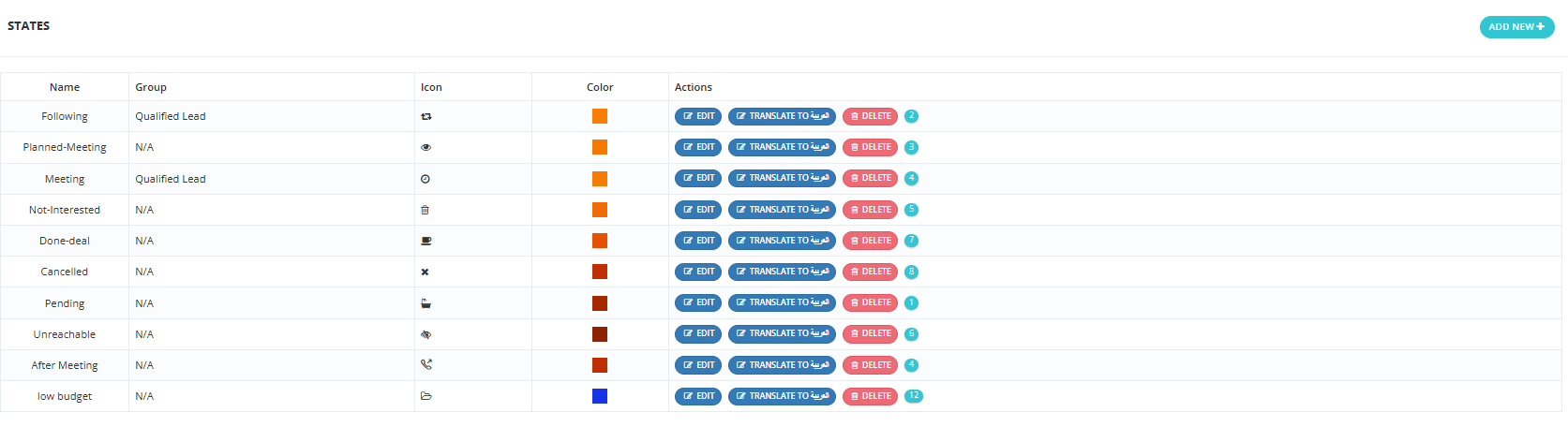
Creat State Group
- Setup → State Group → Add New.

Available Filter Options (All Tabs)
You can filter leads within any tab using the following fields:
| Filter | Description |
|---|---|
| Lead Code | A unique identifier for each lead. |
| Salesman | Filters by the assigned salesman. |
| Assigned From | Filters by who the lead was assigned from. |
| Teams | Filters leads associated with specific teams. |
| Creator | The user who originally created the lead. |
| Country | Filters based on phone number country code. |
| Lead Origin | Where the lead came from (e.g., Add New, Upload, Facebook). |
| Stage | Filters by current reservation/sales stage. |
| Campaigns | Filters leads linked to specific marketing campaigns. |
| Sources | Filters by lead source (e.g., WhatsApp, Facebook). |
| Leads ID | Filters based on specific marketing info / Lead ID. |
| Lead Types | Filters by lead type (e.g., Lead, Broker Lead, Broker Request, CIL). |
| Branches | Filters leads associated with specific company branches. |
| Broker | Filters leads linked to specific brokers. |
| Broker Agents | Filters by agents working under a broker. |
| Projects | Filters leads associated with specific projects. |
| Broker Projects | Filters leads linked to broker-specific projects. |
| Tag | Filters by tags or labels applied to the lead. |
| Age | Filters by age or age group, if collected. |
| Purpose | Filters by the lead's stated purpose. |
| Segment | Filters by market segment or demographic group. |
| Gender | Filters by gender, if collected. |
| Contact Tools | Filters by contact method used (e.g., phone, email, WhatsApp). |
| Reply Option | Filters by the lead's preferred reply method. |
| Assignment Type | Filters by how the lead was assigned. |
| Budget | Filters by the lead's budget range. |
| Date Request was created | Filter by lead creation date (From / To). |
| Date action was created | Filter by when an action was logged (From / To). |
| Date action is taking place | Filter by the scheduled action date (From / To). |
| Assignment Date | Filter by when the lead was assigned (From / To). |
| Duplication Date | Filter by when a duplication was detected (From / To). |