
New Leads
Overview
The New Leads section shows all leads that have recently entered the CRM and have not yet been assigned to a salesman. Leads arrive here from multiple sources automatically.
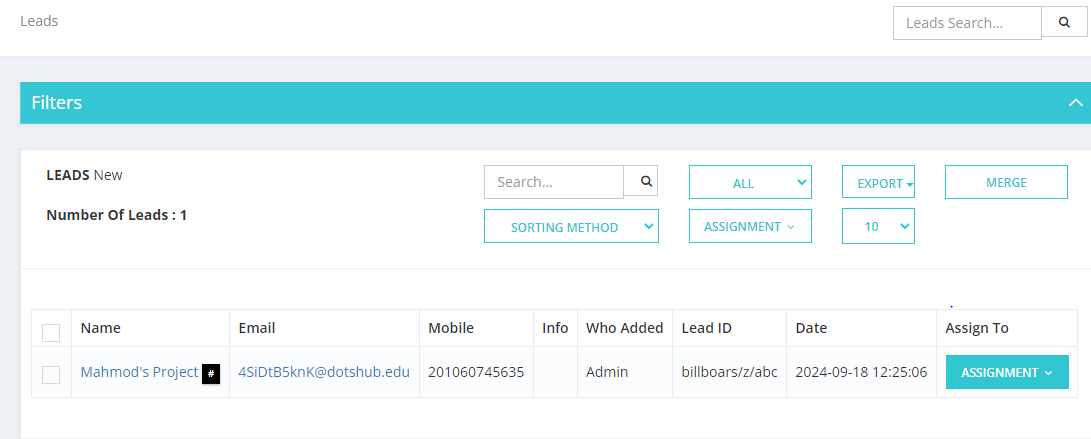
How Leads Enter the System
Leads can come into the New Leads section through:
- Manual entry — added one by one via Add New Lead
- Bulk upload — imported via Excel or CSV file
- Facebook Integration — leads from Facebook ads flow in automatically
- Landing Page — leads submitted via your website landing page
- Third-party integrations — for example, Zapier (useful for platforms without direct integration, such as Snapchat)
What You See in the New Leads List
Each lead shows the following columns:
| Column | Description |
|---|---|
| Name | Full name of the lead |
| Email address (may be system-generated) | |
| Mobile | Contact number including country code |
| Info | Additional notes or tags |
| Who Added | Which user or integration created this lead |
| Lead ID | The marketing campaign ID attached to the lead |
| Date | Date and time the lead was created |
| Assign To | Button to assign the lead to a salesman |
Available Actions
- Search — find a lead by name, mobile, or email.
- ALL dropdown — filter by lead source or type.
- Export — download the list.
- Merge — combine duplicate leads.
- Sorting Method — sort by different criteria.
- Assignment — assign selected leads in bulk.
Available Filter Options
| Filter | Description |
|---|---|
| Lead Code | A unique identifier for each lead, used for quick reference. |
| Creator | The user who created or added the lead to the system. |
| Country | Filters leads based on phone number country code. |
| Lead Origin | Where the lead came from (e.g., Add New, Upload, Facebook, Landing Page). |
| Campaigns | Filters leads linked to specific marketing or sales campaigns. |
| Sources | Filters leads linked to a specific source such as WhatsApp or Facebook. |
| Leads ID | Filters based on specific marketing info / Lead ID. |
| Lead Types | Filters by lead type (e.g., Lead, Broker Lead, Broker Request, CIL). |
| Branches | Filters leads associated with specific company branches. |
| Broker | Filters leads linked to specific brokers. |
| Broker Agents | Filters by agents working under a broker. |
| Projects | Filters leads associated with specific projects. |
| Tag | Filters by tags or labels applied during data entry. |
| Age | Filters by age or age group, if collected. |
| Purpose | Filters by the lead's stated purpose (e.g., inquiry, purchase intent). |
| Segment | Filters by market segment or demographic group. |
| Gender | Filters by gender, if that information is collected. |
| Contact Tools | Filters by contact method used (e.g., phone, email, WhatsApp). |
| Reply Option | Filters by the lead's preferred reply method. |
What to Do with New Leads
- Review the lead information.
- Click Assignment to assign the lead to a salesman.
- Once assigned, the lead moves to that salesman's My Leads → Fresh Leads tab.
Key Things to Know
- Leads stay in New Leads until they are assigned.
- After assignment, they disappear from this view and appear in the salesman's My Leads.
- If using Zapier for a platform like Snapchat, leads will still land here the same way as any other source.