
Add Lead & Duplication
Overview
This settings page controls how leads are created and how the system handles duplicate entries.
Add Lead Settings
| Setting | Description |
|---|---|
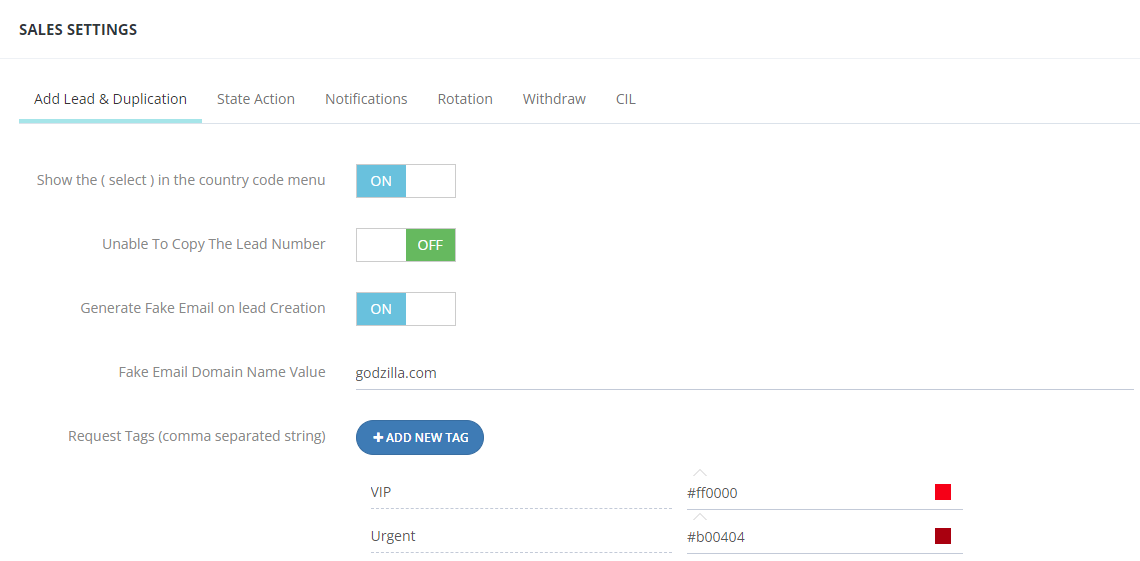
| Show (select) in country code menu | When ON, a blank "select" option appears in the country code dropdown. |
| Unable to Copy Lead Number | When ON, users cannot copy the lead's mobile number from the CRM. |
| Generate Fake Email on Lead Creation | When ON, the system auto-generates an email if none is provided. |
| Fake Email Domain Name | The domain used for fake emails (e.g., godzilla.com). Helps distinguish real emails from generated ones. |
| Request Tags | Define tags with colors applied to leads. Example: VIP in red #ff0000, Urgent in dark red #b00404. Click + Add New Tag to add more. |
Duplication Settings
Listed in order as they appear in the system:
| Setting | Description |
|---|---|
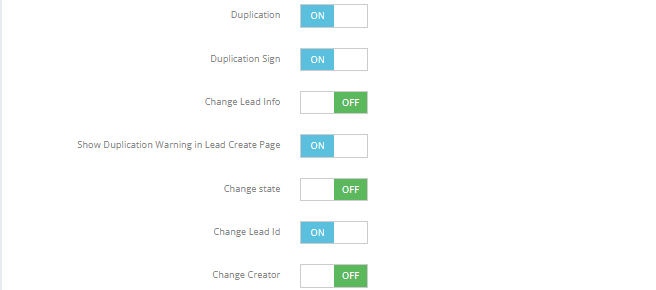
| Duplication | When ON, duplicate leads go to the Duplicated Leads screen instead of being added again. |
| Duplication Sign | Adds a visual badge on lead records flagged as duplicates. |
| Change Lead Info | When ON, the existing lead's info is updated automatically with the new duplicate's data. |
| Show Duplication Warning on Lead Creation Page | Displays "Number is Duplicated!!" when a duplicate mobile number is typed during manual lead creation.
|
| Change State | When ON, the existing lead's state is updated if the duplicate carries a different state. |
| Change Lead ID | When ON, the Lead ID is updated if the duplicate has a different one. |
| Change Creator | When ON, the creator field is updated if the duplicate comes from a different source. |

Other Settings on This Page
| Setting | Description |
|---|---|
| Send view unit email via agent's email | Emails about unit views are sent from the agent's email address. |
| Leads History Sorting (Descending) | Lead history is shown newest first. |