
Duplicated Leads
Overview
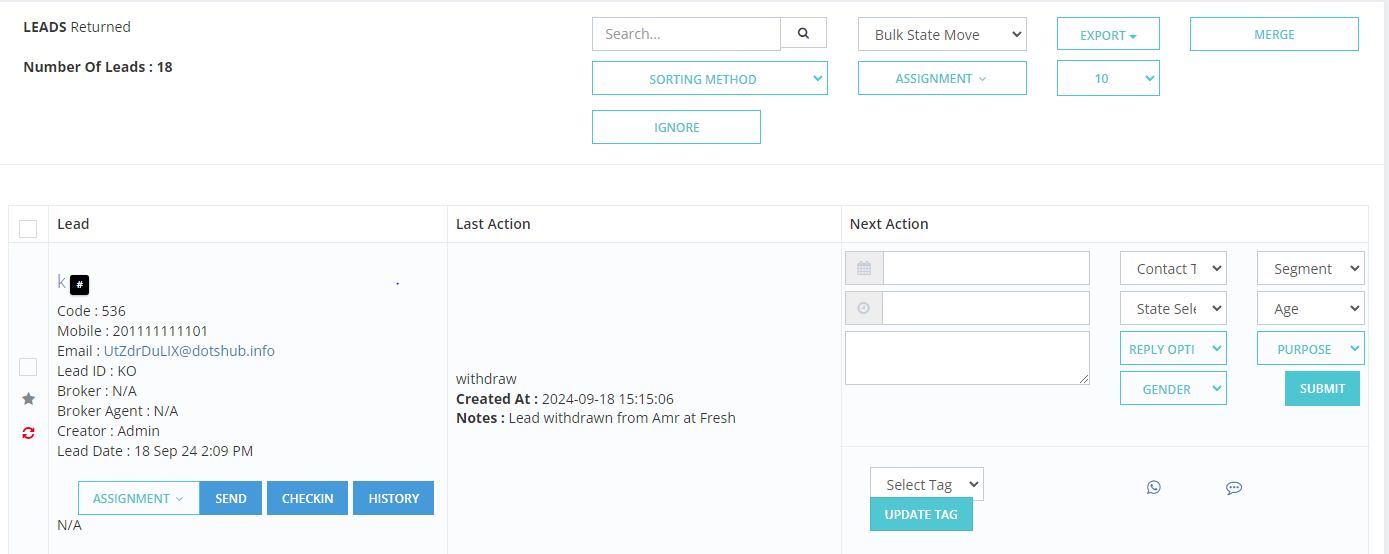
The Duplicated Leads screen shows leads that someone attempted to add more than once. Instead of creating a duplicate record, the system flags it here for review.
Duplication is detected based on mobile number.
The Duplication Warning
When a user tries to enter a mobile number that already exists in the system, they see this warning on the lead creation page:
⚠️ Number is Duplicated!!

This prevents the duplicate from being accidentally saved as a new lead.
How It Works
When a duplicate lead is submitted (via upload, manual entry, or integration), the system:
- Does not add it as a new lead — it sends it to the Duplicated Leads screen instead.
- Shows it here as a notification only alongside the existing lead record.
- Displays the new information so you can review and decide what to do.
You can then decide what to do with it.
Available Filter Options
| Filter | Description |
|---|---|
| Lead Code | A unique identifier for each lead, used for quick reference. |
| Salesman | Filters by the salesman currently assigned to the lead. |
| Assigned From | Filters by who the lead was assigned from. |
| Teams | Filters leads associated with specific teams. |
| Creator | The user who originally created the lead. |
| Country | Filters leads based on phone number country code. |
| Lead Origin | Where the lead came from (e.g., Add New, Upload, Facebook). |
| Stage | Filters leads by their current reservation/sales stage. |
| Campaigns | Filters leads linked to specific marketing campaigns. |
| Sources | Filters by lead source (e.g., WhatsApp, Facebook). |
| Leads ID | Filters based on specific marketing info / Lead ID. |
| Lead Types | Filters by lead type (e.g., Lead, Broker Lead, Broker Request, CIL). |
| Branches | Filters leads associated with specific company branches. |
| Broker | Filters leads linked to specific brokers. |
| Broker Agents | Filters by agents working under a broker. |
| Projects | Filters leads associated with specific projects. |
| Broker Projects | Filters leads linked to broker-specific projects. |
| Tag | Filters by tags or labels applied to the lead. |
| Age | Filters by age or age group, if collected. |
| Purpose | Filters by the lead's stated purpose. |
| Segment | Filters by market segment or demographic group. |
| Gender | Filters by gender, if collected. |
| Contact Tools | Filters by contact method used (e.g., phone, email, WhatsApp). |
| Reply Option | Filters by the lead's preferred reply method. |
| Assignment Type | Filters by how the lead was assigned. |
| Budget | Filters by the lead's budget range. |
| Date Request was created | Filter by the date the lead was originally created (From / To). |
| Date action was created | Filter by the date an action was logged on the lead (From / To). |
| Date action is taking place | Filter by the scheduled date of an action (From / To). |
| Assignment Date | Filter by when the lead was assigned (From / To). |
| Duplication Date | Filter by when the duplication was detected (From / To). |
Actions You Can Take
Merge
Combine the new information with the existing lead record. For example, if a lead previously listed Cairo as their location but the new entry shows New Cairo, you can merge to update the record with the latest info.
Assign / Reassign
You can assign or reassign the existing lead to a different salesman directly from this screen — without needing to go to the lead's full profile.
Ignore
If the duplicate entry is irrelevant or incorrect, leave it without taking action.
Filters Available
You can filter duplicated leads by date, source, salesman, and other criteria.
How to Enable Duplication Detection
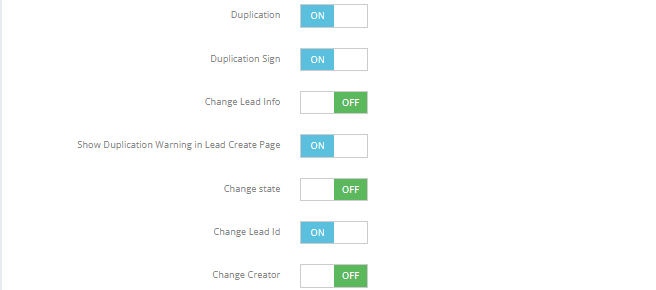
Go to Settings → Sales Settings → Add Lead & Duplication and enable the following options as needed:
| Option | What It Does |
|---|---|
| Duplication | Sends duplicate leads to this screen instead of adding them again |
| Duplication Sign | Adds a visual badge on duplicate lead records |
| Change Lead Info | Updates the existing lead's info with the new data automatically |
| Show Duplication Warning on Lead Creation Page | Shows "Number is Duplicated!!" warning when a duplicate mobile is entered manually |
| Change State | Updates the existing lead's state if the duplicate has a different state |
| Change Lead ID | Updates the Lead ID if the duplicate carries a different one |
| Change Creator | Updates the lead's creator when a duplicate comes from a different source |
Key Things to Know
- Duplication is based on mobile number only — same number = duplicate.
- The duplicate record is shown for information purposes — it is not added to the system.
- Regularly reviewing this screen keeps your lead data clean and avoids double-assigning the same contact.