
Lead Action Filter
Overview
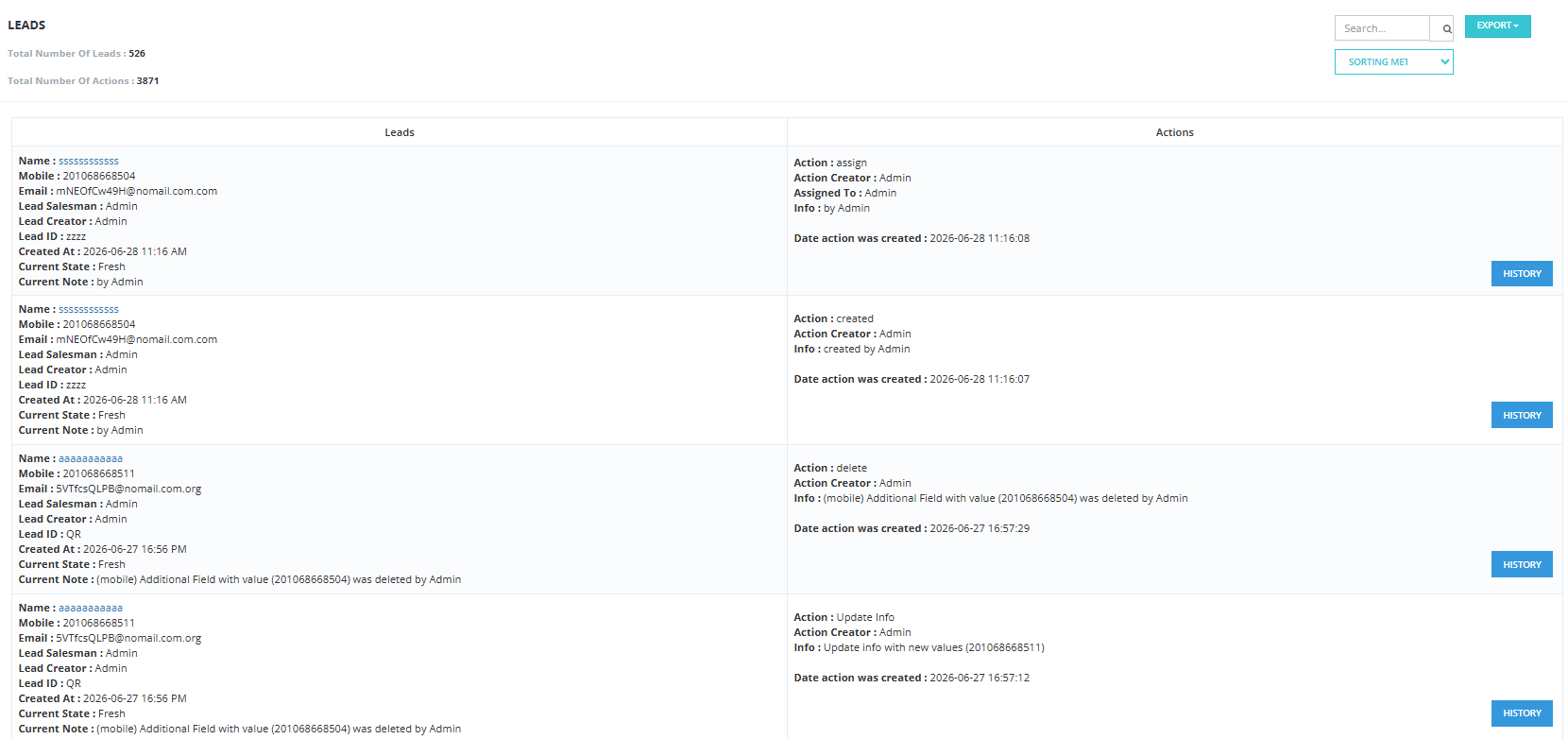
The Lead Action Filter is a monitoring tool that lets managers track what actions their salesmen are taking on leads — who did what, when, and how many actions were completed.
What It Shows
- Total number of leads in the system.
- Total number of actions taken across all leads.
- A detailed list of each lead with:
- Lead name, mobile, email
- Assigned salesman
- Lead creator
- Created date
- Current state
- Action taken (e.g., WhatsApp, Call, Check-in)
- Who performed the action
- When the action was done
How to Use It
- Go to Sales Module → My Leads → Lead Action Filter.
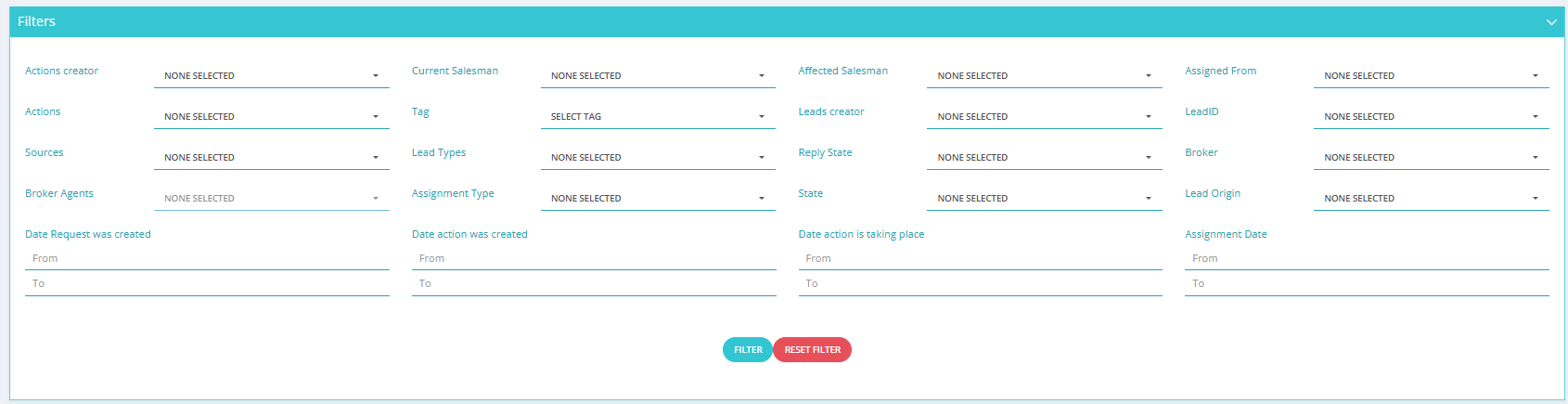
- Apply filters to narrow down results by salesman, date range, action type, or state.
- Review the action log.
Key Insight — Actions vs Leads Count
The number of actions can be higher or lower than the number of leads.
- A salesman with 5 leads but 10 actions has been actively following up.
- A salesman with 5 leads but 0 actions has not contacted any leads yet.
- If a lead shows in All Leads but not here, it may have been deleted/moved to trash.
Available Filter Options
| Filter | Description |
|---|---|
| Creator | The user who created the lead. |
| Current Salesman | The salesman currently assigned to the lead. |
| Affected Salesman | The salesman affected by the action. |
| Assigned From | Who the lead was assigned from. |
| Actions | Filter by specific action type (e.g., call, WhatsApp, check-in). |
| Tag | Filter by tags applied to the lead. |
| Leads Creator | The original creator of the lead. |
| Lead ID | Filter by specific marketing info / Lead ID. |
| Sources | Filter by lead source. |
| Lead Types | Filter by lead type. |
| Reply State | Filter by the reply status of the action. |
| Broker | Filter by broker linked to the lead. |
| Broker Agents | Filter by broker agent. |
| Assignment Type | Filter by how the lead was assigned. |
| State | Filter by current lead state. |
| Lead Origin | Filter by where the lead came from. |
| Date Request was created | Filter by lead creation date (From / To). |
| Date action was created | Filter by when the action was logged (From / To). |
| Date action is taking place | Filter by the scheduled action date (From / To). |
| Assignment Date | Filter by when the lead was assigned (From / To). |
Available Options
- Sort by different criteria to organize the action log.
- Export the action report for external use or reporting.
- History button on each lead — shows the full interaction log for that specific lead.
- Search bar — find specific leads or actions quickly.
Key Things to Know
- This tab is primarily used by managers and team leaders for performance monitoring.
- It is useful for identifying inactive leads or salesmen who haven't logged any actions.
- Use it alongside the Dashboard for a full picture of team performance.